Video VAST (Video Ad Serving Template) allows you to deliver high-quality video ads across multiple platforms and players. The process is streamlined to ensure technical compatibility and optimal performance.
1. Initial Setup
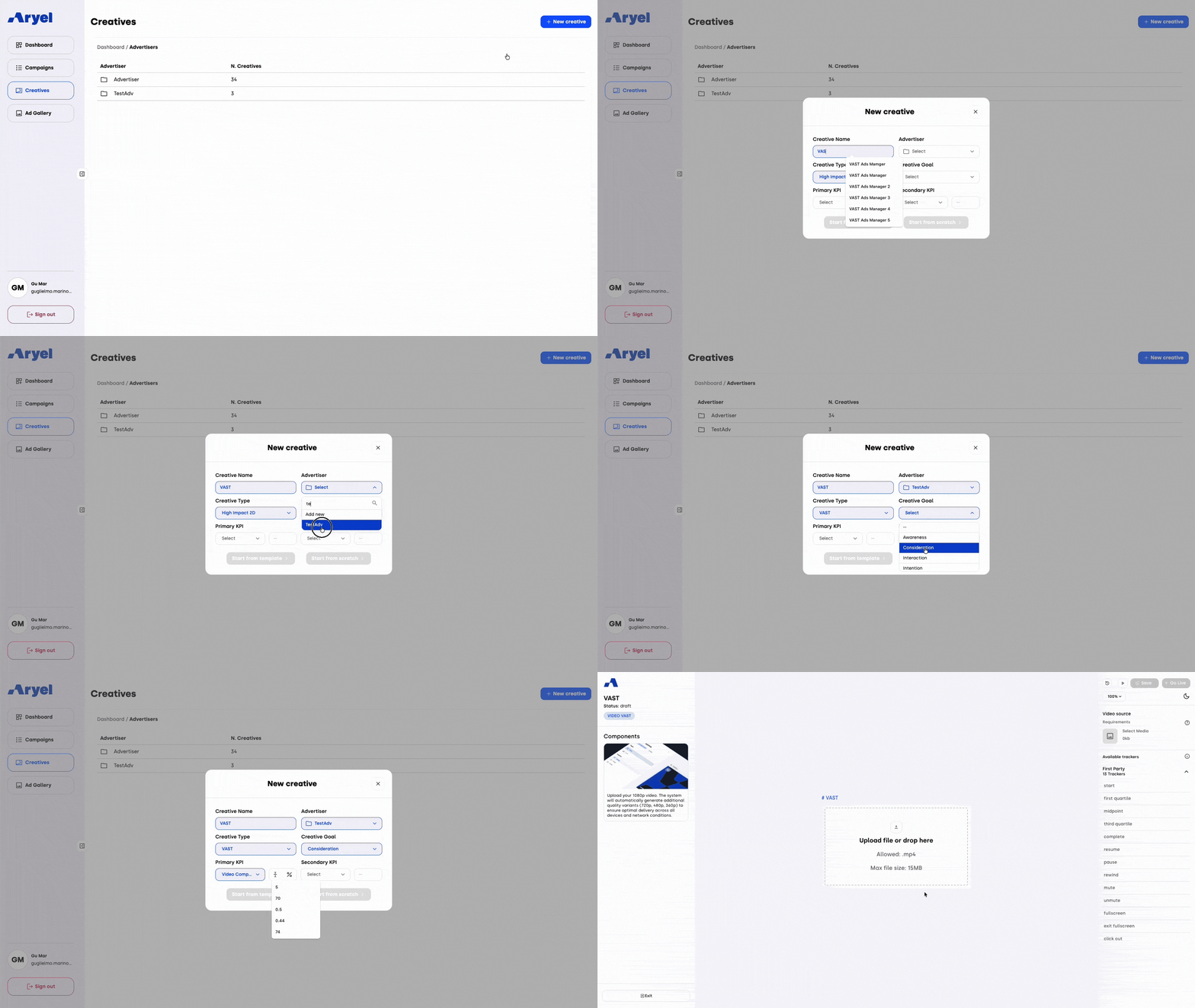
To start, navigate to the Creatives Page. You can click the "New Creative" button either at the top-right of the Advertiser list or within a specific Advertiser’s creative list.
Clicking this button opens a modal where you must fill in the following information:
Creative Name: Assign a clear name to your asset.
Advertiser Selection: This will be pre-filled if you are already inside an advertiser's list.
Creative Type: Select VAST from the dropdown menu.
Creative Goal: Choose the objective that best aligns with your strategy (Awareness, Consideration, Interaction, Intention, Conversion, Retargeting or Prospecting).
KPIs: Define Primary and Secondary KPIs along with their related threshold values.
Once all required fields are completed, click the Start from Scratch button to enter the Ads Manager Builder.
2. Uploading the Video Asset
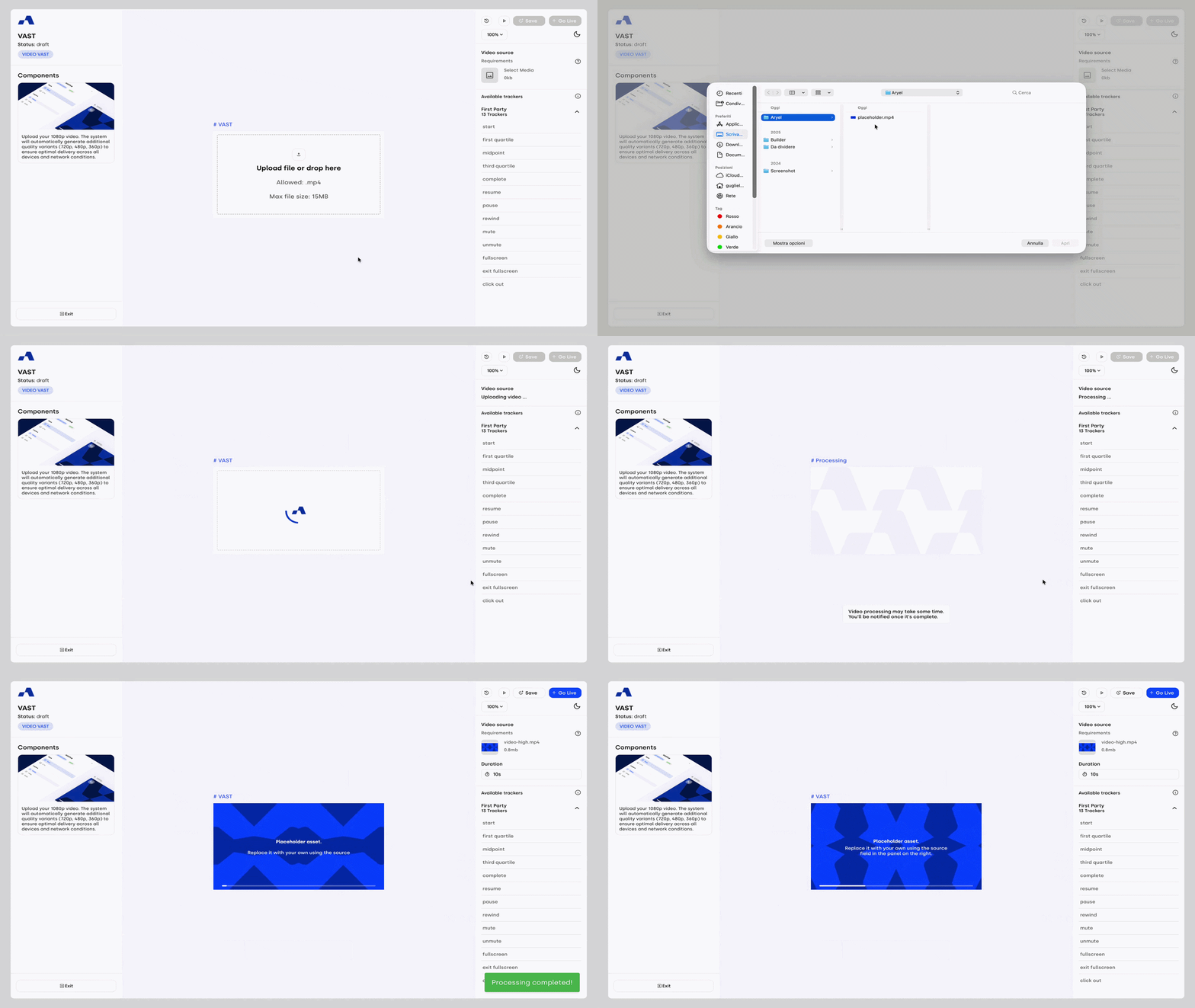
In the Builder interface, you will see a dedicated upload area. You can drag and drop your file directly or click to browse your folders.
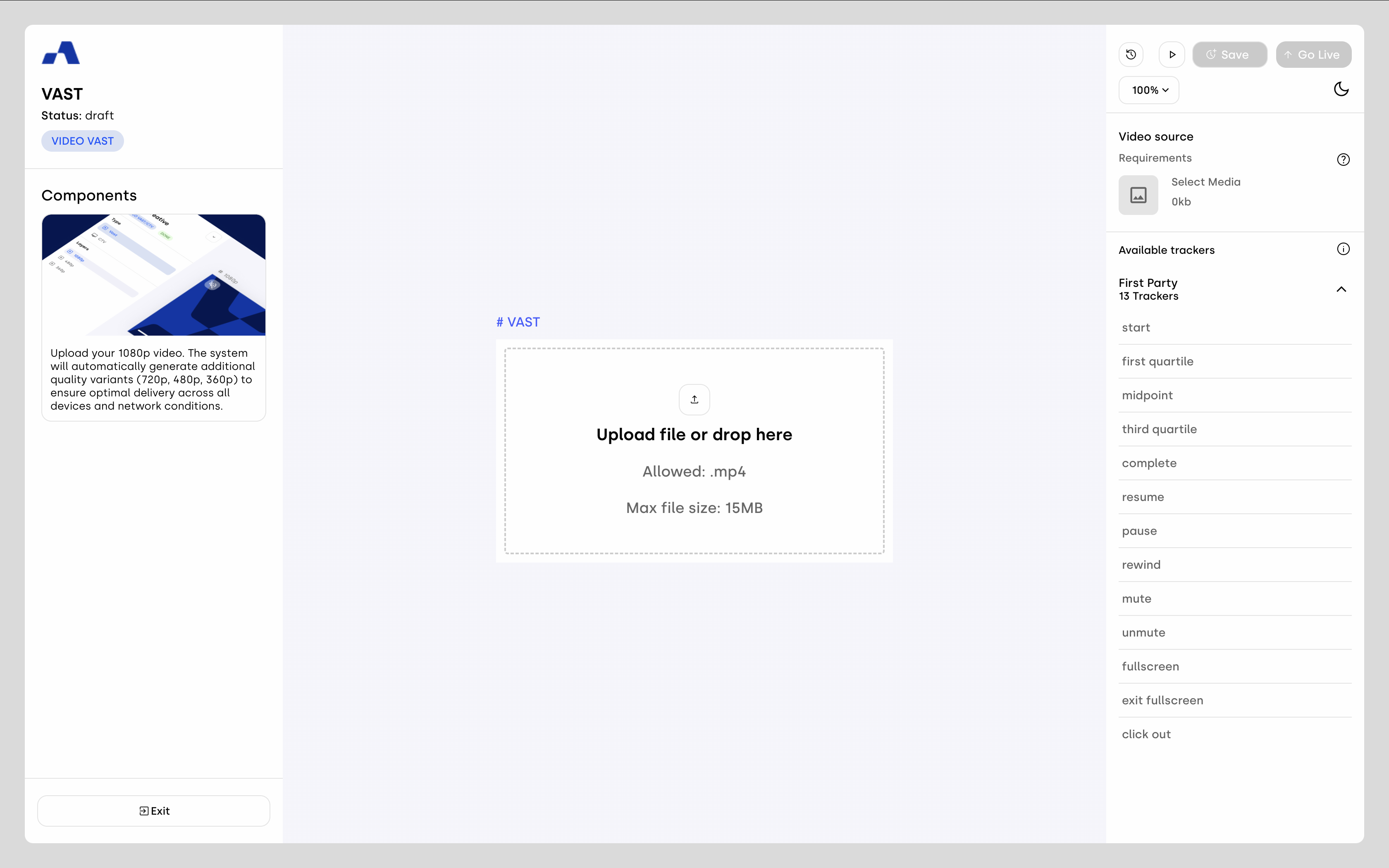
Technical Requirements:
To ensure the best quality and compatibility, please follow these specifications:
Resolution: 1920x1080 (1080p).
Aspect Ratio: 16:9.
Codec: H.264 (Video) and AAC (Audio).
Frame Rate: 24–30 fps.
Bitrate: 2.5–5 Mbps.
Max File Size: 15MB.
3. Automatic Optimization & Saving
Once you upload your 1080p video, the system takes care of the technical heavy lifting:
Multi-Quality Encoding: The system automatically generates additional quality variants (720p, 480p, 360p). This ensures that your ad delivers smoothly across all devices and varying network conditions (mobile vs. desktop).
Auto-Save: As soon as the upload and processing are finished, the system saves the creative automatically.
Your Video VAST creative is now ready to be linked to a campaign!
4. Editing and Updating the Video
If you need to replace the video asset after the initial creation, you can do so directly within the Builder:
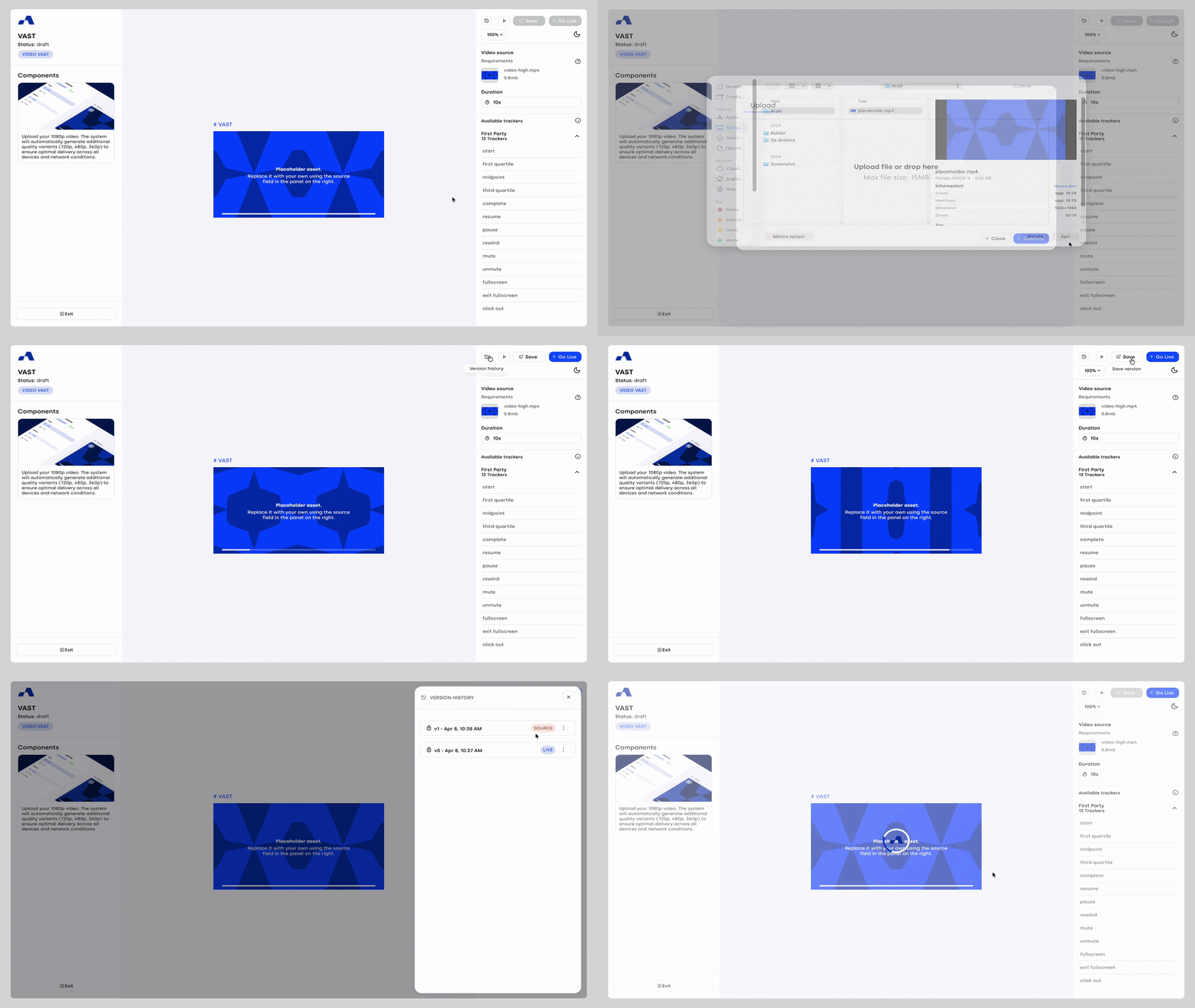
Replacing the Source: By hovering over the Video Source area, a pencil icon will appear. Clicking it opens the upload window where you can select a new video file.
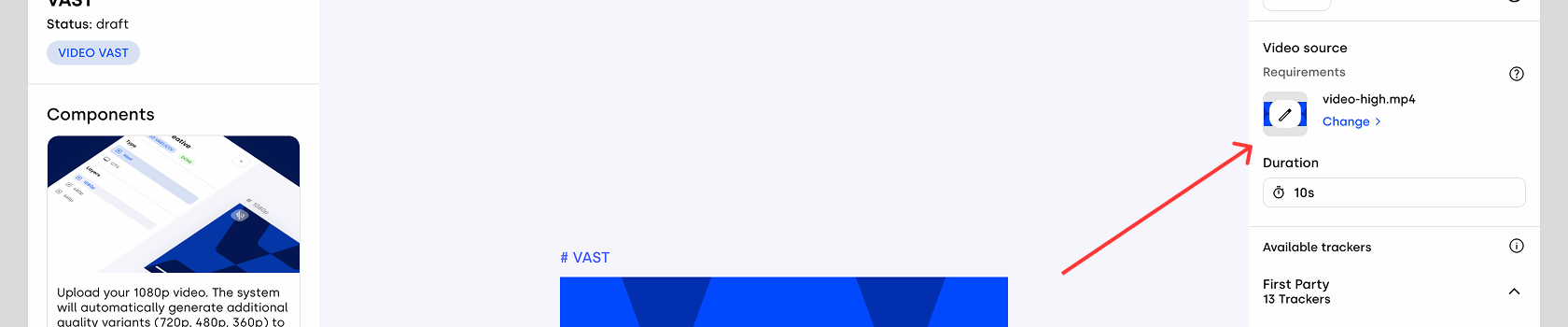
Automatic Draft Saving: Once the new upload and optimization process is complete, the system automatically saves the changes to your current draft. This ensures your work is not lost, but it does not yet create a permanent version in the creative history.
Saving a Version: To freeze your changes into a specific, numbered version, you must manually click the Save Version button. This allows you to archive the current state of the creative without affecting the version currently in delivery.
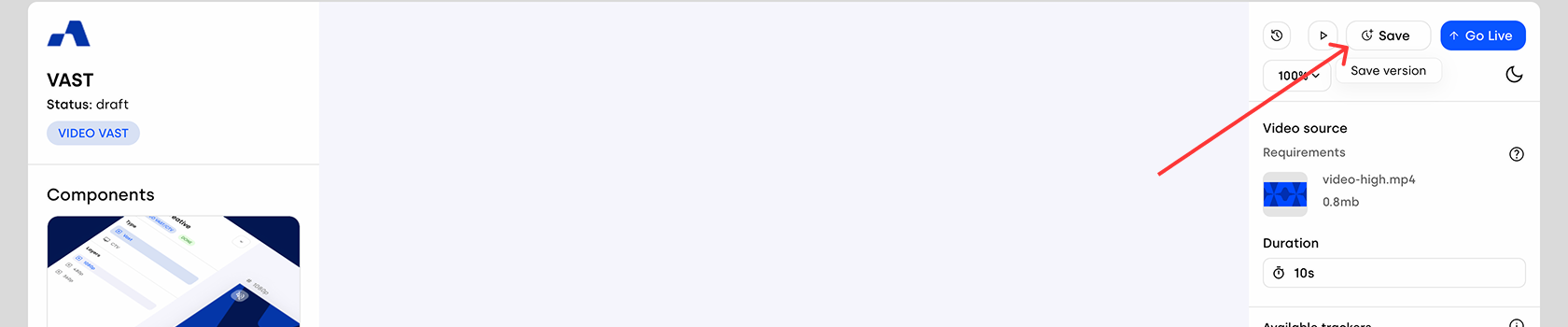
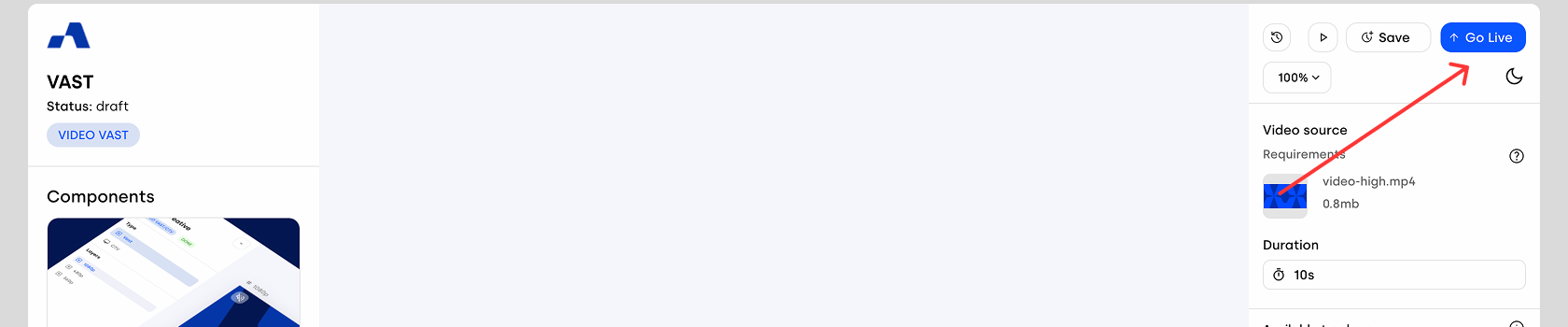
Going Live: Neither the auto-save of the draft nor the "Save Version" action will update your active campaigns. To push the new video live, you must click the Go Live button. This action applies the current state of the creative to all active tags, synchronizing your live delivery with your latest updates.