
The Compare component allows you to build interactive and dynamic ads where users can visually compare two different images by dragging a cursor from left to right. This component enables the creation of classic side-by-side experiences and represents one of the most widely used ad formats within Aryel.
Adding a Compare Component
You can add the Compare component in two different ways:
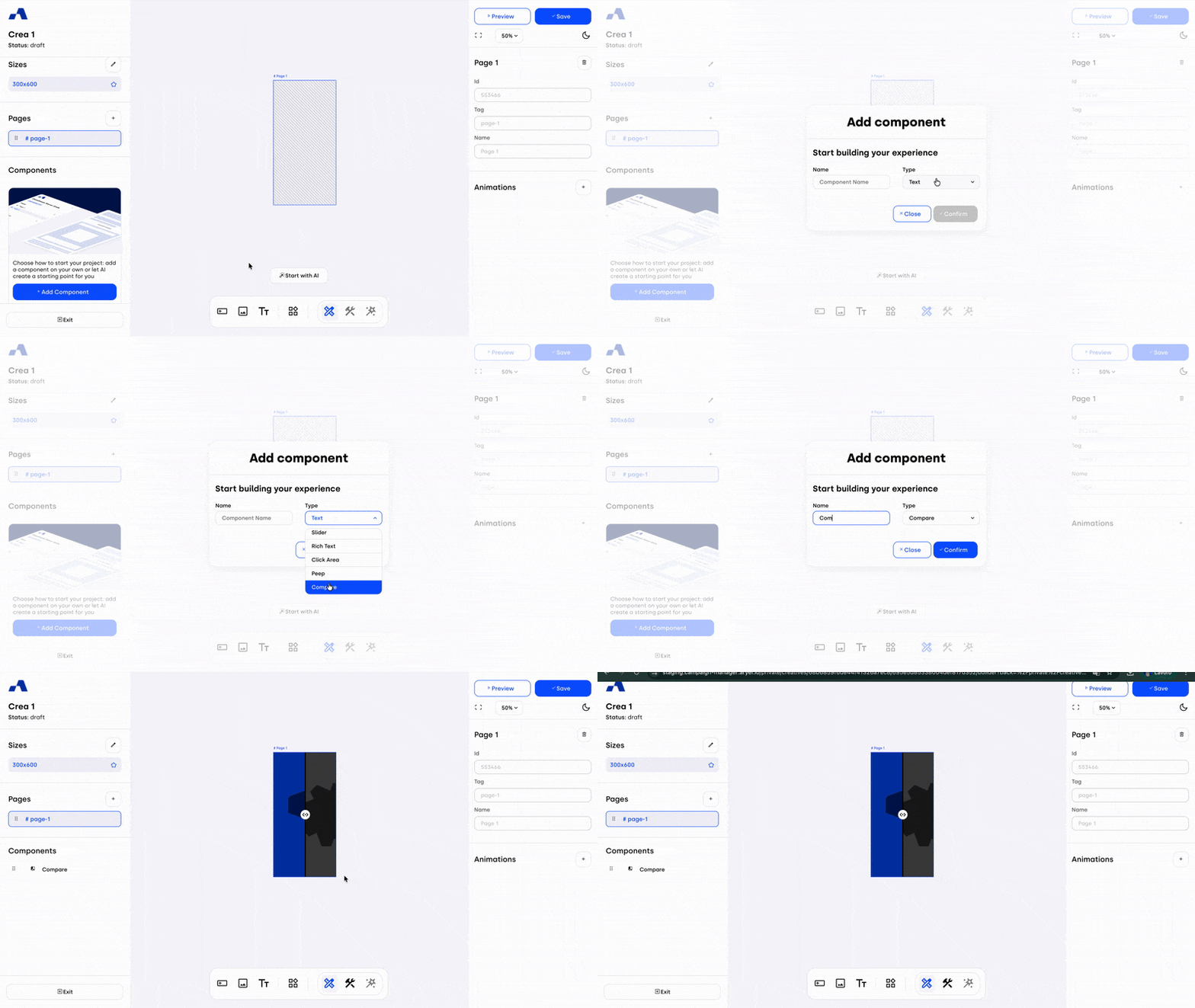
From the left sidebar, click the + Add Component button, select Compare from the type dropdown, and assign it the desired name.
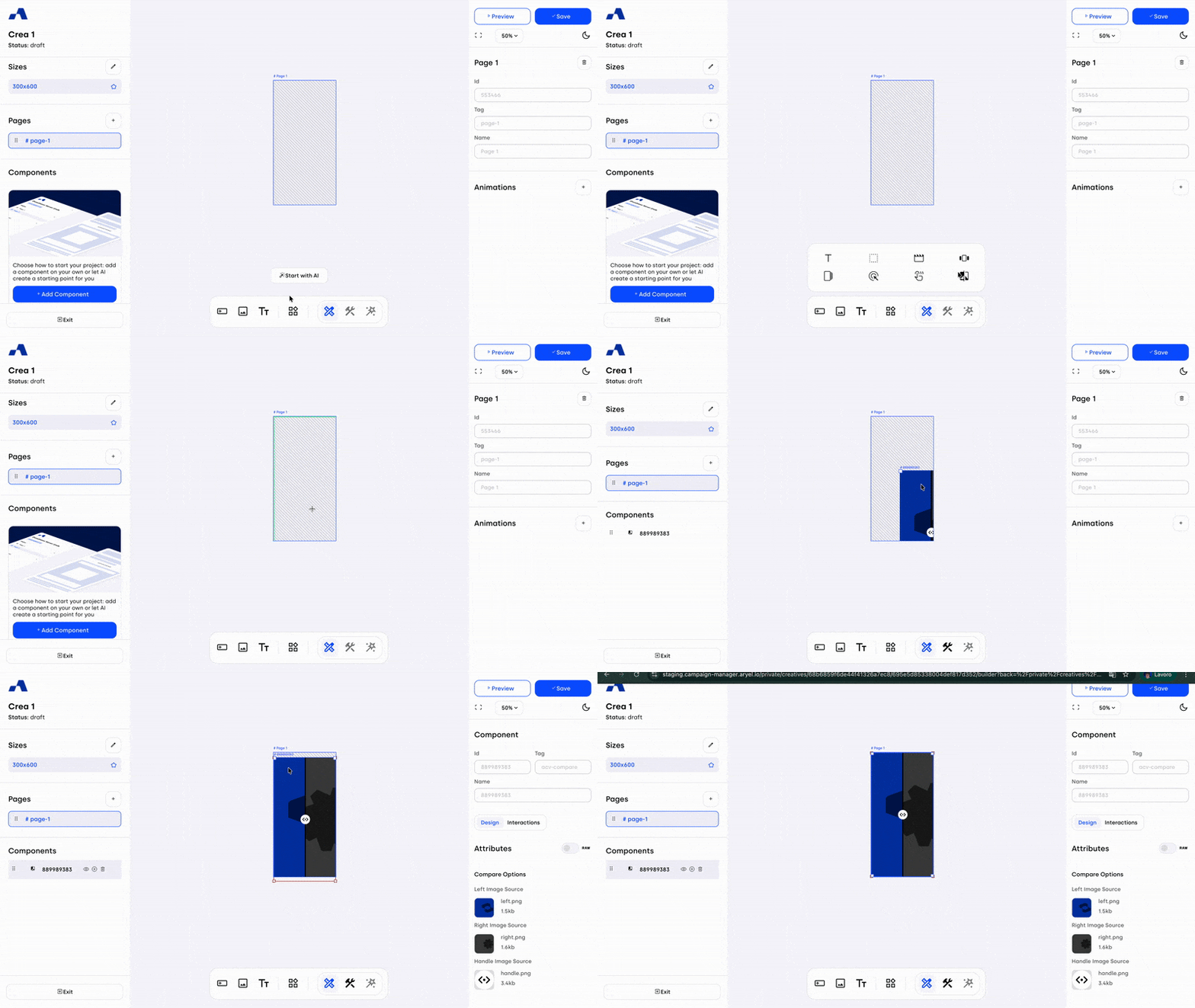
From the central toolbar, click the Compare icon and then place the component directly onto the page by clicking inside the page.
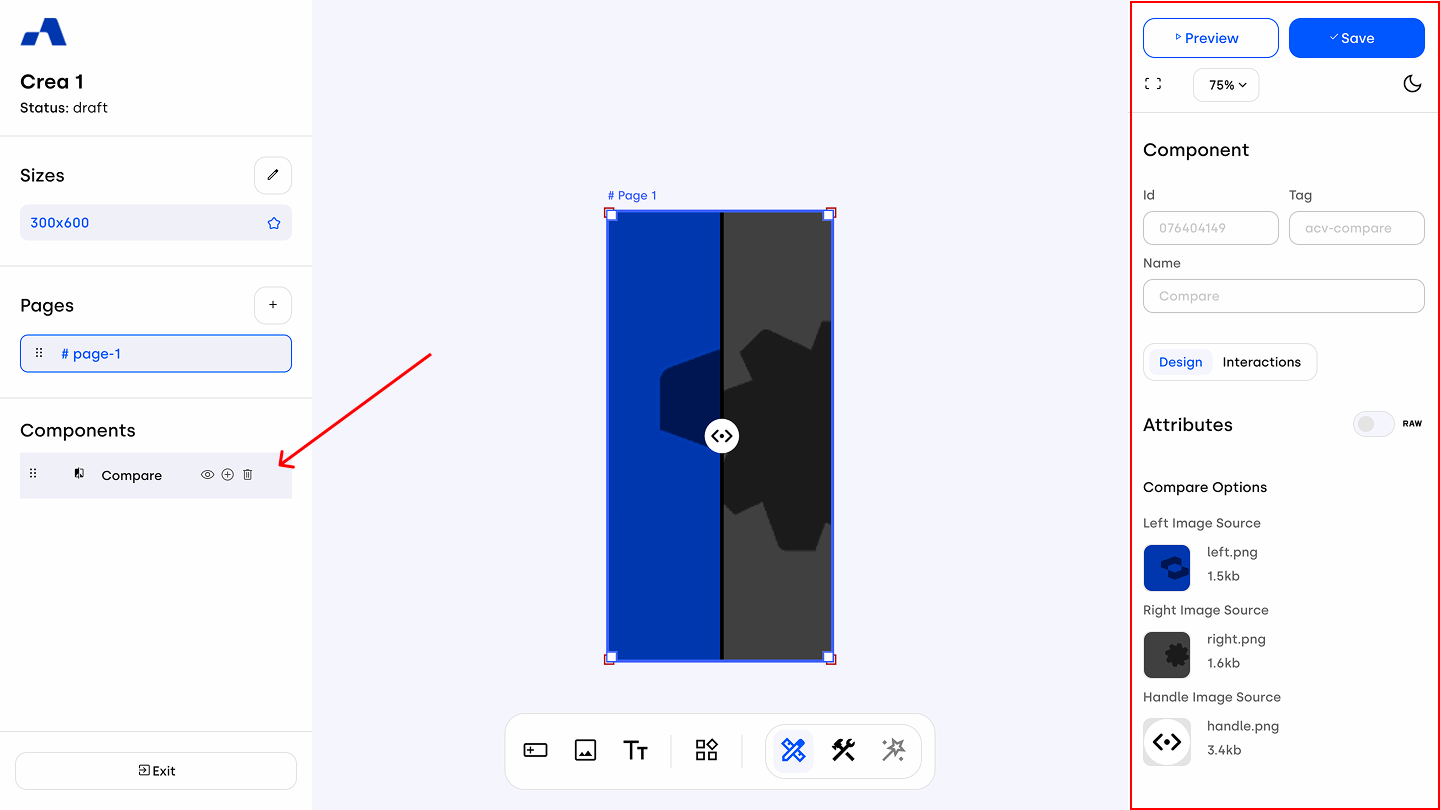
Once added, the Compare component will appear in the Layers section and can be selected and configured like any other component.
Right Sidebar Configuration
When the Compare component is selected, the right sidebar updates to display dedicated settings specific to this component.
Design Tab
Compare Options
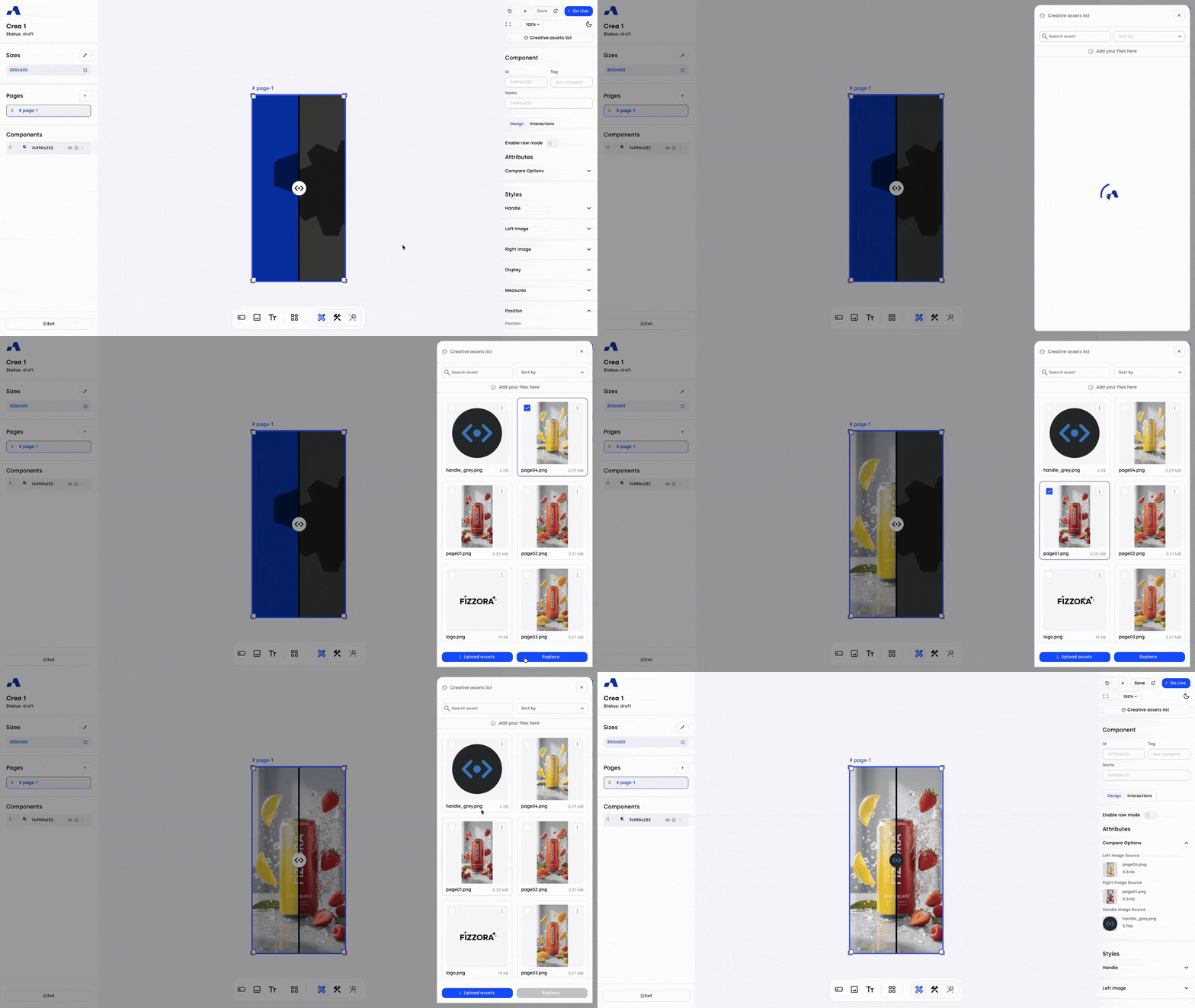
The first section allows you to replace the default placeholder images. From here, you can update the left image, right image, and the handle element.
Handle Section
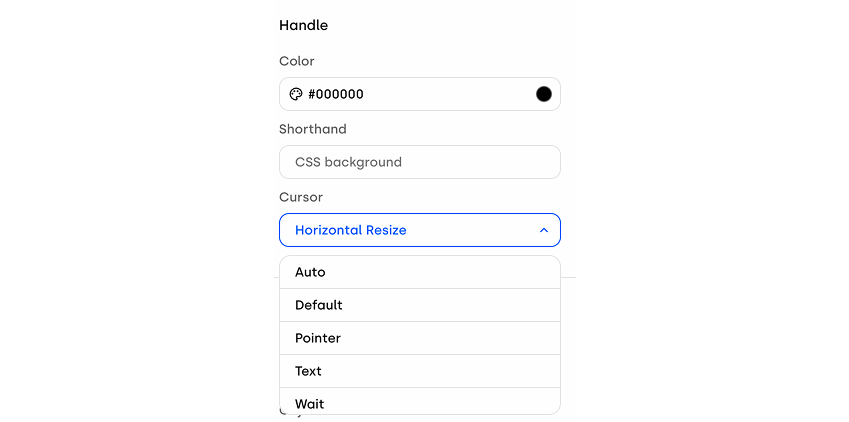
Scrolling down, you’ll find options to customize the handle itself. You can adjust the color of the dividing line between the two images either by assigning a new color or by using a CSS shorthand, and choose between different cursor design options when hovering over the handle.
Left and Right Images Sections
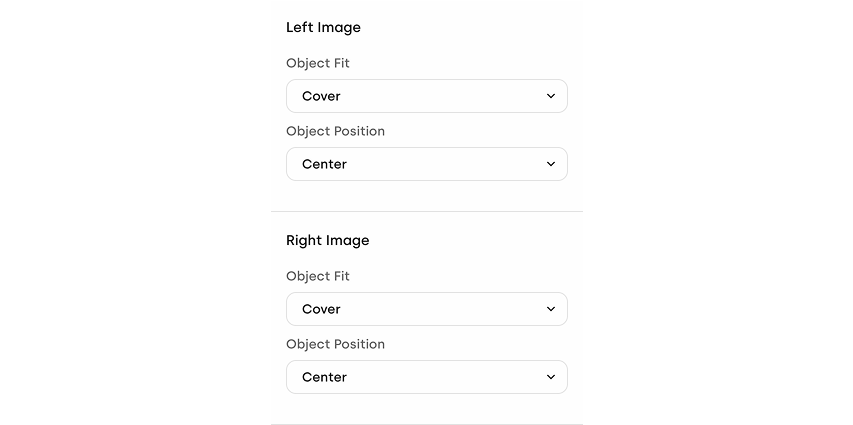
Further down, you’ll find fit and position settings for both the left and right images, allowing you to fine-tune how each asset is displayed within the component.
Styles Section
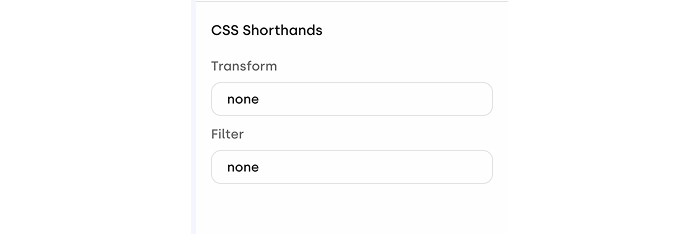
Finally, you’ll see the styles options that are available across all components, such as Measures, positioning, borders, and more. For the Compare component, you can also use the transform and filter shorthand properties found at the end of the settings panel to apply advanced visual effects.
Interactions Tab
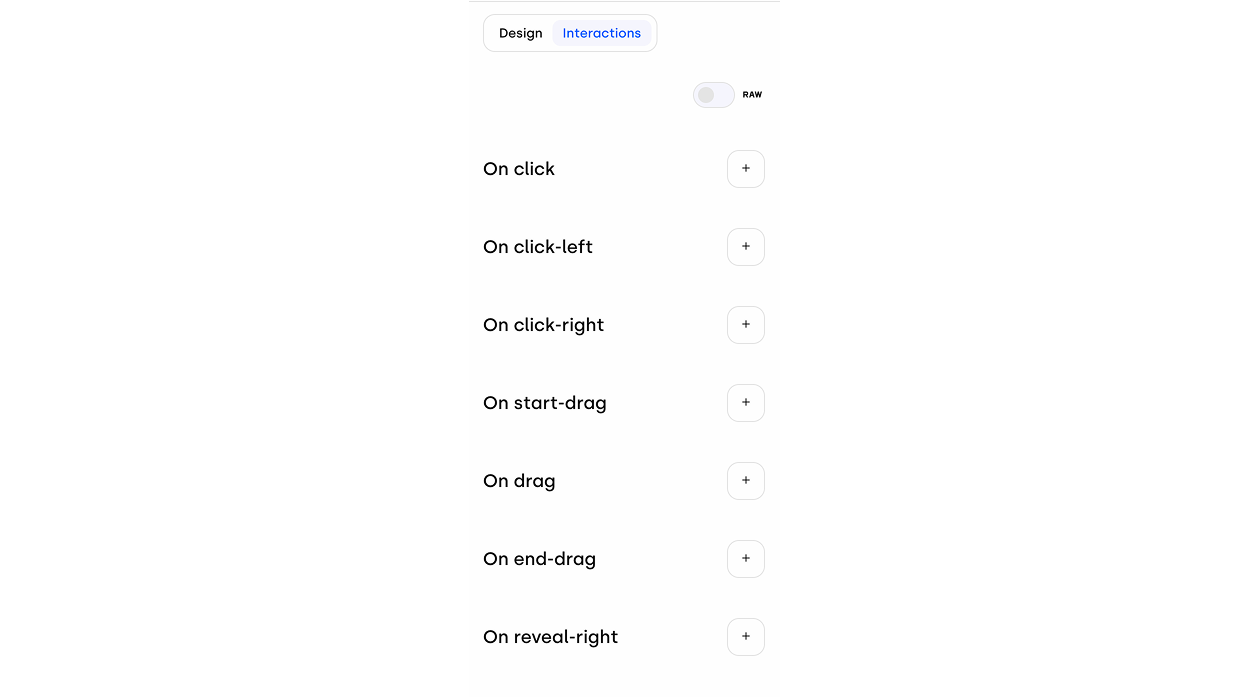
The Interactions section allows you to manage the different actions users can perform on the various parts of the creative, enabling you to define how the Compare component responds to user interactions.
The Compare component offers a wide range of possibilities for building highly interactive and visually engaging ads, making it a powerful tool for showcasing product differences and driving user interaction.