
Campaign reports are essential for assessing the effectiveness of your advertising efforts, allowing you to analyze key performance indicators (KPIs) and make data-driven decisions for future campaigns. By exporting a campaign report, you gain access to detailed metrics that reveal insights into user engagement, ad visibility, and overall performance.
📌 Please note: The report download is available only for campaigns containing flights in the “Ongoing,” “On Hold,” and “Ended” states.
How to Export a Campaign Report
Log In to Ads Manager
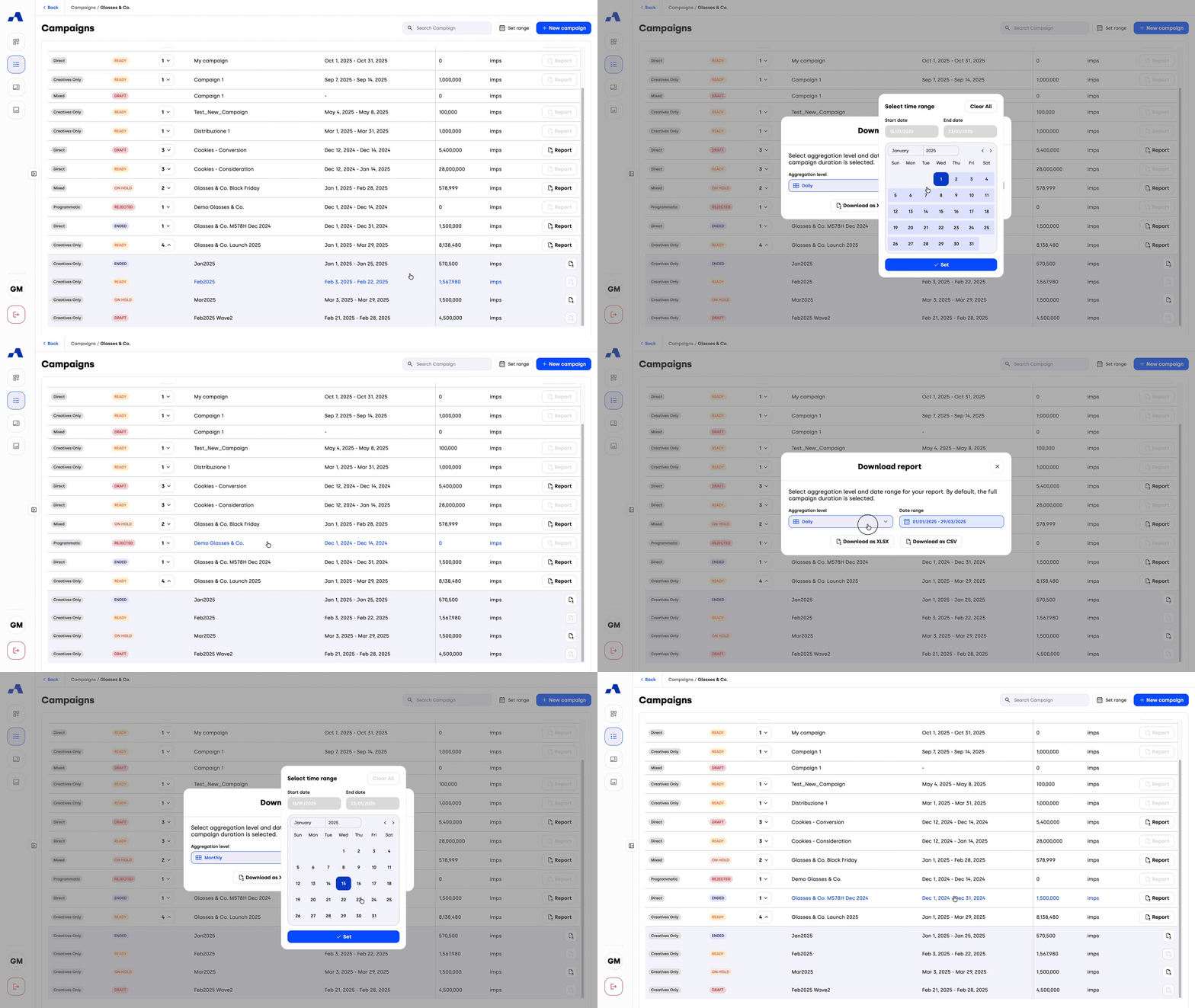
Start by logging into the Ads Manager platform. Locate the campaign you want to export, then click the Report button to open the interactive download modal.
Select an Aggregation Level and a Custom Date Range
Extract specific data by choosing how you want your data grouped and applying a custom date filter. Clicking the download icon opens a dedicated report configuration window.Aggregation Level Selection: You can choose the aggregation interval for your data. By default, "Daily" is selected. From the dropdown menu, you can select:
Daily: Breaks down the performance metrics day by day.
Monthly: Groups the performance metrics by month.
Cumulative: Provides a single total summary for the entire selected time period.
Targeted Data Extraction: You can filter your reports by custom date ranges prior to downloading. This ensures you only extract the specific period of interest without having to manually clean up data in Excel later.
Total Duration Default: By default, the download window pre-fills with the total start and end dates of your selected Campaign.
Custom Date Range Selection: Using the interactive calendar picker, you can manually define a specific start and end date, provided it falls within the active limits of the Campaign.
Seamless Application: Once you have chosen your dates, simply click "Set" to apply the filter.
Download the Report
After selecting your aggregation level and setting your date, click one of the two download buttons, depending on the format you need:Download as XLSX: exports the report as an Excel file, ready to open in Excel or other spreadsheet applications.
Download as CSV: exports the report as a CSV file, ideal for importing the data into other tools.
Both files contain the same customized, filtered data. The report will be formatted to provide a detailed view of your campaign’s performance metrics. The CSV file will resemble the example below.

You can also initiate the download process from the Campaign Overview Page by clicking the Download button.

Downloading a Report for a Specific Flight
If you only need the report associated with a specific flight, follow these steps:
From the Campaign List:
Navigate to the desired flight under the campaign.
Click the “Download Report” button in the flight field. This will open the same interactive aggregation and date filter modal described above.
Choose your desired aggregation level (Daily, Monthly, or Cumulative), select your custom date range (or leave the total duration default), click Set, and then click Download as XLSX or Download as CSV. This will generate a filtered file in your chosen format with detailed metrics for that flight’s performance.

You can also download the report from the Flight Details Page by clicking the Report button and applying your desired date filters.

Report Overview
Each report includes the following standard information, providing a comprehensive overview of key performance indicators (KPIs):
Creative: The name of the campaign creative.
Advertiser: The advertiser associated with the campaign.
Campaign: The specific campaign name for easy identification.
Flight: The name of the campaign flight.
Ad Tag: The ad tag name, which contains dimensions or specifications of the ad used.
Date: The date the data was collected, helping track performance over time.
Impressions: The number of times the ad was requested by webpages.
Loaded: The number of times the ad successfully loaded on the page.
Rendered: The number of times the ad was fully rendered and viewable.
Engaged Impressions: The number of unique interactions with the banner content.
Total Clicks: The number of unique clicks with the included CTA.
These standard fields provide insights into the campaign’s reach, effectiveness, and engagement. Additionally, the report may include tracking results for any events that were set up, offering a more granular view of user behavior and ad performance across different metrics.
By following these steps, you can easily export and review detailed metrics for each campaign, helping to assess and optimize future advertising efforts.