
This October brings automatic click-out tracking and a fully predictable canvas selection to the Builder. Ads Manager gets a refreshed experience with a redesigned campaign creation flow, CSV upload for Allowlist, and Excel export for reports. Together, these updates help you build, launch and analyze campaigns faster and with fewer errors.
Automatic Click Tracking: Error-Free Click-Out Setup
Make sure every click-out is tracked, without any manual configuration.
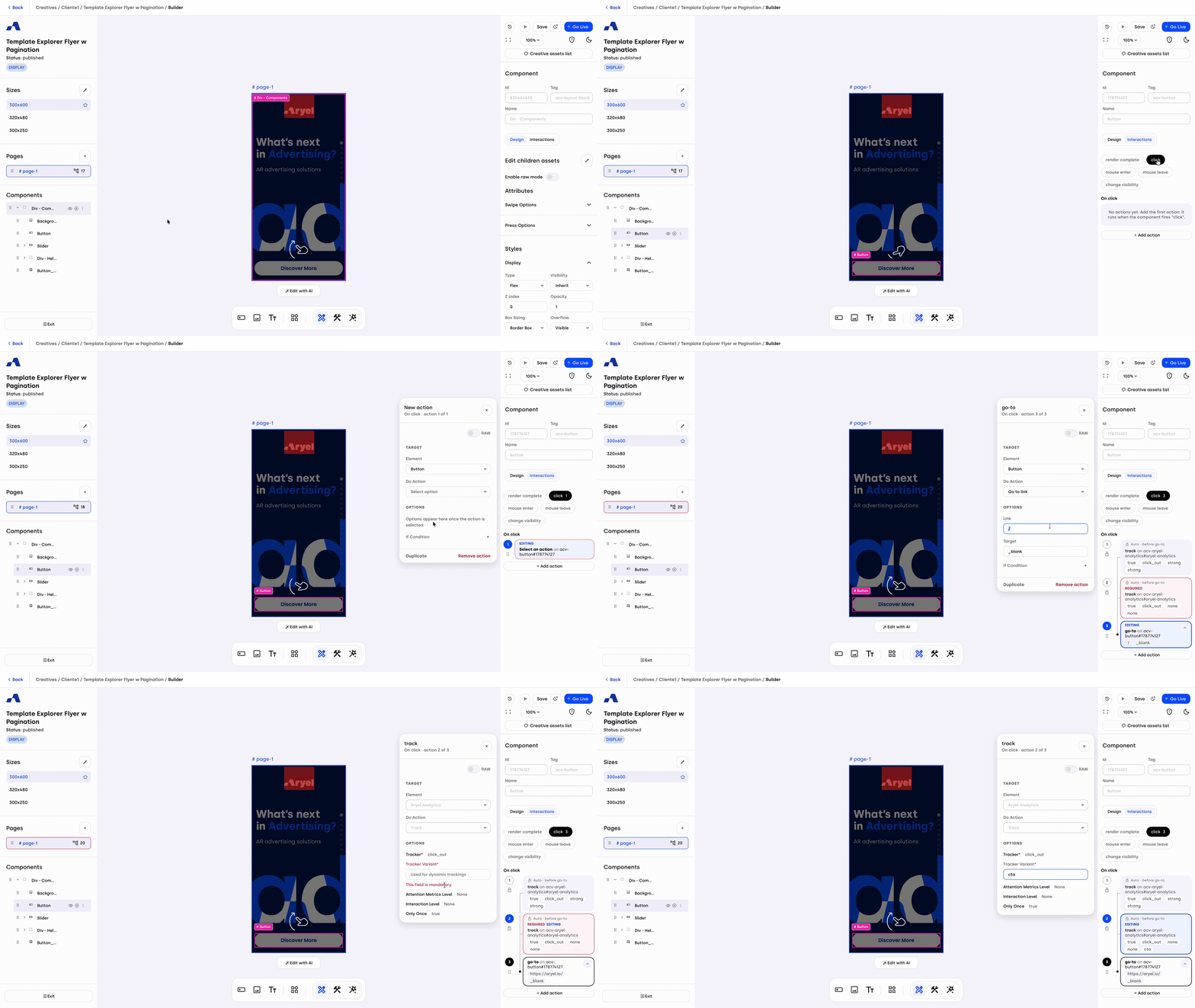
Auto-Generated Trackers: To make click-out setup easier and reduce the risk of errors (such as a click-out action without its tracker attached), adding a “Go to Click Out” or “Go to Link” action in the Builder now automatically creates the related tracking actions, linked to the main one.
Two Trackers, One Action: The system adds two trackers. The general click-out tracker (click_out) comes fully pre-filled, with nothing to configure. The specific click-out tracker (e.g., click_out_header, click_out_footer) is built from the Tracker Variant field. Both actions are marked as Auto and placed right before your action.
Protected Configuration: Both tracking actions are pre-filled and read-only on the fields that must stay untouched, so the data is always recorded correctly. The only field you need to complete is the Tracker Variant of the specific tracker. It is mandatory, and the action stays flagged as Required until you enter a value.
Canvas Selection: Predictable Clicks & Keyboard Navigation
We’ve revised how element selection works on the Builder canvas, so you always get exactly what you see.
Container-First Logic: Selection now follows a simple rule: first you select the container (such as a layout block, a slider, or its slides), then you go inside to select what it holds. A single click selects the container. A double click takes you one level deeper. ⌘ (Mac) or Ctrl (Windows) + click jumps straight to the innermost element.
Dashed Outline Preview: When you hover over the page, a dashed outline shows in advance which element a click will select. Holding ⌘ or Ctrl moves the outline to the innermost element.
Overlapping & Hidden Elements: When elements overlap, a click selects the one on top. You can reach an element that is fully hidden underneath in three ways: press Tab from a nearby element, press Enter on its container, or click it in the page tree.
Keyboard Navigation: Move across the canvas without the mouse:
Enter goes inside a container.
Shift + Enter goes back out.
Tab and Shift + Tab move between elements in the same container.
Esc clears the selection. If a window or the interactions panel is open, the first Esc closes it and keeps your selection.
Page Tree Selection: Clicking an element in the page tree selects it directly, however deeply it is nested, and hovering over it highlights it on the canvas. Note that 3D elements can only be selected from the page tree.
Ads Manager: Refreshed User Experience
We’ve redesigned key areas of Ads Manager for a cleaner workspace, easier navigation, and a more reliable campaign setup.
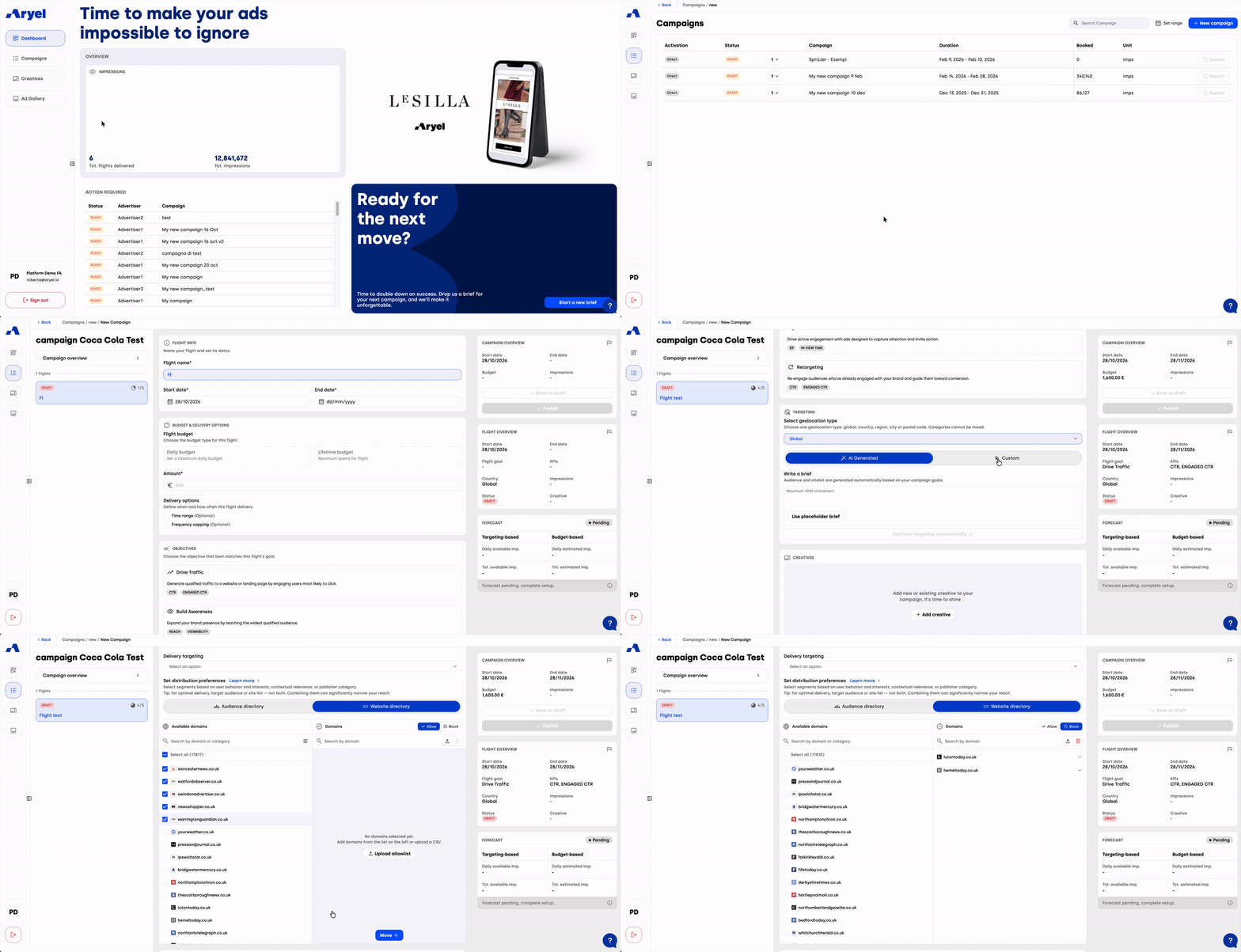
Collapsed Navigation Bar: The side navigation bar is now collapsed by default when leaving the dashboard, giving you more space to focus on your campaigns and data.
Breadcrumb Navigation: A new breadcrumb pattern is available on every page, so you always know where you are and can jump back to any previous level in one click.
No Pre-Filled Fields: The campaign creation form (self-service usage) no longer contains pre-filled values, so incorrect settings can’t be saved by accident. Every parameter is now an explicit choice.
Automatic Draft Flight & Progress Indicator: When you start creating a campaign, a flight in Draft status is created automatically. An indicator shows which setup steps are complete, so you can track easily your progress.
AI-Generated vs. Custom Targeting: A dedicated toggle lets you switch between AI-generated targeting and custom targeting, keeping the two approaches clearly separate.
Simplified Audience & Site List Management: Selecting audiences and managing site lists is now simpler and more intuitive within the campaign creation flow.
Allowlist Upload via CSV: Faster Site Targeting for Full Activation
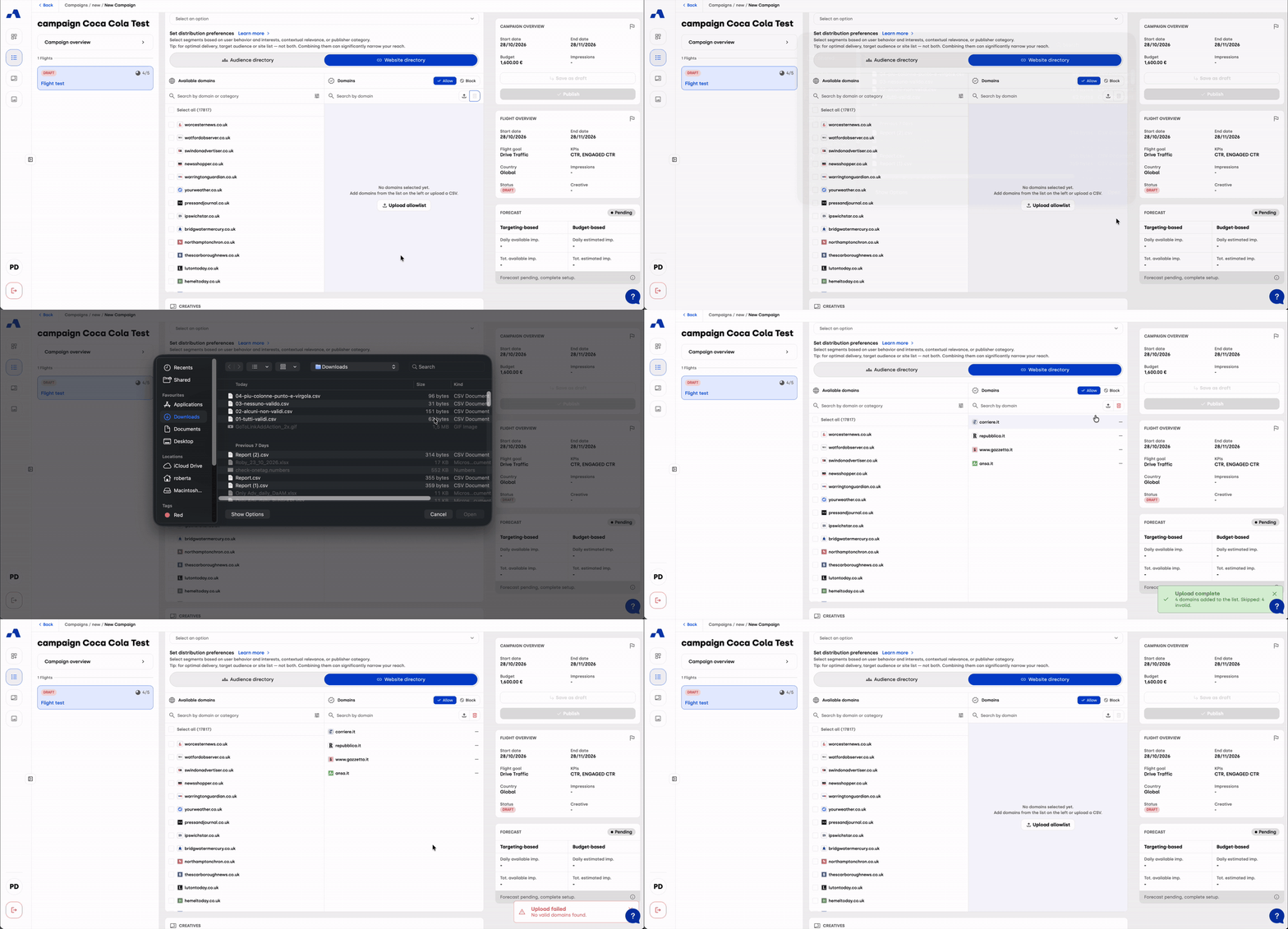
Set up your site targeting in seconds by importing your domains directly from a file.
Allowlist & Blocklist Upload: In the custom targeting section of the Full Activation campaign creation form, you can set both an Allowlist and a Blocklist for sites. Each list has its own CSV upload button.
Automatic Target List Update: Domains uploaded to the Allowlist are added automatically to the flight’s target list. You can still edit the list after the upload.
Instant Upload Feedback: After each upload, a summary shows how many domains were added, how many were already in the list, and if there was any error in the upload.
Enhanced Reporting: Excel Export
You now have more flexibility in how you download your performance data.
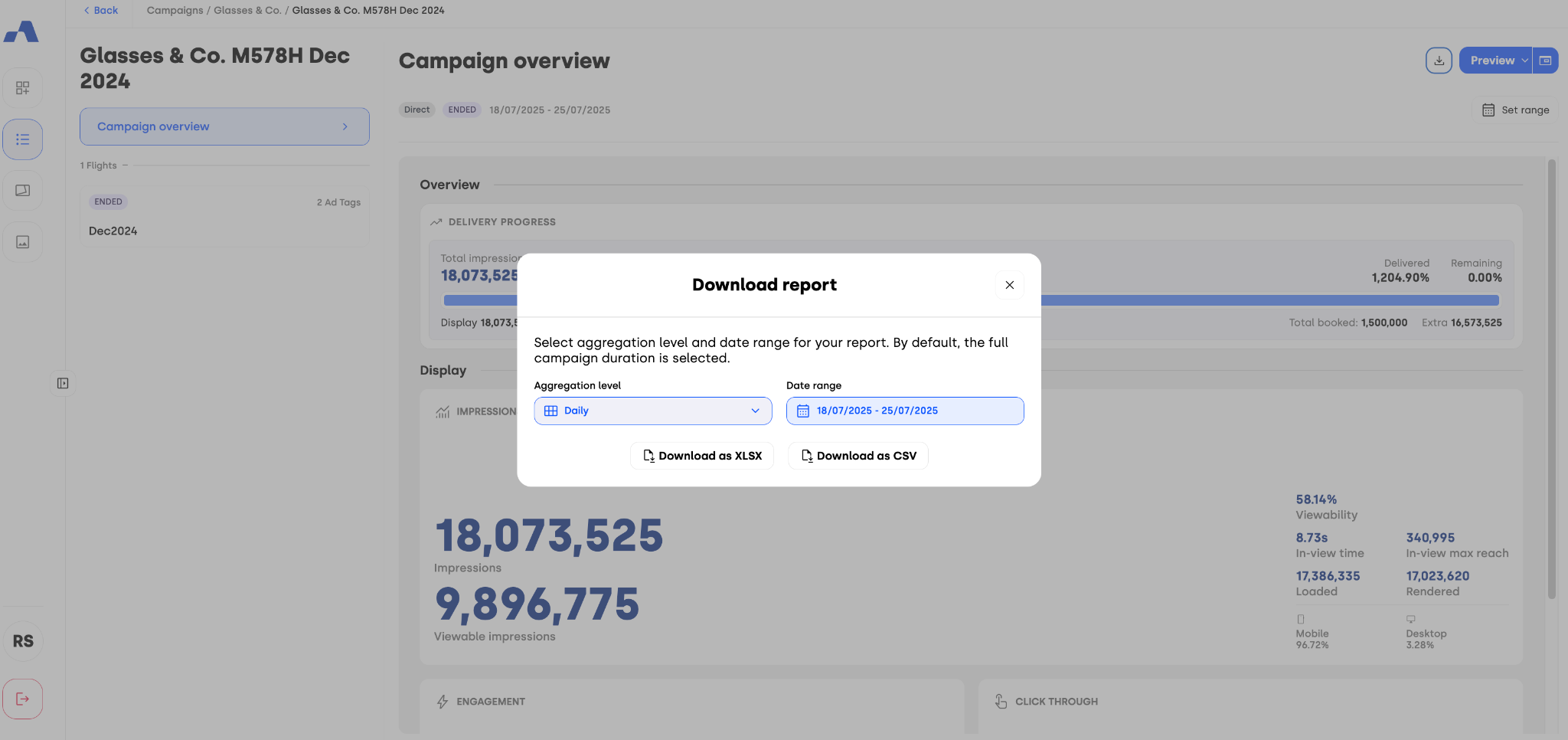
Download as XLSX: The report download modal, available at both Campaign and Flight level, now offers two formats. “Download as XLSX” exports the report as an Excel file, ready to open in Excel or any other spreadsheet application. “Download as CSV” is still available for importing data into other tools.
Same Data, Your Format: Both files contain the same data, including your selected aggregation level (Daily, Monthly, or Cumulative) and custom date range.
Whether you are setting up click-outs with built-in tracking, navigating complex creatives on the canvas, launching campaigns through the refreshed Ads Manager flow, importing your Allowlist in one go, or exporting reports in the format you prefer, these October updates are designed to reduce errors and speed up your workflow. Log in to explore the new features.