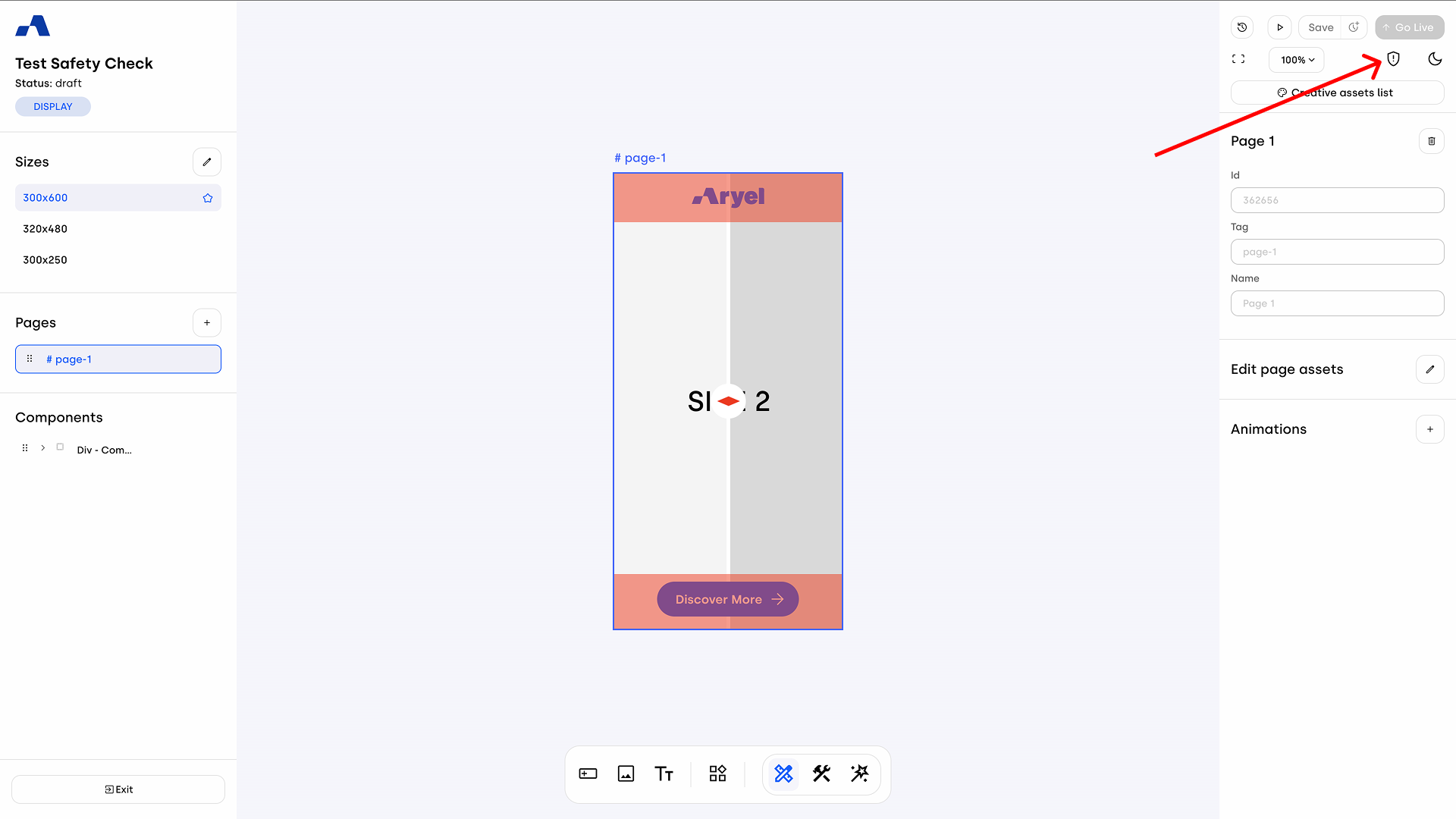
Located in the right-hand panel, right next to the dark mode toggle, you will find a new shield-shaped icon. Clicking this icon opens the Creative Safety Check window. This feature acts as a pre-flight validation tool, providing essential information to help you determine if your creative is fully optimized and ready to go live.
Important Note: The Safety Check is an advisory tool. It does not block or prevent you from publishing your campaign. Its purpose is to alert you to potential issues regarding file weight limits and tracking configurations—covering both Aryel's native tracking and third-party setups—before you hit publish.
Overall Validation Status
At the top of the Safety Check window, you will see a quick summary of your creative's overall validation status. Depending on the results of the internal checks, you will encounter one of the following three states:
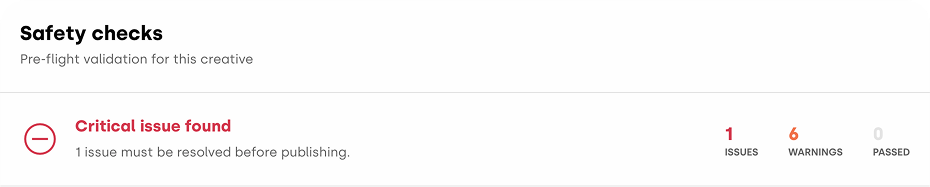
Critical issue found: This indicates that there is at least one major error that should be resolved before publishing (e.g., the file weight exceeds the allowed limit).
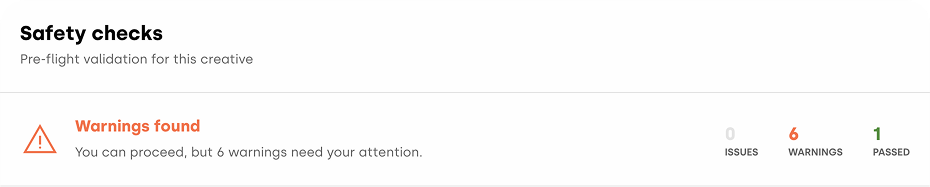
Warnings found: You can proceed with publishing, but there are non-critical issues that require your attention, such as being very close to the maximum file size.
All checks passed: Your creative is perfectly optimized, all tracking configurations are correct, and it is fully ready to be published.
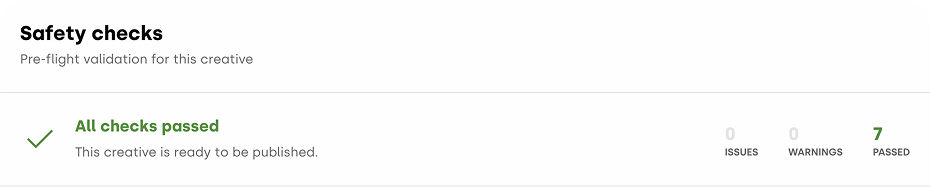
Below this main status indicator, the window expands into three detailed sections to pinpoint the exact status of your setup: Weight, Aryel Analytics, and Third-Party Analytics.
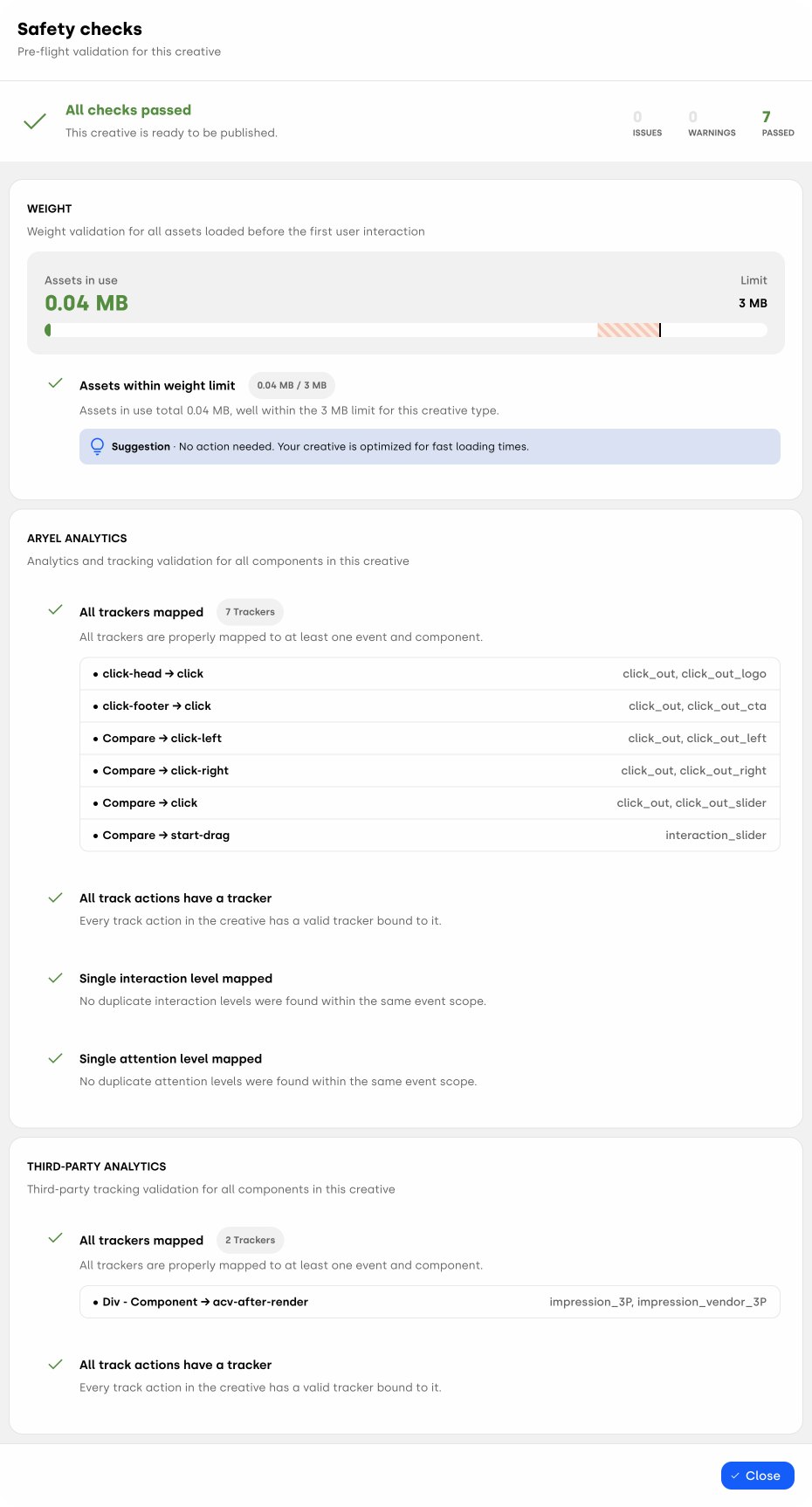
Weight Validation
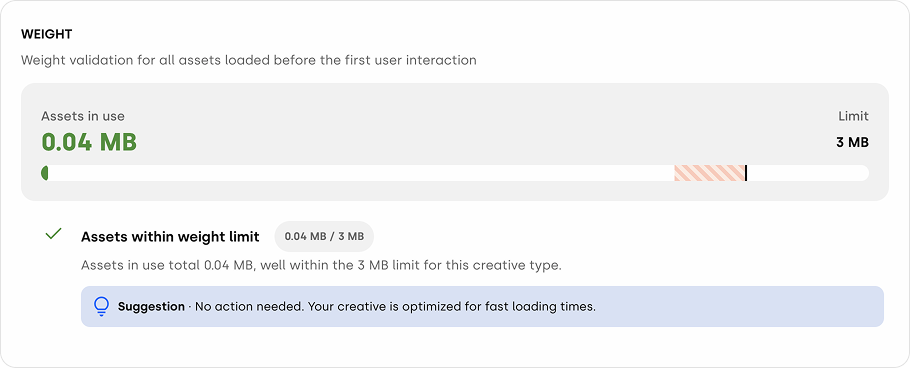
The Weight section evaluates the total file size of all assets loaded before the first user interaction. Keeping your file sizes optimized is crucial for ensuring fast loading times and a smooth user experience. The standard maximum limit for a creative is set at 3 MB.
Based on your creative's total size, this check will display one of three outcomes:
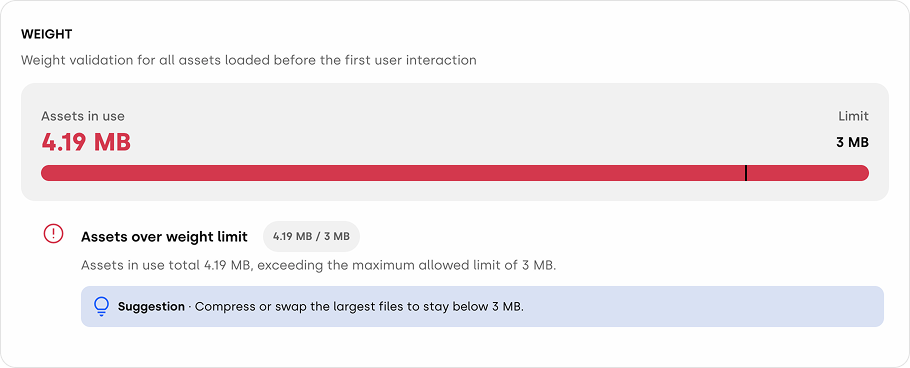
Error (Over Limit): If your assets exceed the 3 MB limit, it will trigger a critical error. The interface will display a red progress bar and advise you to compress or swap the largest files to get the weight down.
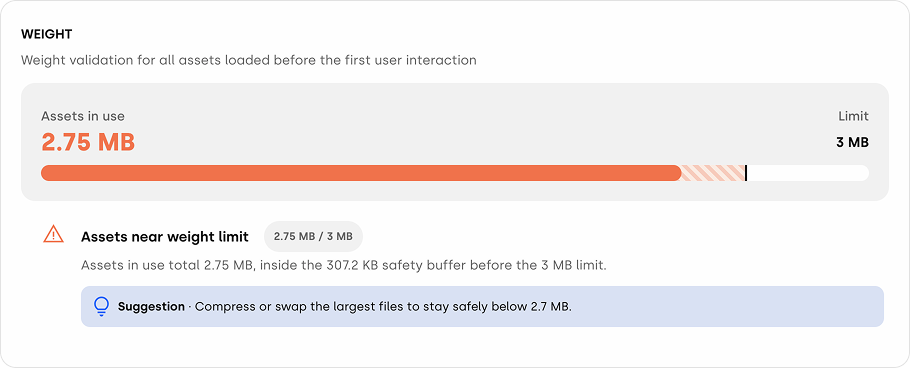
Warning (Near Limit): If your asset weight is between 2.7 MB and 3 MB, you have entered the 10% safety buffer. The system will flag this with an orange warning, indicating that while you can still publish, you are very close to the maximum allowed limit and should consider optimizing.
Passed (Within Limit): If your assets take up 90% or less of the 3 MB limit (under 2.7 MB), the check will pass successfully with a green indicator. This means your creative is well within the acceptable threshold and optimized for fast loading.
Aryel Analytics Validation
This section focuses on ensuring that your native Aryel tracking is correctly configured. A proper setup is vital for gathering accurate data without missing events or accidentally double-counting them. The Safety Check scans for four specific conditions within your analytics setup:
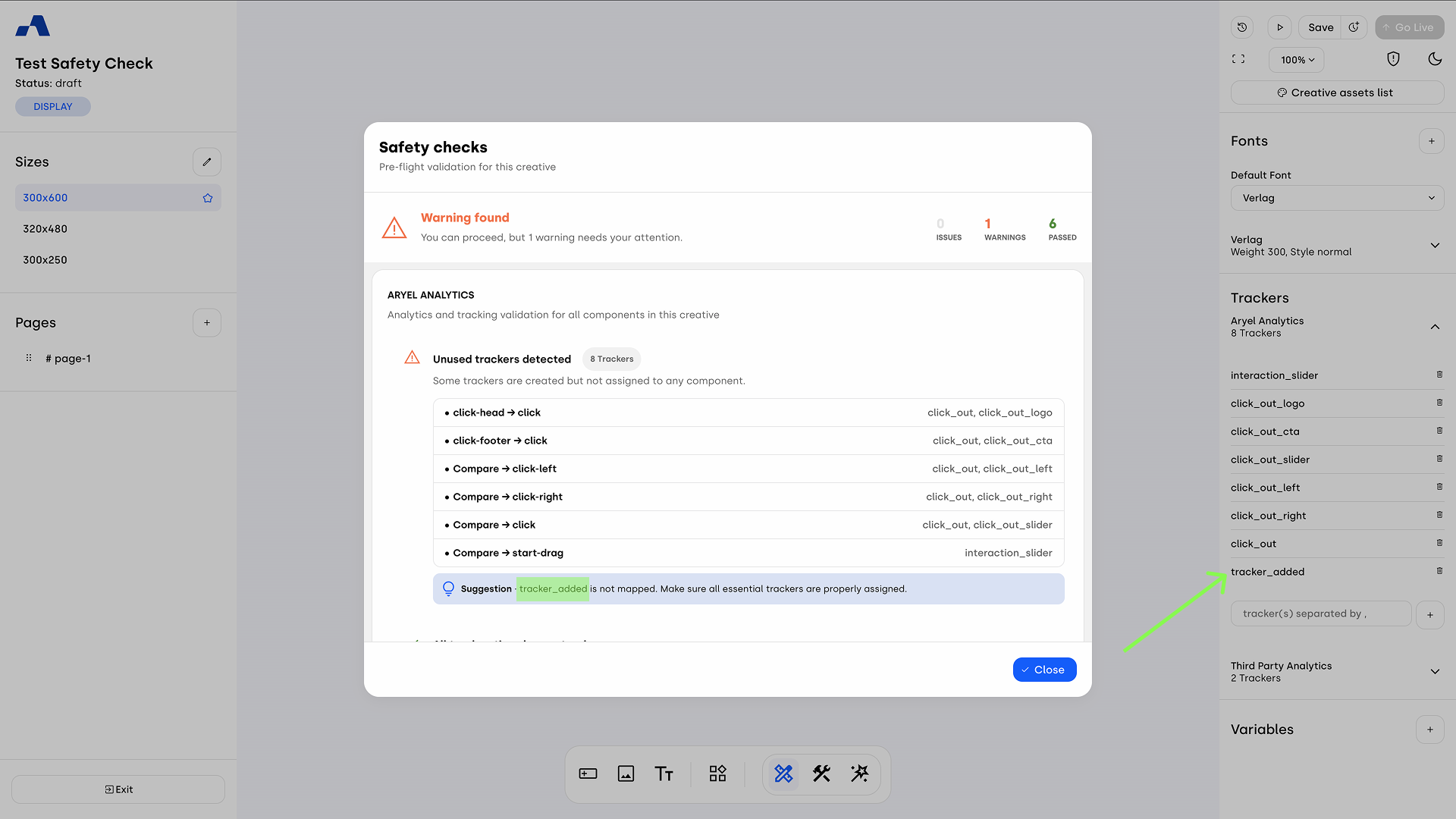
All trackers mapped: Every tracker you create must be assigned to at least one component or event. If you create a new tracker (for example, tracker_added) but forget to apply it to a specific action, the system will trigger an "Unused trackers detected" warning.
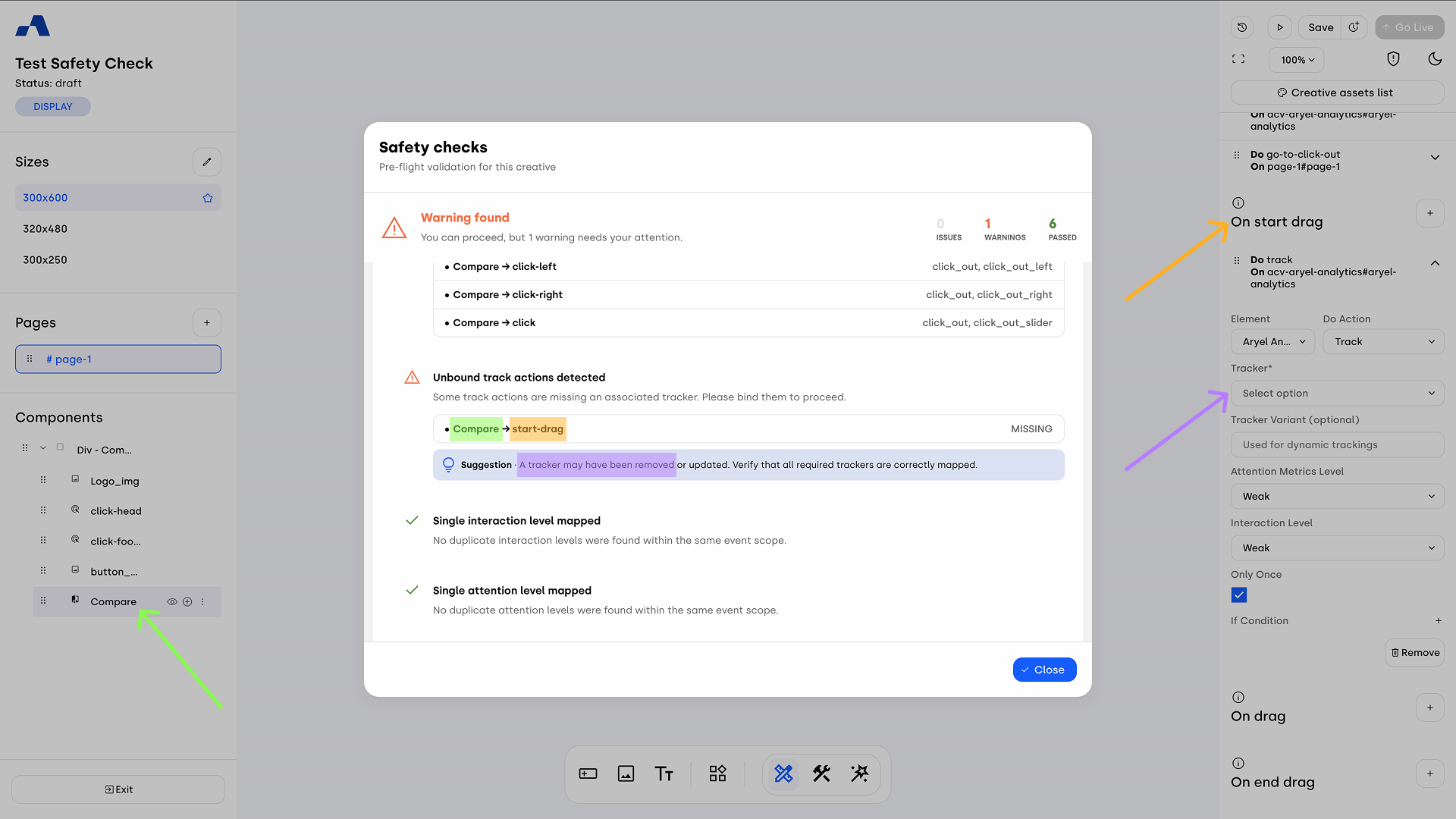
All track actions have a tracker: Conversely, every tracking action you configure on a component must have a valid tracker assigned to it. If you set up an interaction (like "start-drag" on a "Compare" component) but delete its associated tracker (like interaction_slider), the tracker field will be empty. This results in an "Unbound track actions detected" warning.
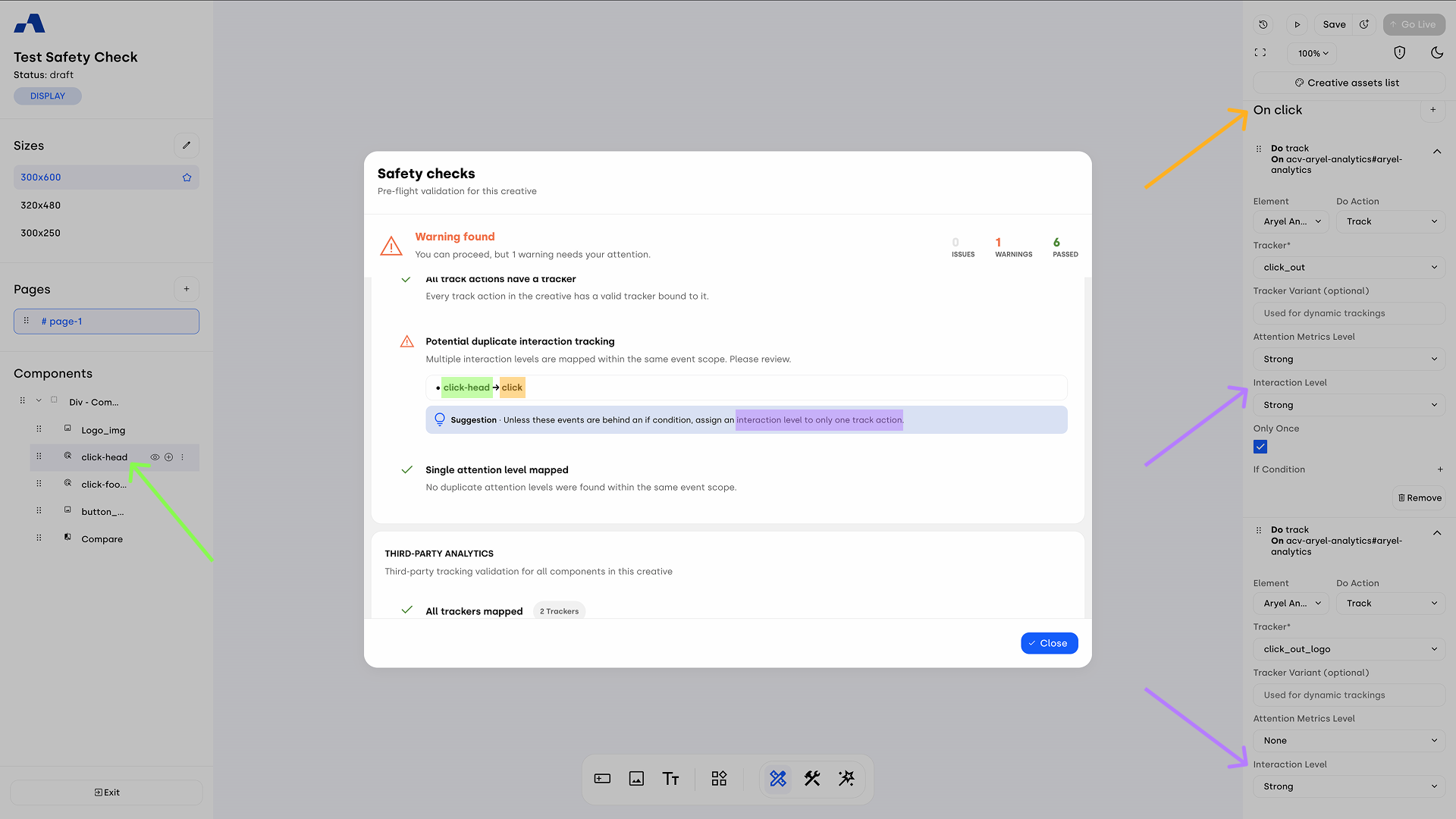
Single interaction level mapped: To maintain accurate analytics, you must not assign multiple interaction levels to different actions within the exact same event scope. For instance, if you assign a "Strong" interaction level to a click on your click-footer, but another action in that same event already has an interaction level assigned, the tool will flag a "Potential duplicate interaction tracking" warning to prevent skewed data.
Single attention level mapped: Similar to interaction levels, you should avoid mapping multiple attention levels within the same event scope to prevent overreporting. If you assign a "Weak" attention metrics level to an action (like a click-footer click) when one is already active in that scope, you will receive a "Potential duplicate attention tracking" warning.
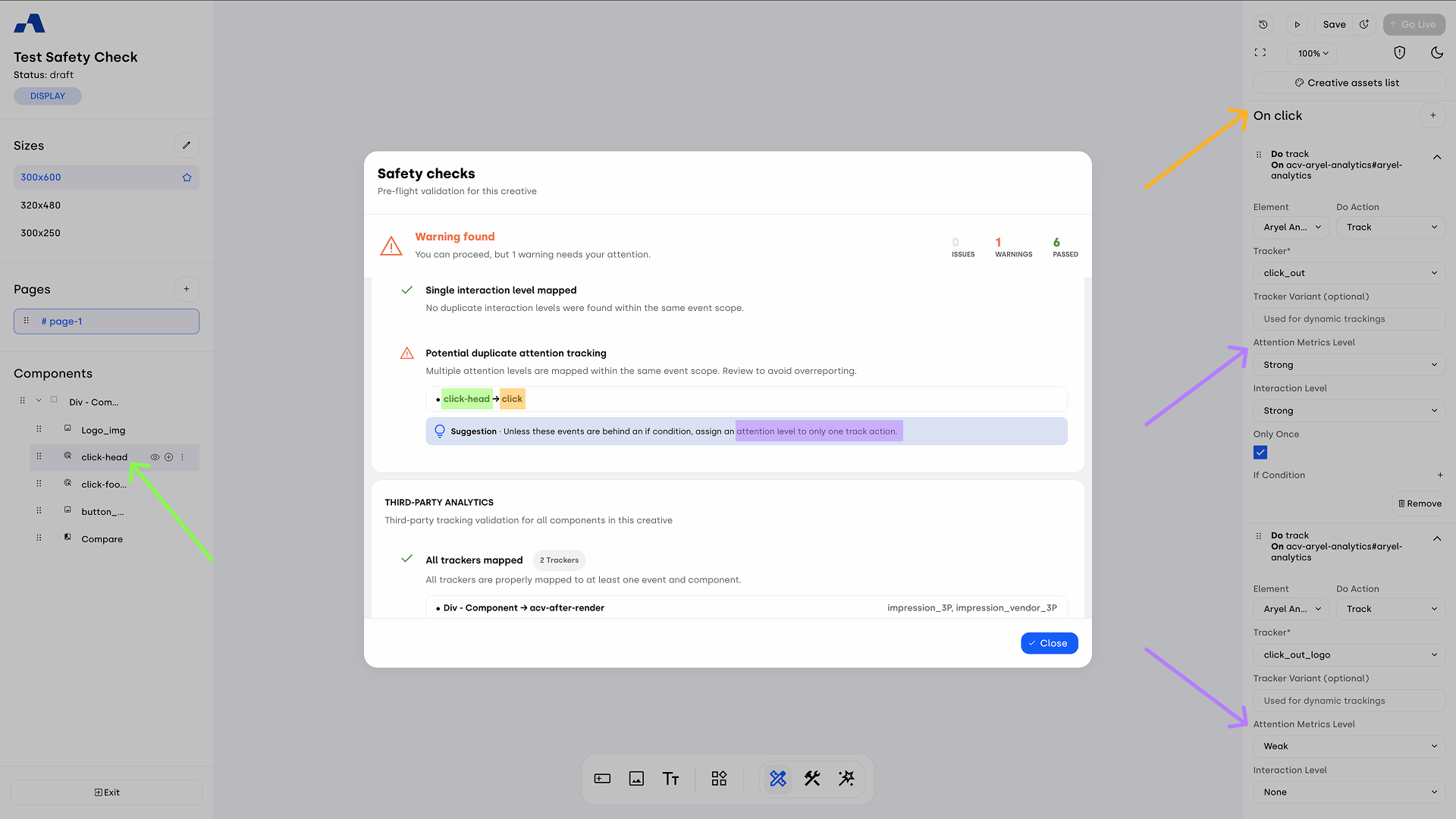
When all your Aryel tracking configurations are perfectly aligned, mapped, and free of duplicates, this section will successfully pass with a green indicator.
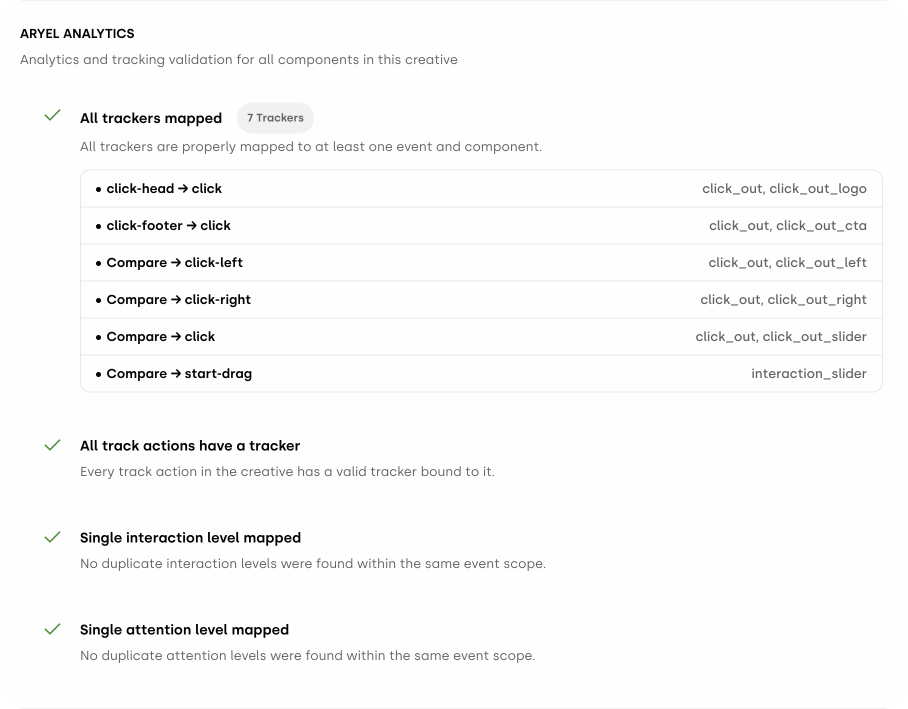
Third-Party Analytics Validation
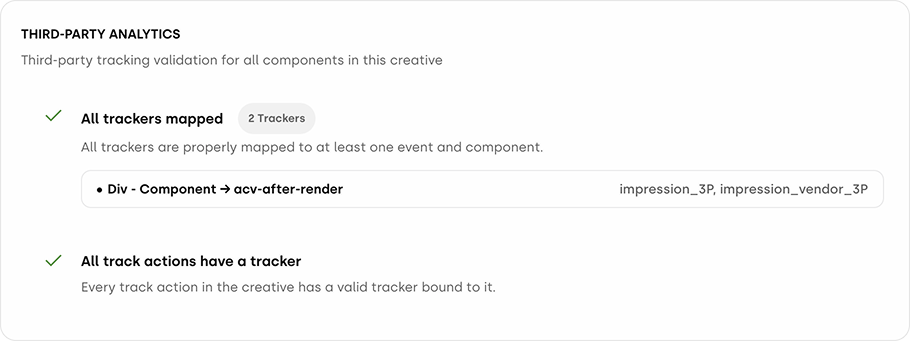
This final section ensures that any external tracking tools or pixels are correctly implemented within your creative. Just like the native analytics check, this helps prevent data loss or misconfiguration in your third-party reporting. The system verifies two main criteria:
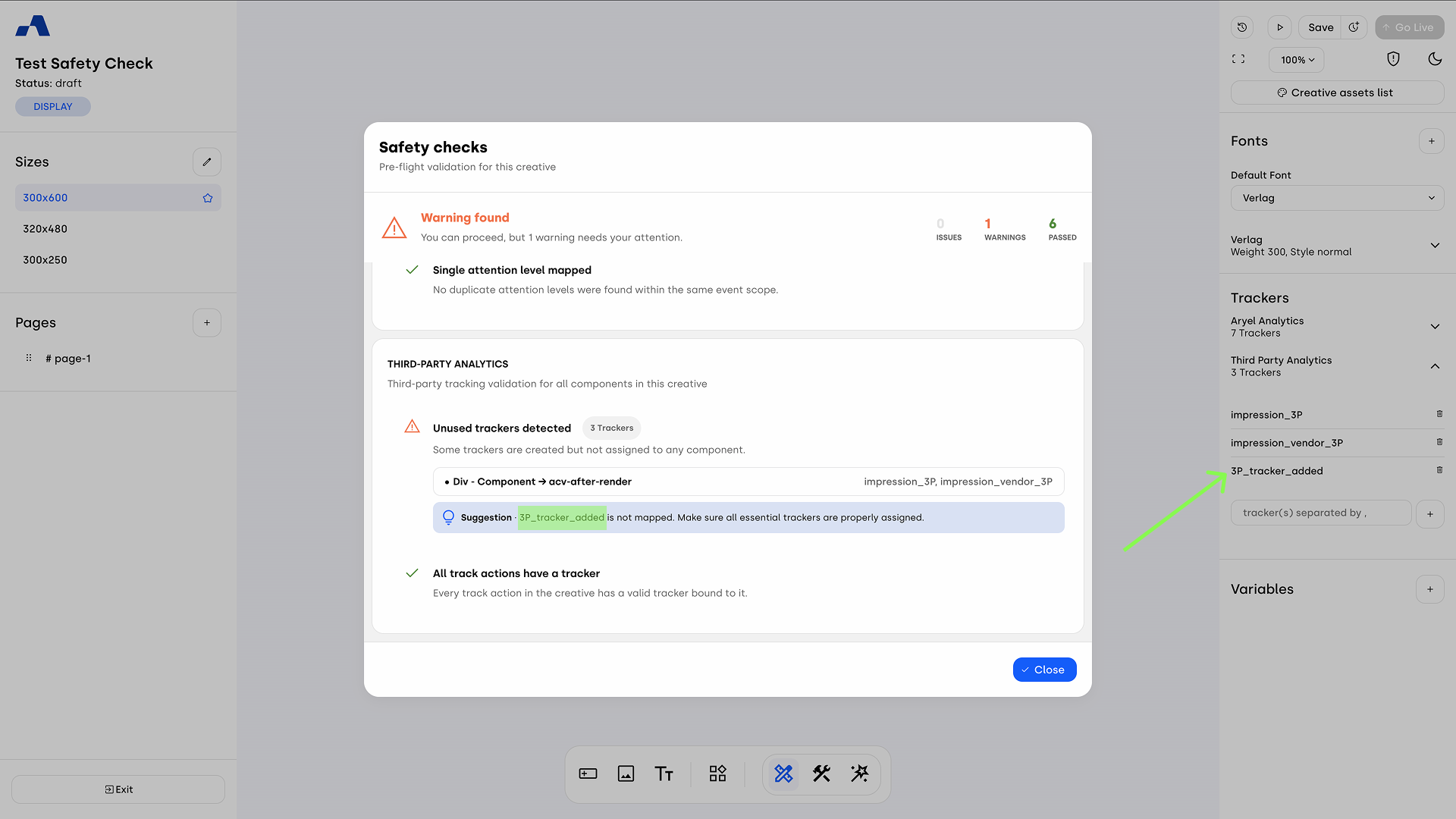
All trackers mapped: Every third-party tracker you define must be actively assigned to at least one component or event. If you add a new tracker to your list, such as 3P_tracker_added, but forget to map it to an interaction, the system will alert you with an "Unused trackers detected" warning.
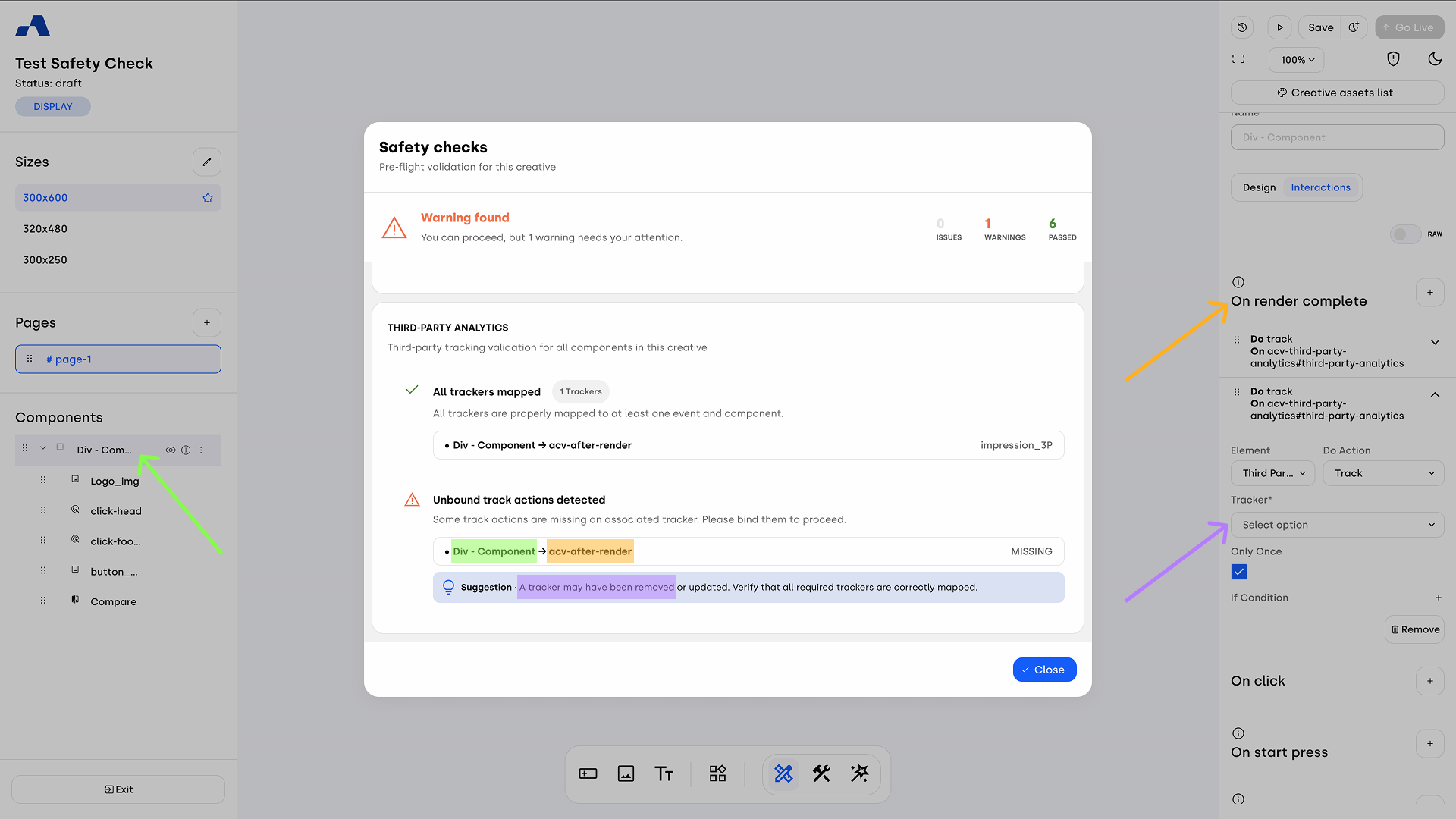
All track actions have a tracker: Any component configured to trigger a third-party tracking event must have a specific tracker tied to it. For example, if you configure an interaction on a layout block (Div - Component) but the designated tracker (like impression_vendor_3P) is missing or deleted, the field will be left empty. This triggers an "Unbound track actions detected" warning.
Once all third-party trackers are correctly mapped and no empty tracking actions remain, this section will display a green checkmark indicating "All checks passed".