
In interactive design, the ability to respond intelligently to user behavior is what separates a static asset from a professional, high-end experience. Conditions serve as the essential “filters” that ensure interactions are triggered only when specific criteria are met.
1. Setting Up Interactions in the Builder
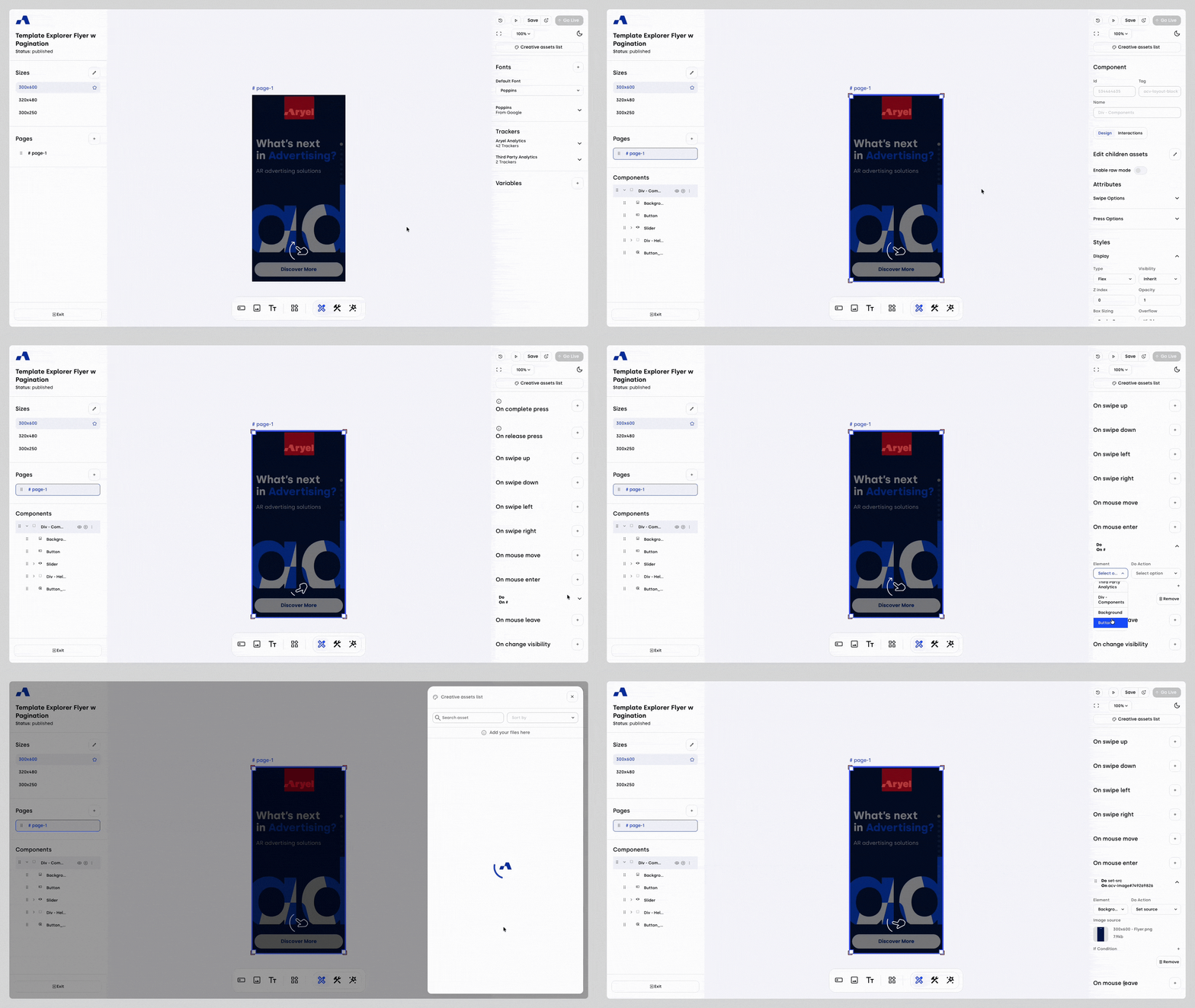
Before applying logic, you must first configure the base interaction within the system:
Mode Selection: To manage component behavior, ensure you have selected Designer mode via the three buttons on the main builder toolbar (which allows you to switch between Designer, Blueprint, and Wizard).
The Interactions Section: Once a component is selected, locate the interaction section in the right sidebar. A toggle lets you switch between the component’s Design and Interactions views. The options shown in the Interactions section will vary depending on the component selected (e.g., on click, on swipe left, on render complete, on initialization).
Creating an Interaction: Click the + button next to your desired event to create a new interaction block. Expand it to configure the following fields:
Element: Clicking this opens a dropdown menu to select the target. The list includes all components added to the page, as well as options like Aryel Analytics, Third-Party Analytics, Pages, and Variables.
Do Action: Once the element is chosen, this dropdown will update to show only compatible actions. Depending on the action type, additional fields may appear for further customization.
2. Adding a Condition ("If Condition")
Once the interaction is created, you can make it "smart" by applying verification criteria:
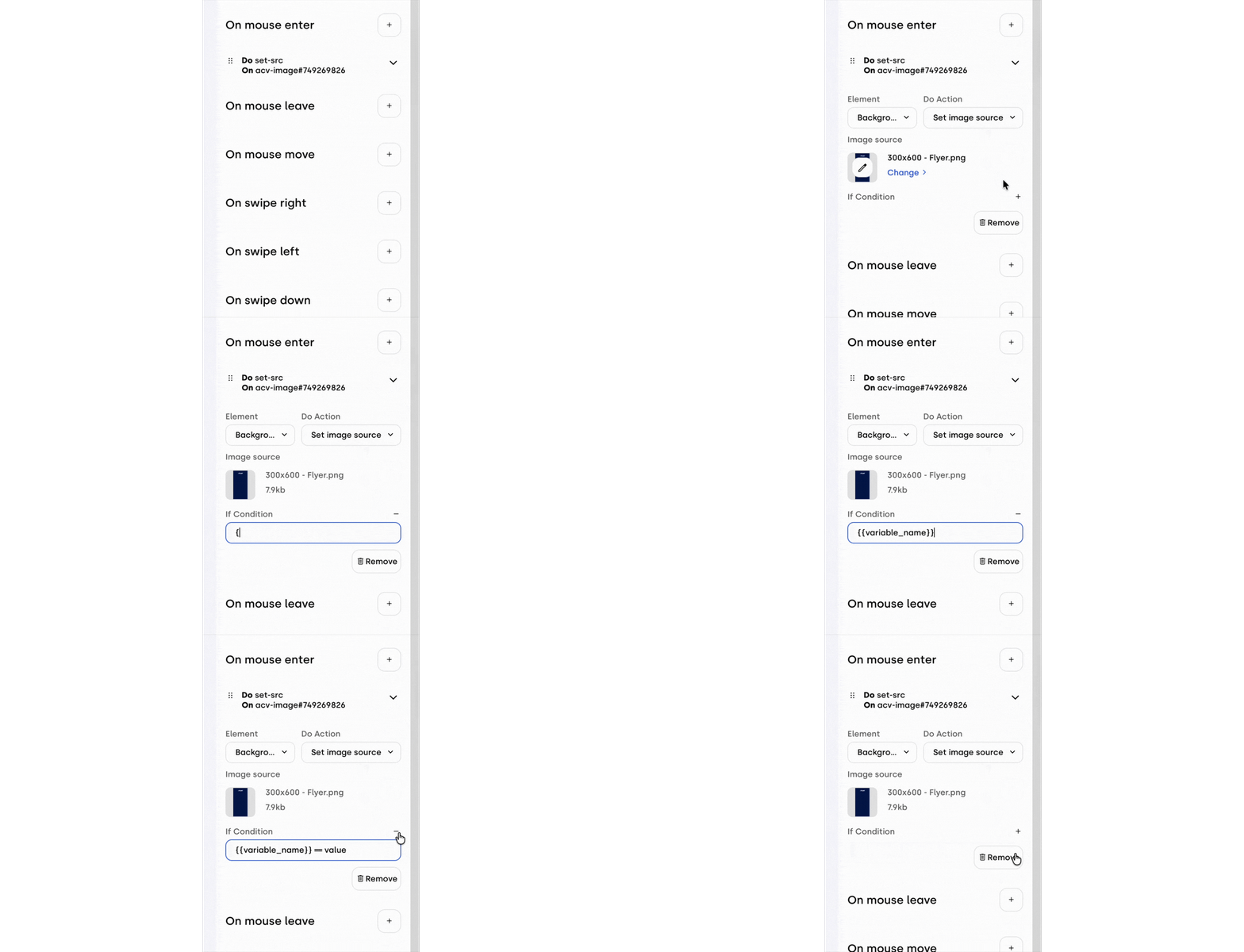
Expand the interaction block by clicking the side arrow.
Locate the + icon next to "If Condition", found at the bottom right of the interaction accordion.
Upon clicking, an input field will appear where you can enter your logic.
If you wish to remove the condition later, simply click the - icon that replaces the plus sign once a condition is active.
3. Configuring Logic: Variables, Events, and Operators
In the condition input field, you can combine various elements to create both numeric and string-based expressions:
Variables and Events
Variables: Formatted as {{variable_name}}, these call data previously created in the Variables section of the right panel at the creative level (with no asset or page selected).
Events ($event): These are system-level "variables" tied to specific components, such as:
$event.percentage: Used to track the movement of a range slider. It indicates the slider's completion percentage, allowing you to dynamically change what is displayed on the screen based on the handle's position.
$event.activeIndex: Used to manage the slider index within dynamic tracking components.
$event.reachedMaxScale: Used to manage zoom limits for image sliders.
Logical and Comparison Operators
Operators are the "heart" of your condition. Use this quick reference table to choose the right one:
Operator | Function | Example |
== | Equal to | {{status}} == active |
!= | Not equal to | {{count}} != 0 |
> / < | Greater / Less than | $event.percentage > 50 |
>= / <= | Greater / Less or equal | {{age}} >= 18 |
&& | "AND" (Both must be true) | {{user}} == admin && {{login}} == true |
|| | "OR" (At least one must be true) | {{color}} == red || {{color}} == blue |
! | "NOT" (Inverts the value) | !{{is_hidden}} |
Grouping and Expressions
The system supports the use of parentheses to group different expressions and define the priority of the logic. This allows you to manage complex comparisons between numbers and text strings.
Example: ({{points}} > 100 && {{level}} == 5) || {{is_premium}} == true
Effectively using conditions allows you to manage sophisticated scenarios, ensuring your interactions are responsive and personalized based on user behavior or the state of project variables. Mastering these logics within the Designer mode is the key to creating high-level, interactive experiences.