
When developing creatives in the Ads Manager Builder, managing redirects is key. There are two primary methods to configure click actions: Go to Click Out and Go to Link.
In our standard templates, we use the Go to Click Out interaction. This approach allows you to reuse the same creative across multiple campaigns without having to edit the asset every time you need to change the destination URL.
1. Go to Click Out (Recommended Method)
The Go to Click Out interaction detaches the final destination from the creative's structure, allowing you to manage the URL at the Tag level.
Why use this method?
Efficiency: Use the same creative in dozens of different campaigns without ever reopening the Builder.
Flexibility: It allows you to assign a specific destination URL to each individual tag.
Tracking: It provides the required connection to the click macro, which is essential for proper performance tracking.
How to configure it in the Builder:
Select the component that should redirect users.
In the Interaction tab, choose the user action (e.g., "on click").
In the Element field, select the page you are working on.
In the Do Action dropdown, choose Go to Click Out.
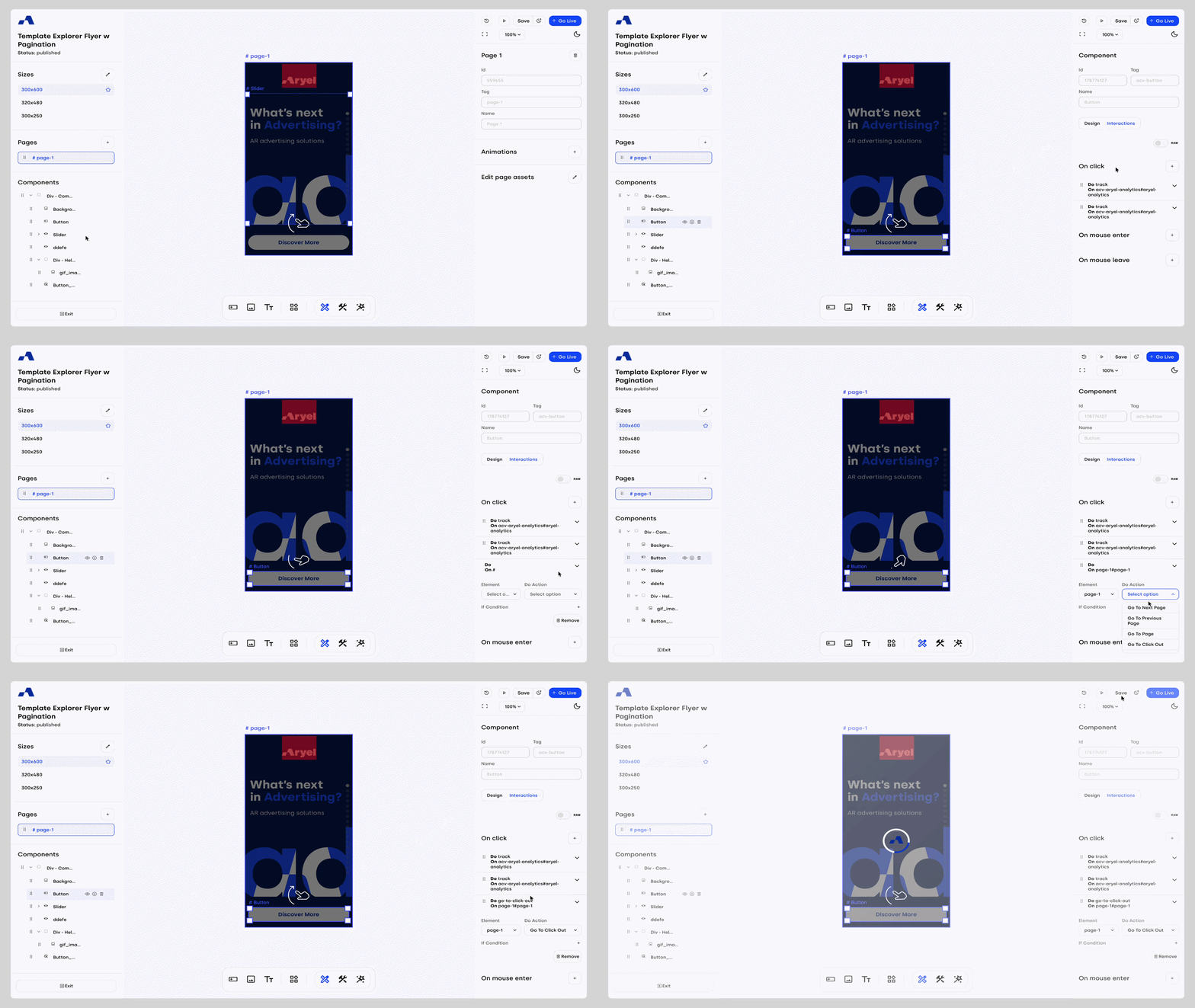
Note on Preview: If you are testing the creative in Ads Manager and nothing happens when you click, this is normal. To avoid polluting metrics, the click is not triggered in the preview mode. To test the redirect properly, you need to run the tag.
How to insert the final URL:
Once the interaction is configured, the URL must be entered on the Flight Detail Page:
Go to the Setup section of the flight linked to your creative.
Click the Tag Settings button on the relevant tag row.
In the Click-Out section, enter the destination URL and click Save.
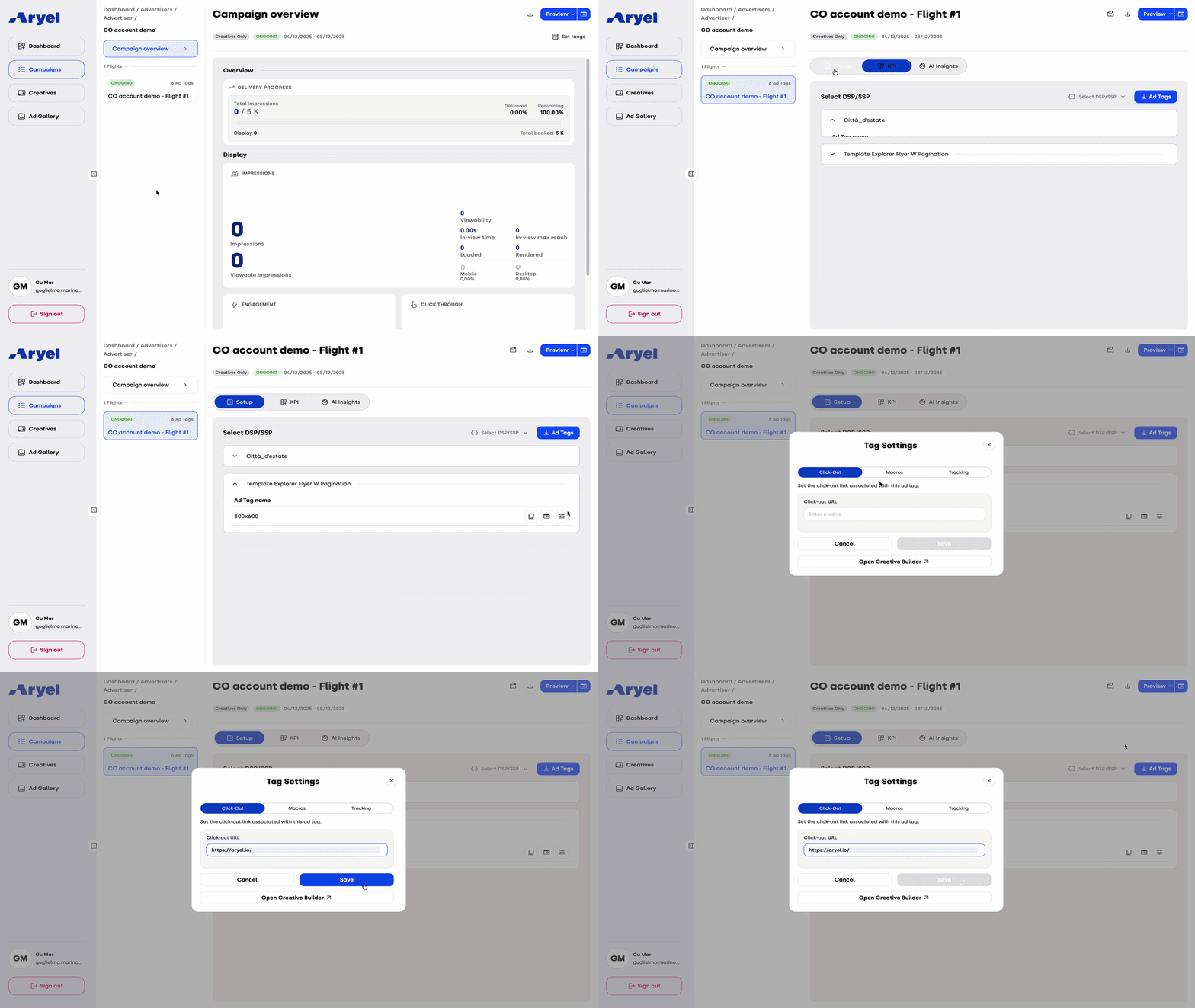
Please note: This procedure must be done for each individual tag. The system is designed this way to allow you to use specific and different click-outs for each tag within the same campaign.
2. Go to Link
The Go to Link interaction is used when you want to insert one or more static URLs directly within the creative.
When to use it?
It is ideal if you want to redirect users to different pages within the same banner (for example, one button leading to "Men's Shoes" and another to "Women's Shoes"). However, keep in mind that this setting is managed at the creative level: to change the link, you will need to edit the asset in the Builder.
How to configure it in the Builder:
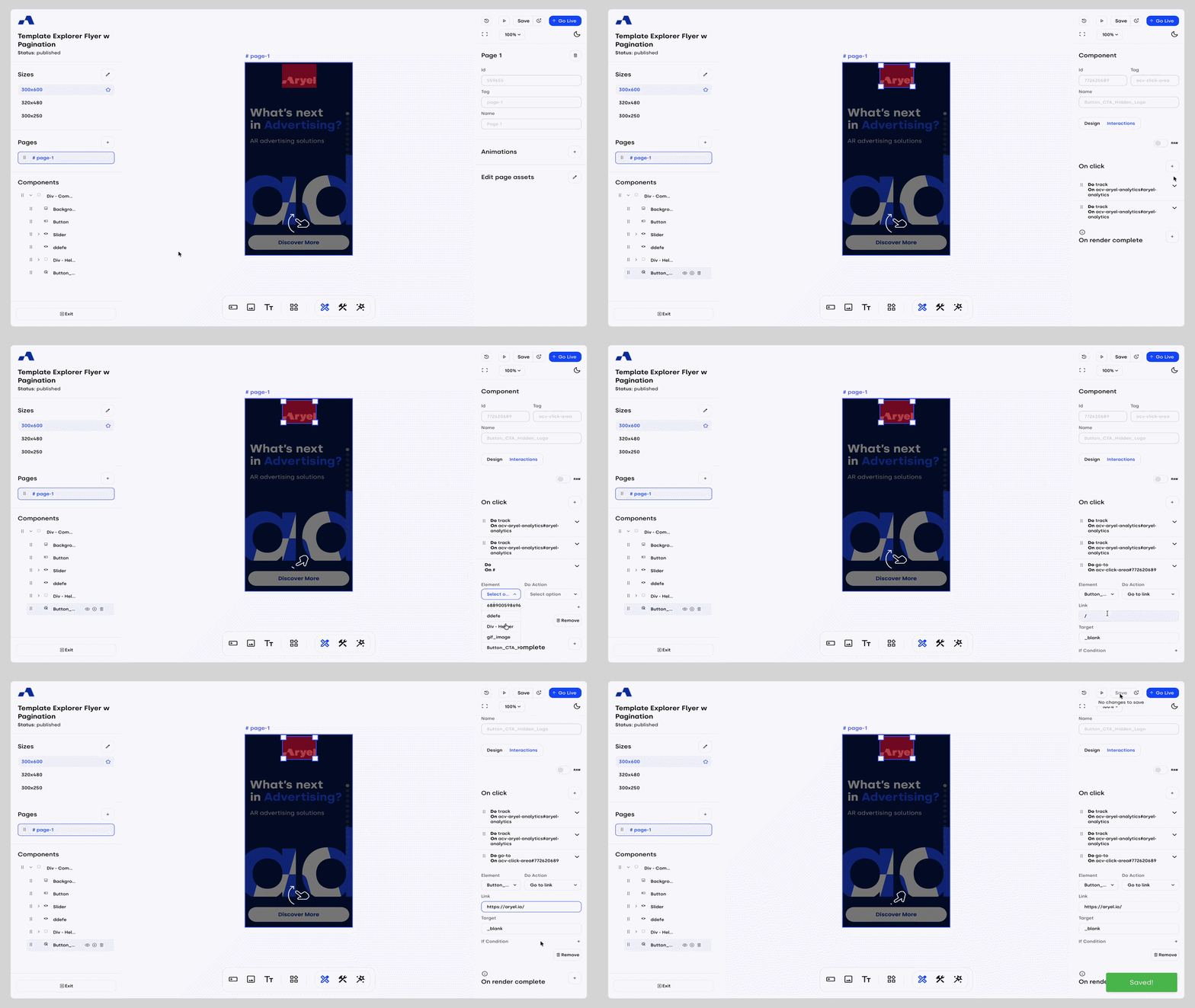
Select the component and set the "on click" action.
In the Element field, choose the relevant Button or Click Area (these must already be present on the page).
In Do Action, select Go to Link.
Insert the URL in the new field that appears.
Choose the browser target:
_blank (default): opens the landing page in a new tab.
_self: opens the landing page in the same window hosting the banner.
Comparison Table
Feature | Go to Link | Go to Click Out |
Management Level | Creative (Builder) | Tag (Flight Page) |
Multi-campaign Use | Requires manual asset edits | Automatic (just change the link in the tag) |
Multiple URLs | Supported within the same asset | Optimized for a single URL per tag |
Tracking | Managed manually | Native connection to the click macro |