
The Video component allows you to seamlessly integrate engaging video content into your creatives. It is an essential tool for capturing user attention and delivering rich, dynamic messages within your interactive ad experience.
Adding a Video Component
You can add the Video component in two different ways:
From the left sidebar, click the + Add Component button, select Video from the type dropdown, and assign it the desired name.
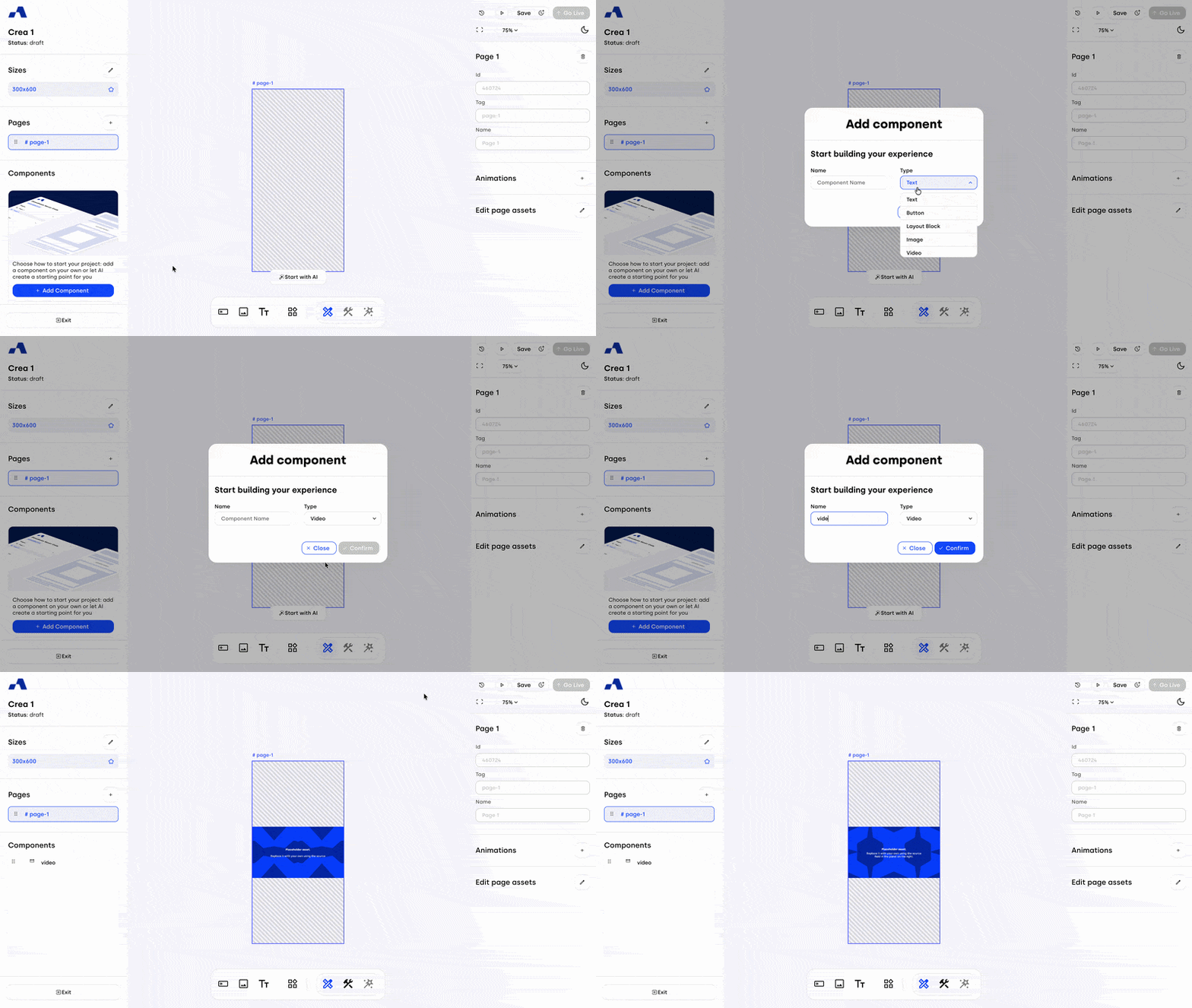
From the central toolbar, click the Video icon and then place the component directly onto the page by clicking inside the canvas.
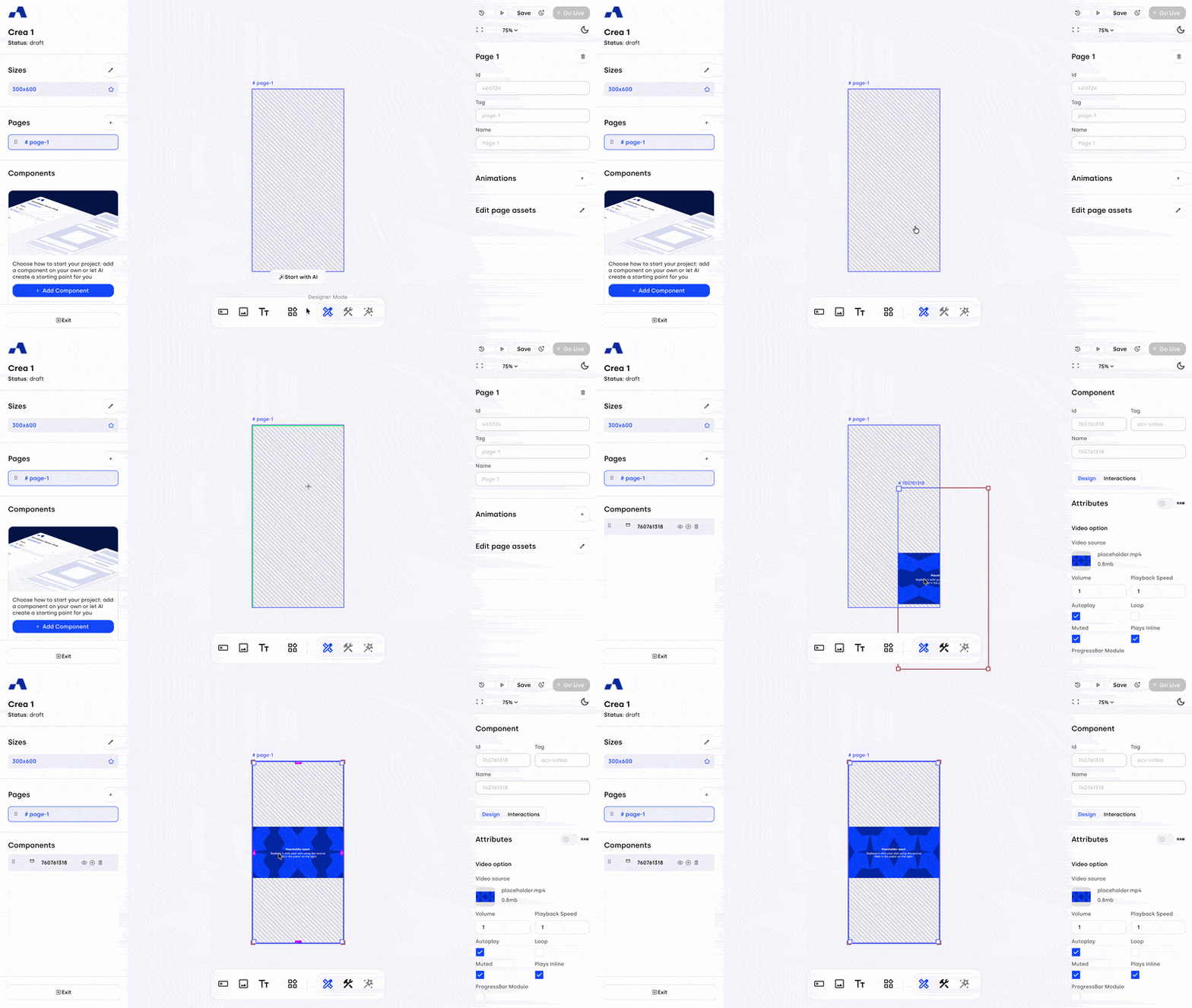
Once added, the video component will appear in the Layers section and can be selected and configured like any other component.
Right Sidebar Configuration
When the video component is selected, the right sidebar updates to display dedicated settings split into two main tabs: Design and Interactions.
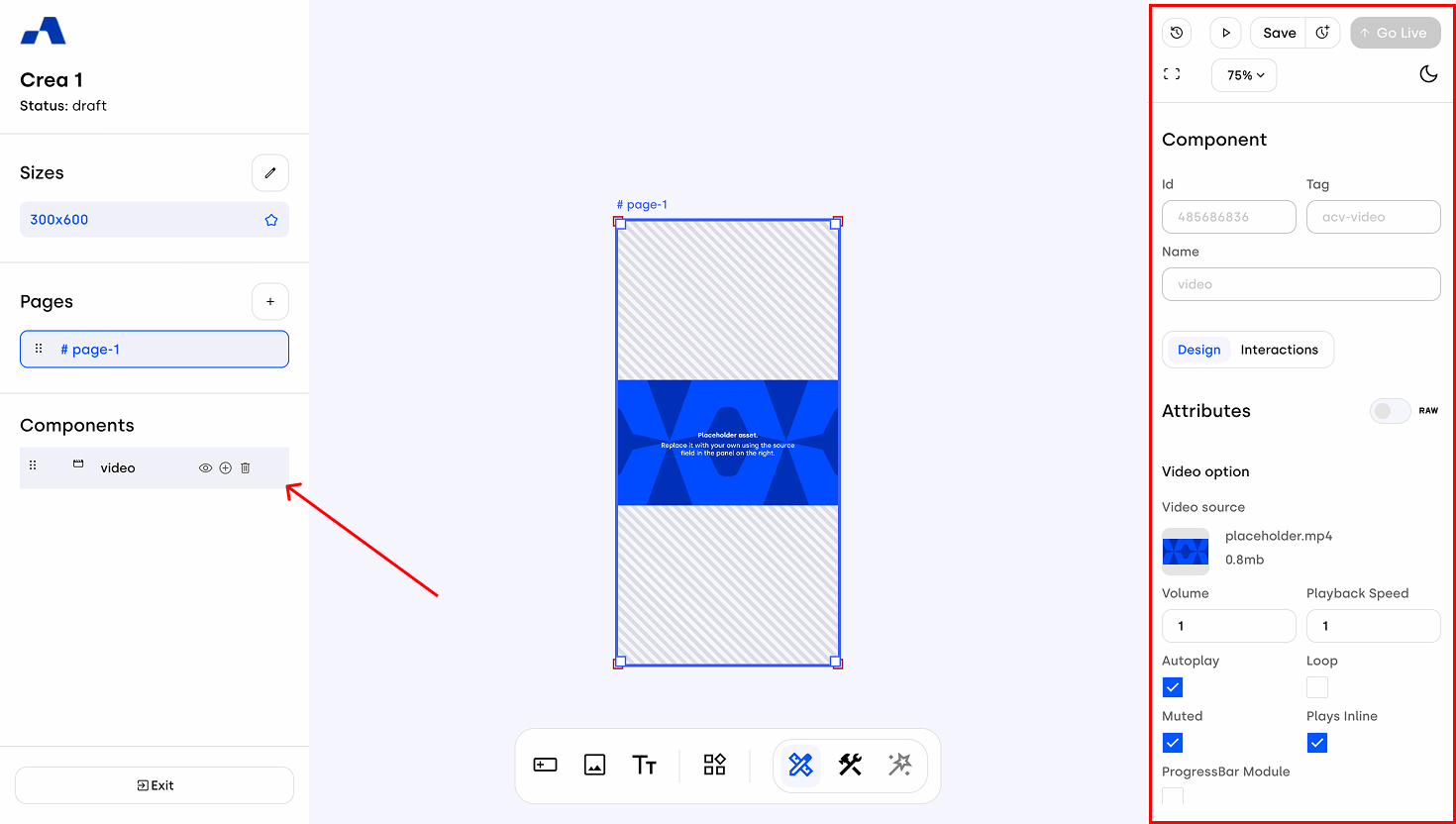
Design Tab
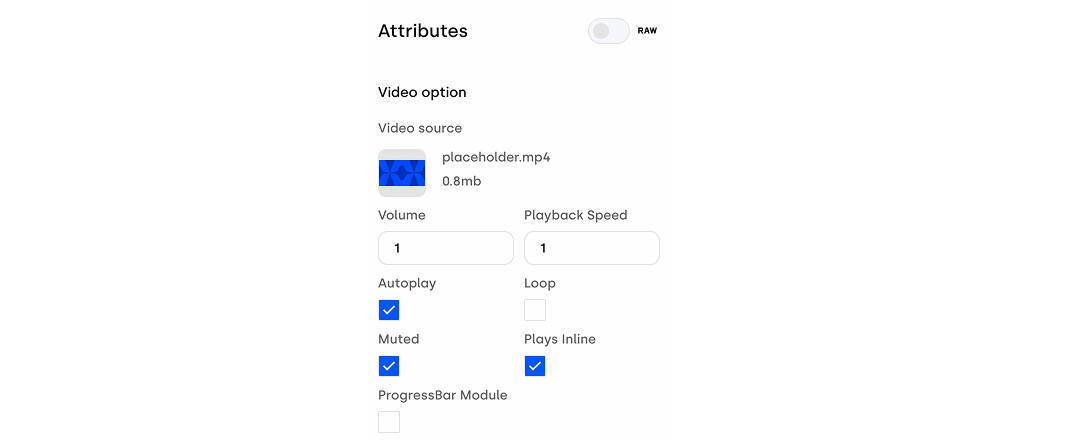
Video Options section allows you to control exactly how your video behaves and appears to the user:
Video Source: Here you can upload and select the video asset you wish to display.
Volume: Define the default volume level of the video.
Playback Speed: Decide how fast or slow the video should play.
Autoplay: Active by default, this setting ensures the video starts playing automatically as soon as the ad loads.
Loop: By activating it, you can loop the video.
Muted: When enabled, the audio will be disabled by default when the video starts.
Plays Inline: When activated, this ensures the video plays directly within the ad layout on mobile devices, preventing it from automatically forcing fullscreen mode.
Progressbar Module: Displays a visible progress bar inside the video player, allowing users to see the video's duration and current timestamp.
Scrolling further down, you’ll see the Styles options that are available across all components, such as measures, positioning, borders, and more.
Interactions Tab
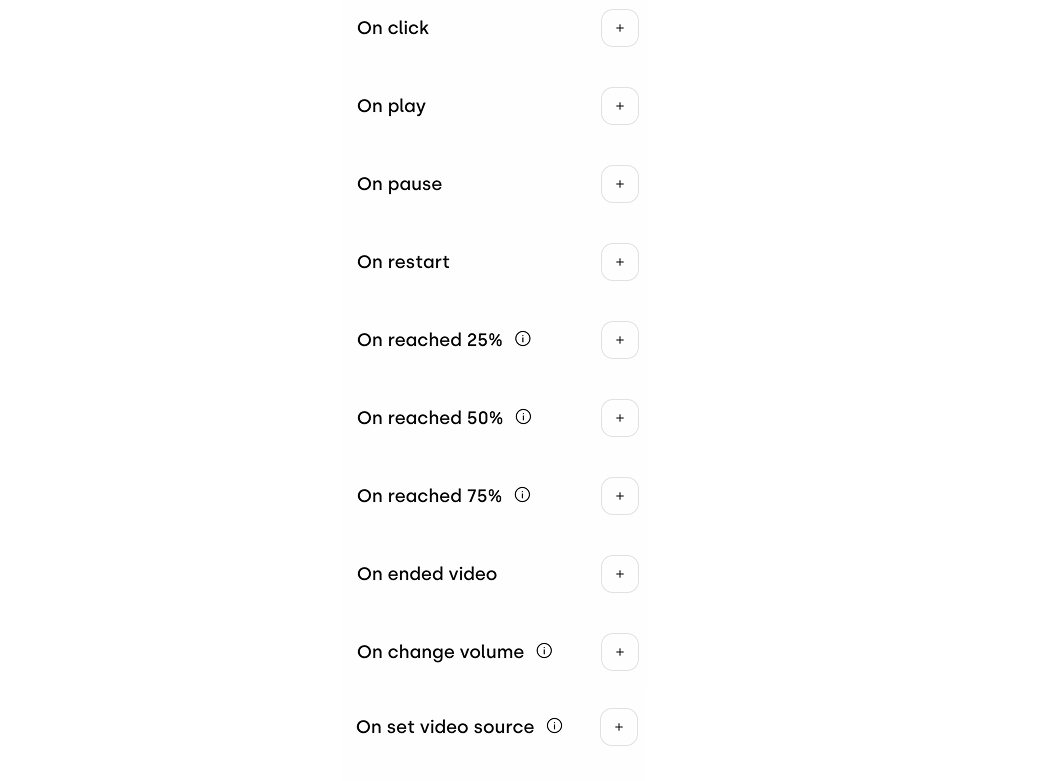
The Interactions section allows you to manage the different actions users can perform on the various parts of the creative, enabling you to define how the component responds to user interactions.
For the Video component specifically, you will find dedicated milestone interactions: On reached 25%, On reached 50%, On reached 75%, and On ended video. These are crucial because they allow you to easily attach tracking events to these specific moments, enabling you to accurately monitor video completion rates and user engagement.
Incorporating the Video component enriches your ad's storytelling capabilities. By exploring its playback settings and tracking milestones, you can easily build highly engaging video experiences while keeping a close eye on user completion metrics.