
Versioning is a saving feature that allows you to create and manage multiple versions of the creative you’re building in the Ads Manager Builder. It gives you the flexibility to keep working on a creative even when it is already attached to a tag that is delivering, allowing you to prepare updates in a separate version and push them live at the right moment.
The First Version: V0
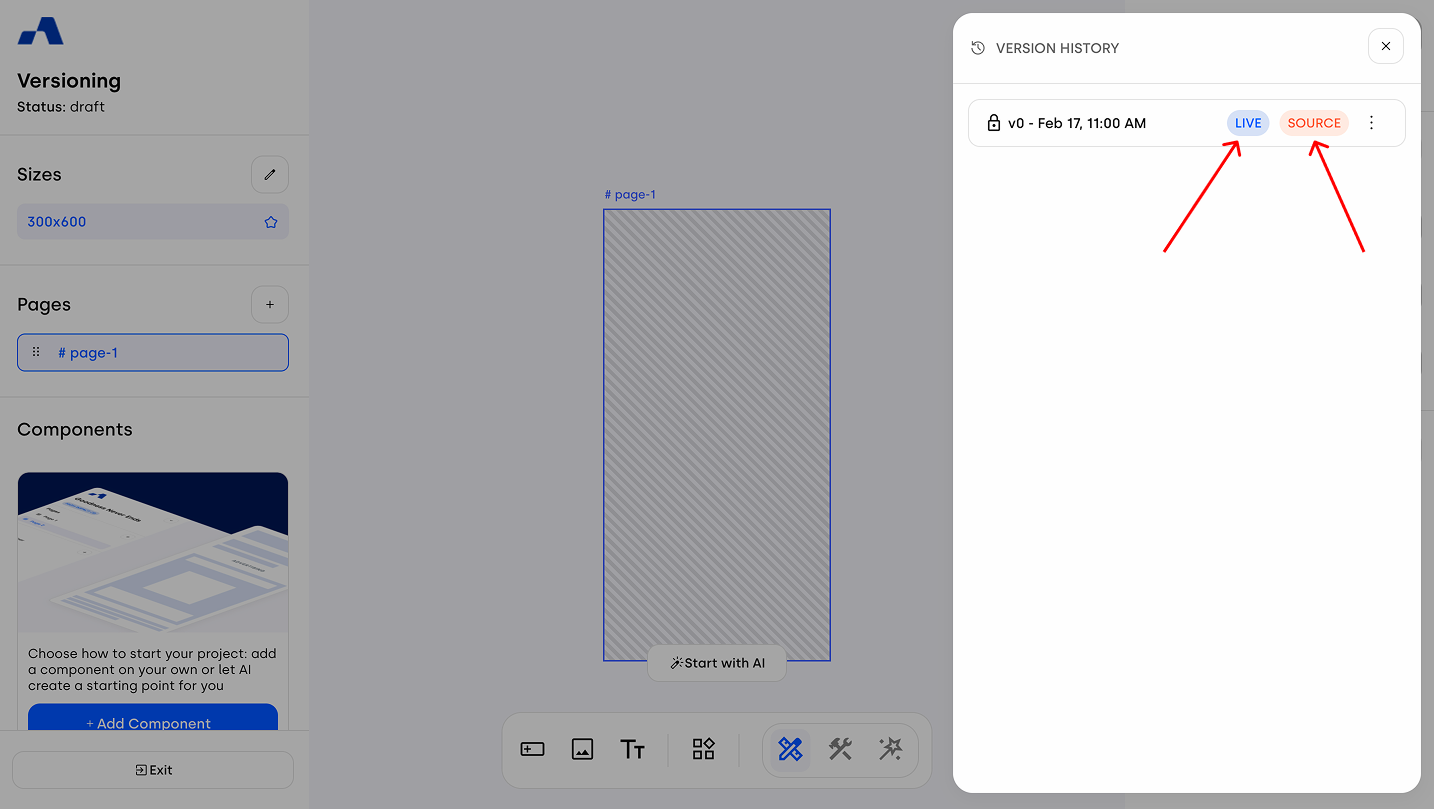
When you start building a creative from scratch or from template, the system automatically generates Version V0. This initial version serves two roles:
It is the Live version, meaning the one set for delivery and connected to the tag during campaign creation.
It is also the Source version, meaning the starting point you work on inside the Builder canvas.
Saving and Creating New Versions
As soon as you begin adding components to the workspace, the Save button becomes active in the top-right corner of the right sidebar.
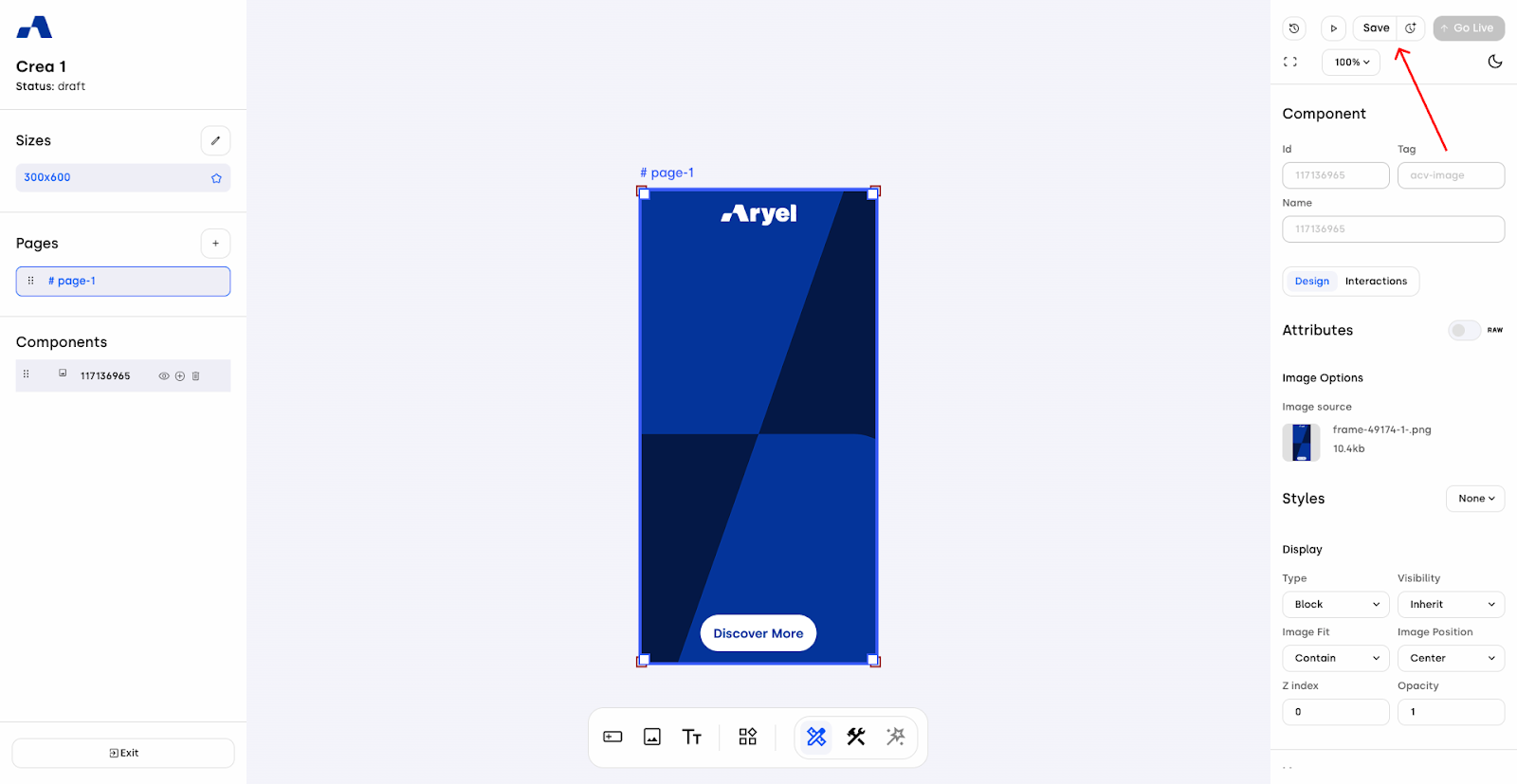
Clicking Save creates a version labeled Current draft, visible inside the version history panel (accessible via the clock icon in the top-left of the right sidebar).
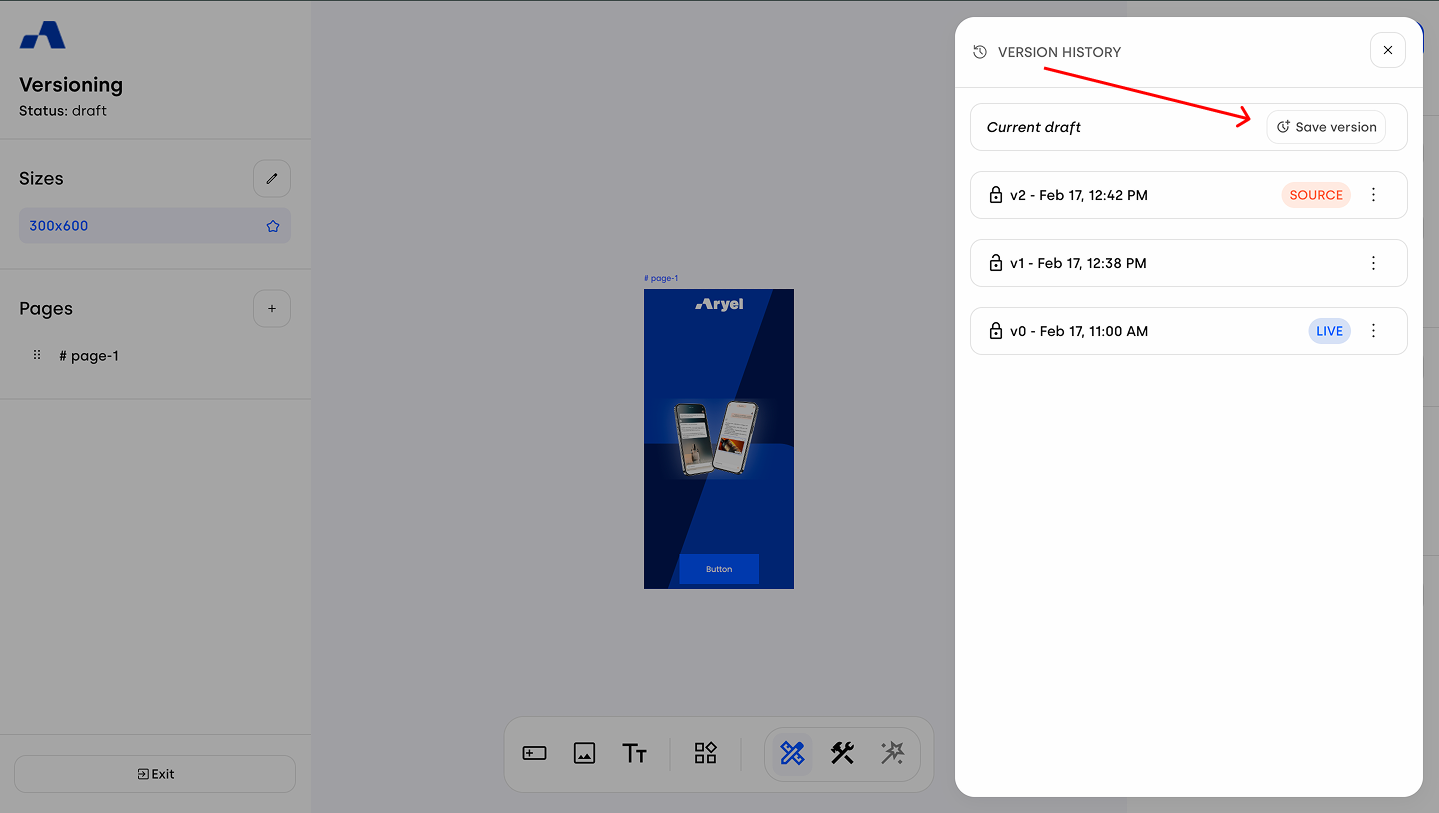
Whenever you’re ready to save a new version, you can either do it by:
Opening the version history panel and clicking Save as Version, or
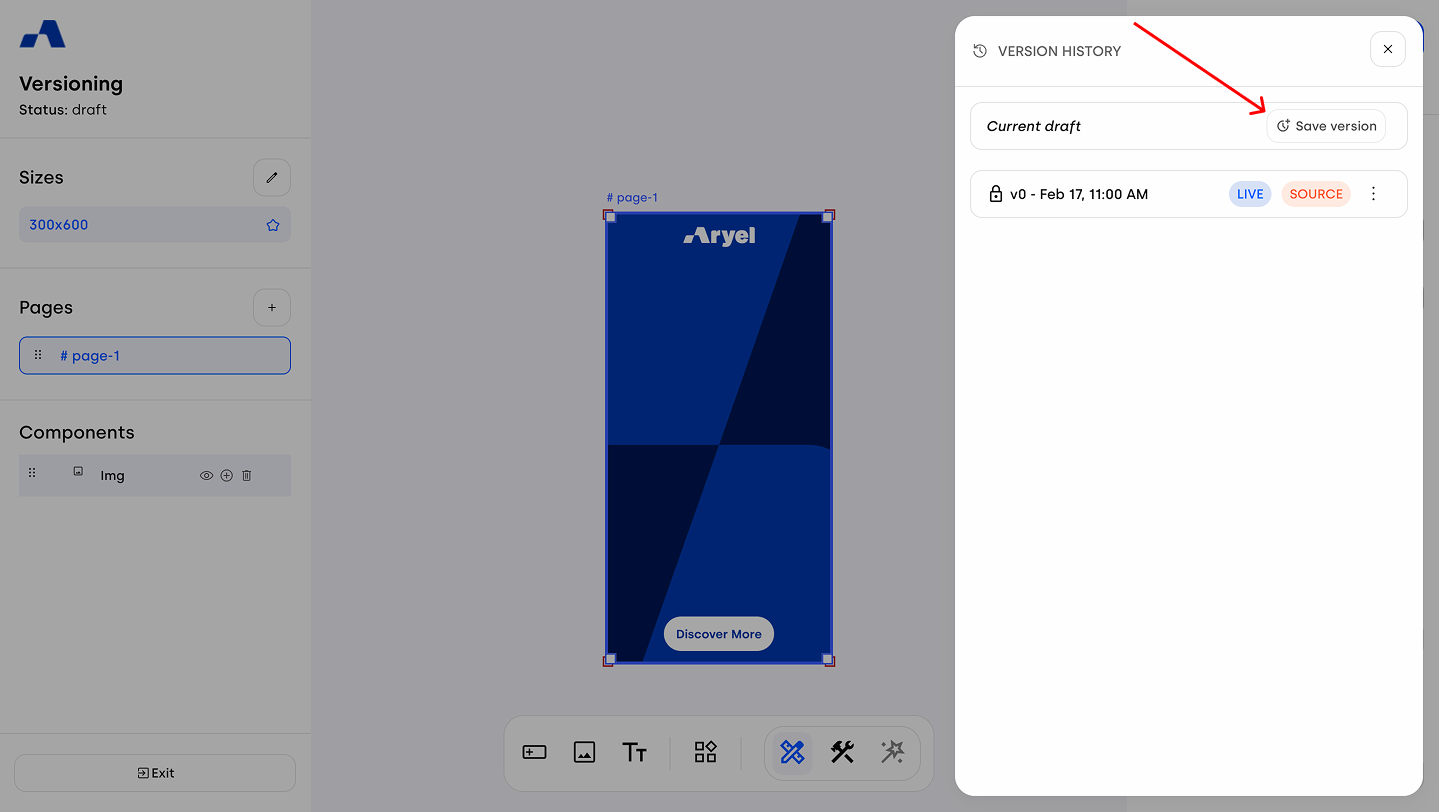
Clicking the clock icon next to the Save button allows you to save your work directly as a new version, avoiding the need to open the version history panel.
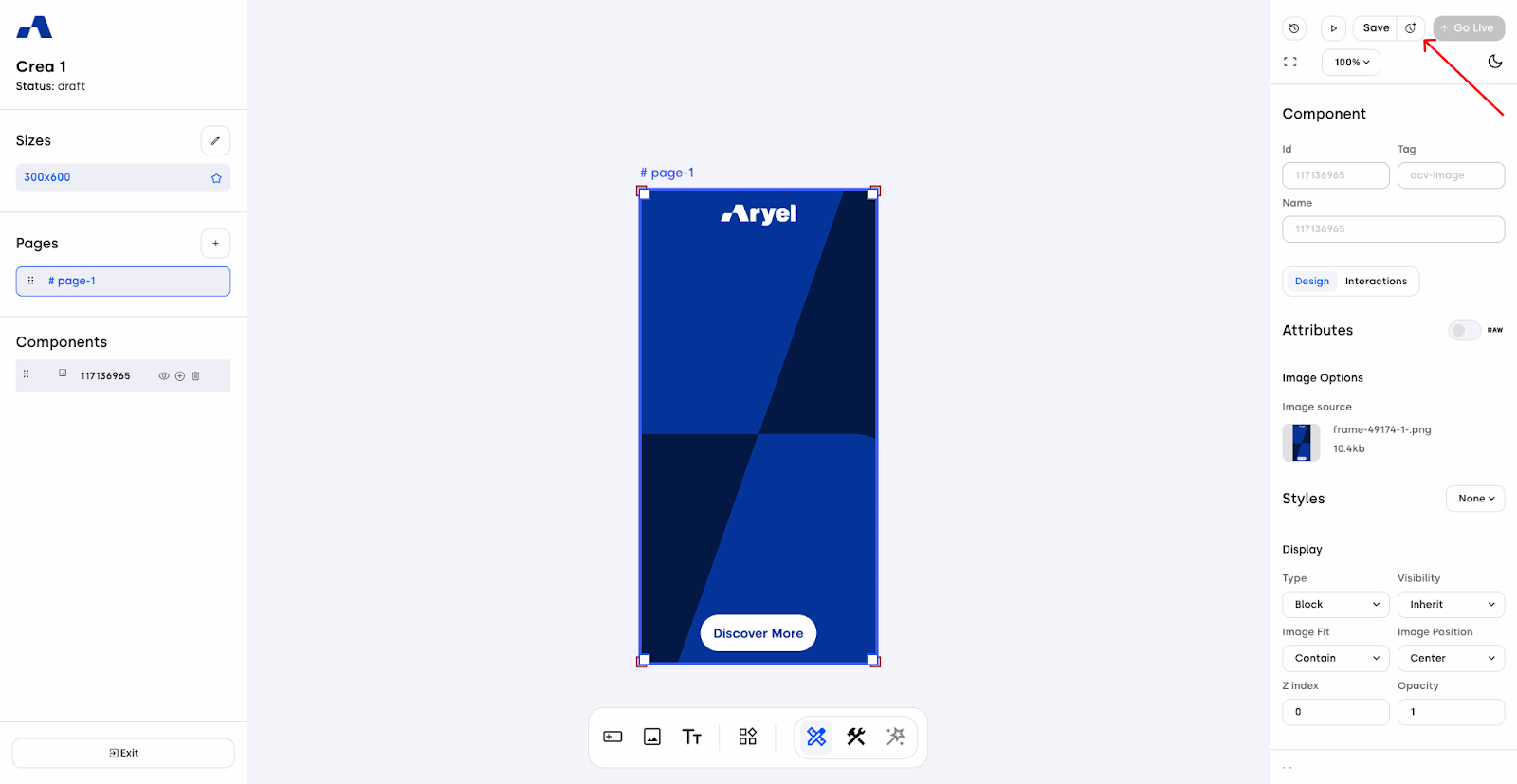
When the new version (e.g., V1) is saved, you’ll find it in the version history list and iIt automatically becomes the new Source version.
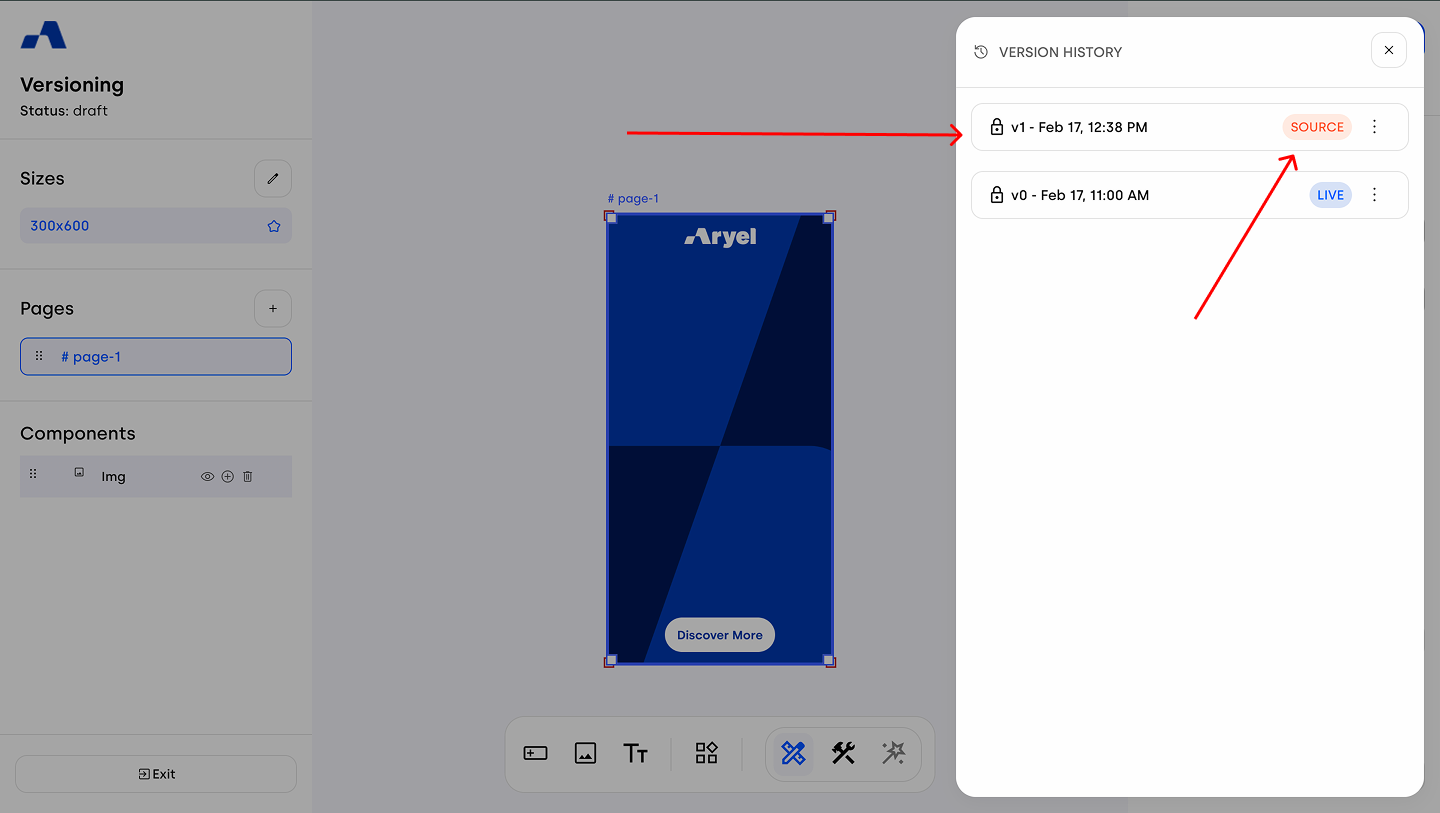
When you create V1, it automatically becomes the new Source version. This process repeats every time you click Save, generating subsequent versions (V2, V3, etc.), with the Source always moving to the latest created version. Please note that each creative has a maximum limit of 30 savable versions. If this limit is exceeded, the system will automatically delete the oldest unlocked version each time a new version is saved.
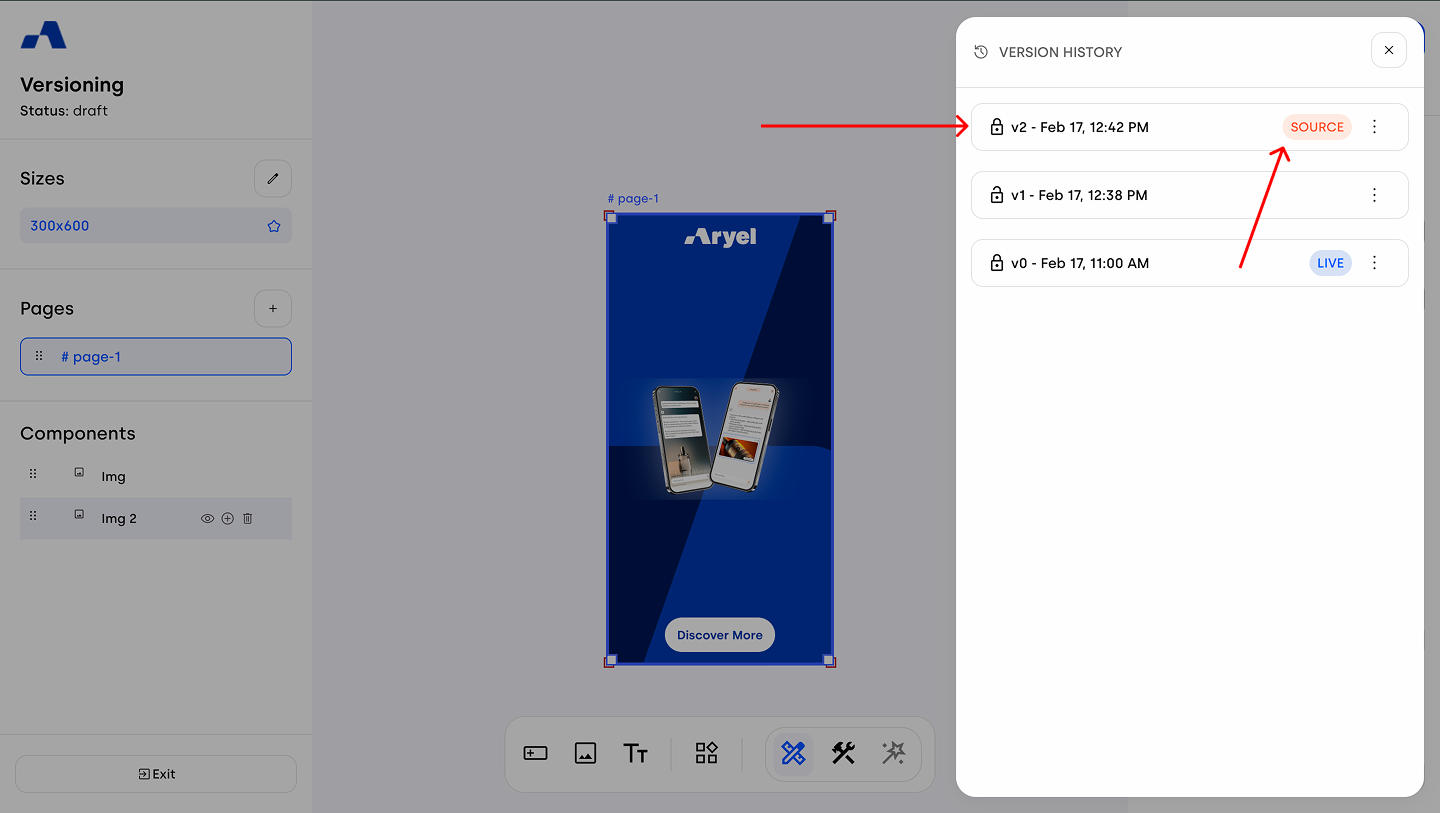
When your work is complete and you consider the creative ready to be delivered and therefore associated with the tag, clicking Go Live makes that version the one used for delivery.
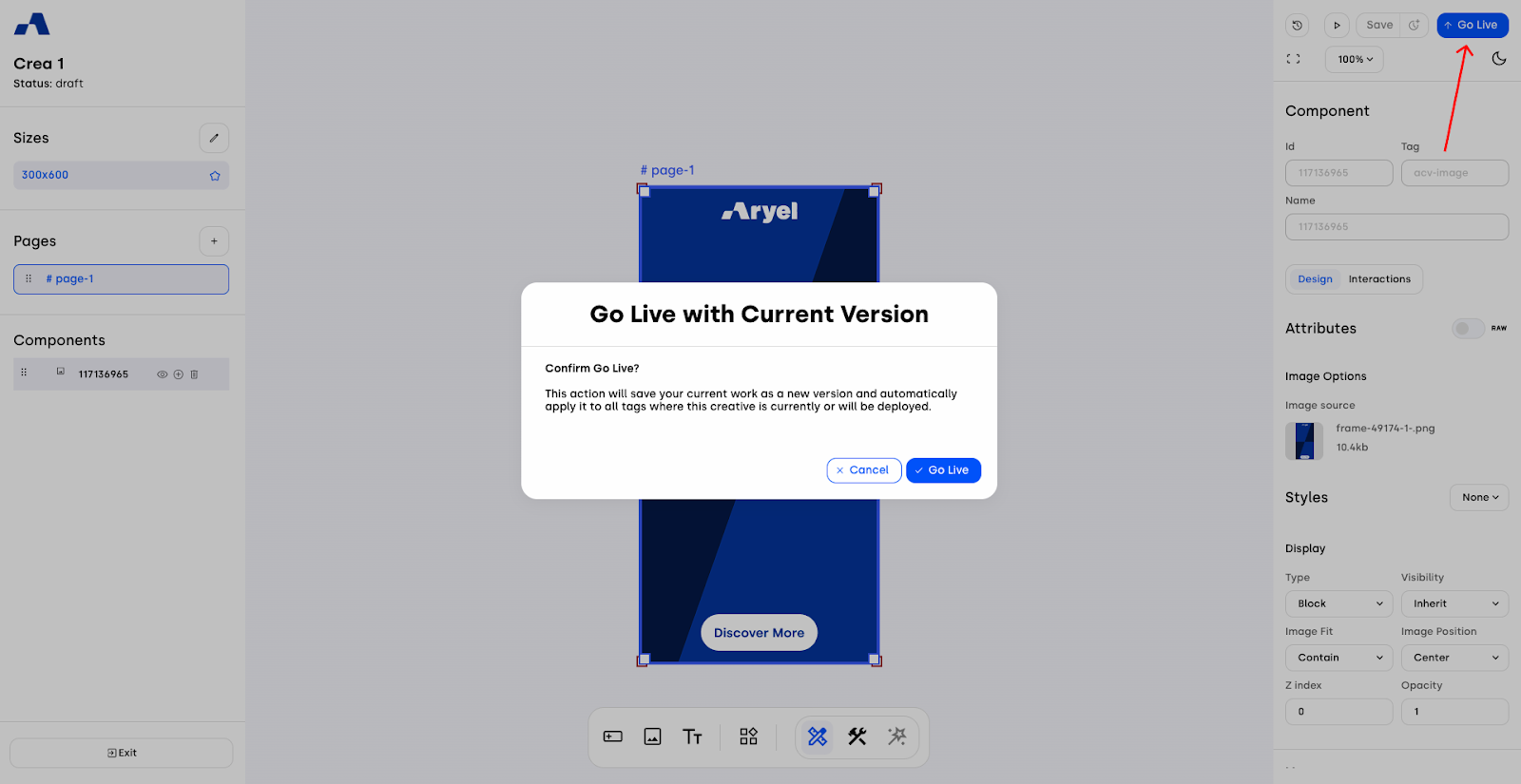
Please note: by clicking directly on Go Live after making changes, without going through the standard saving step, the new version will be automatically saved and will become both the Source and the Live version at the same time.
Version Actions
For each version listed in the modal, by hovering over the version name you can preview a thumbnail of the saved version along with a tooltip displaying the description you assigned. This allows you to quickly identify the correct version and streamline your ad creation workflow.
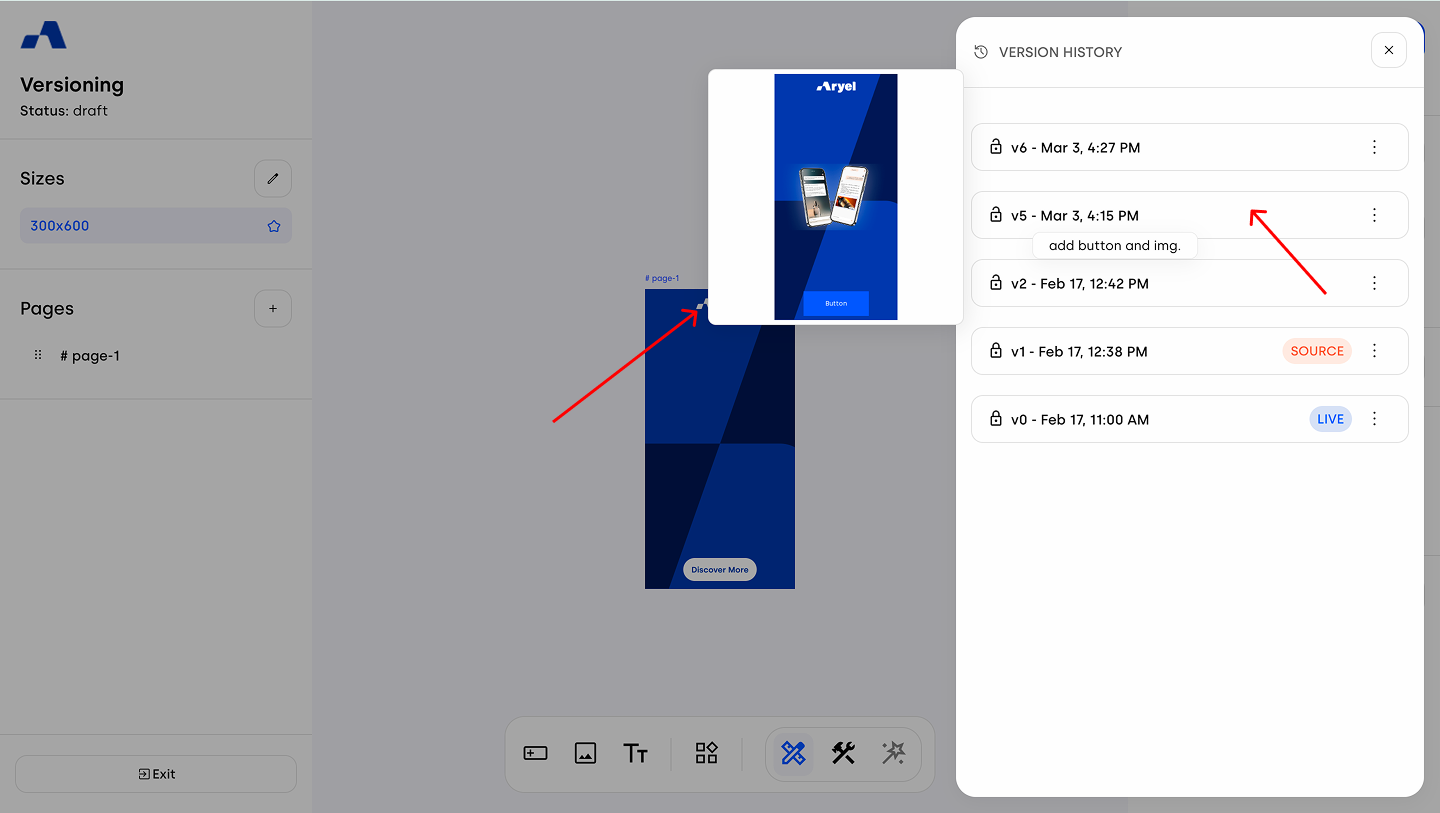
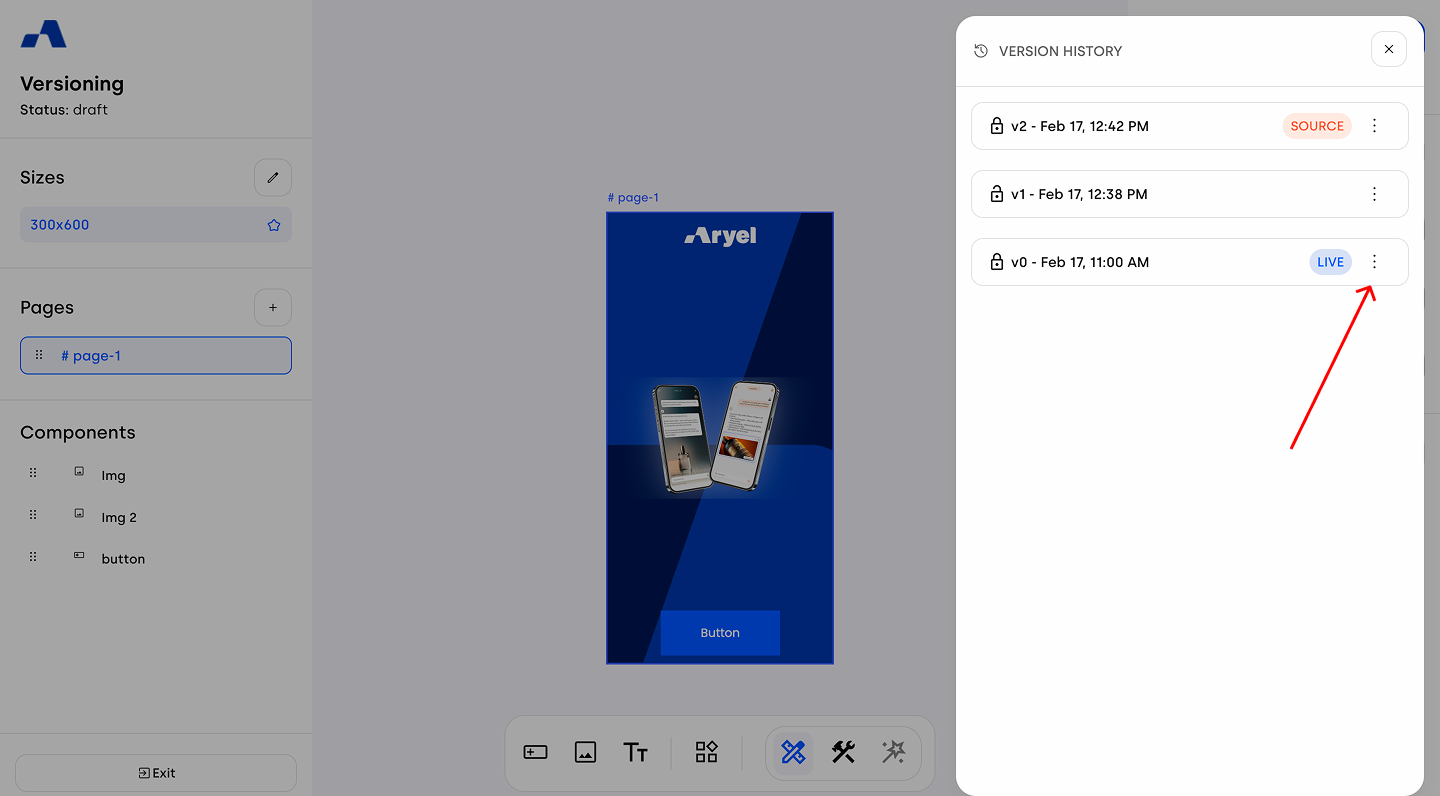
By clicking the three dots on the row instead, different actions are revealed depending on the version ‘status’.
Source Version
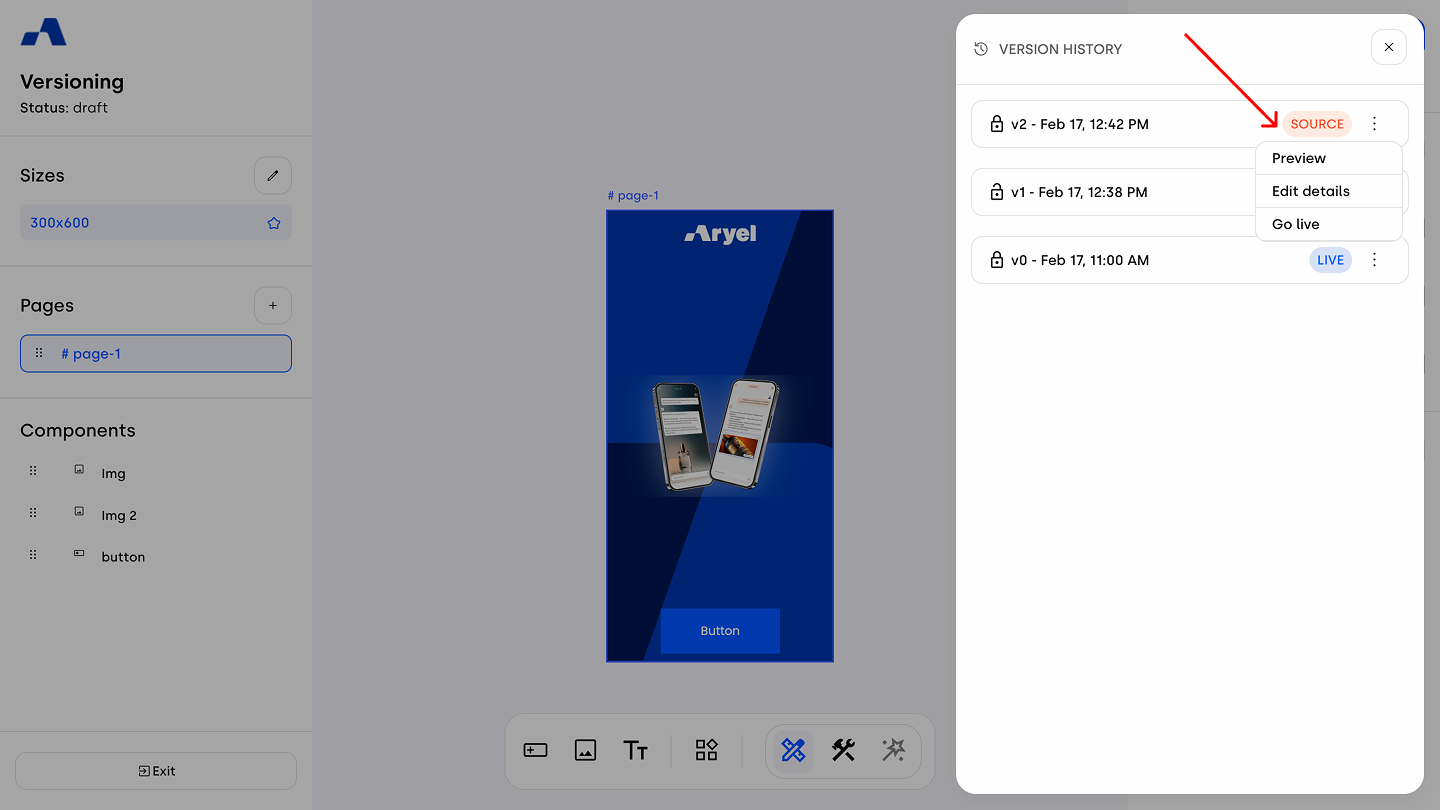
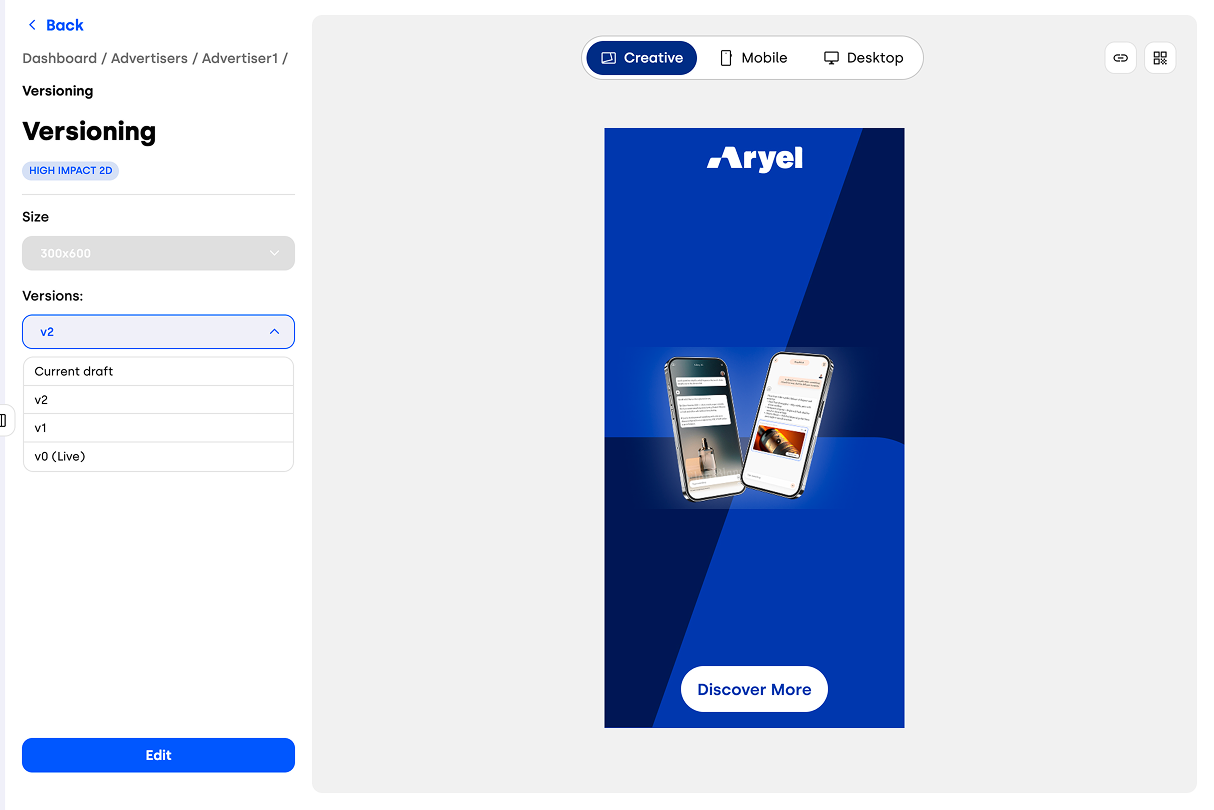
Preview: View the creative preview in Ads Manager.
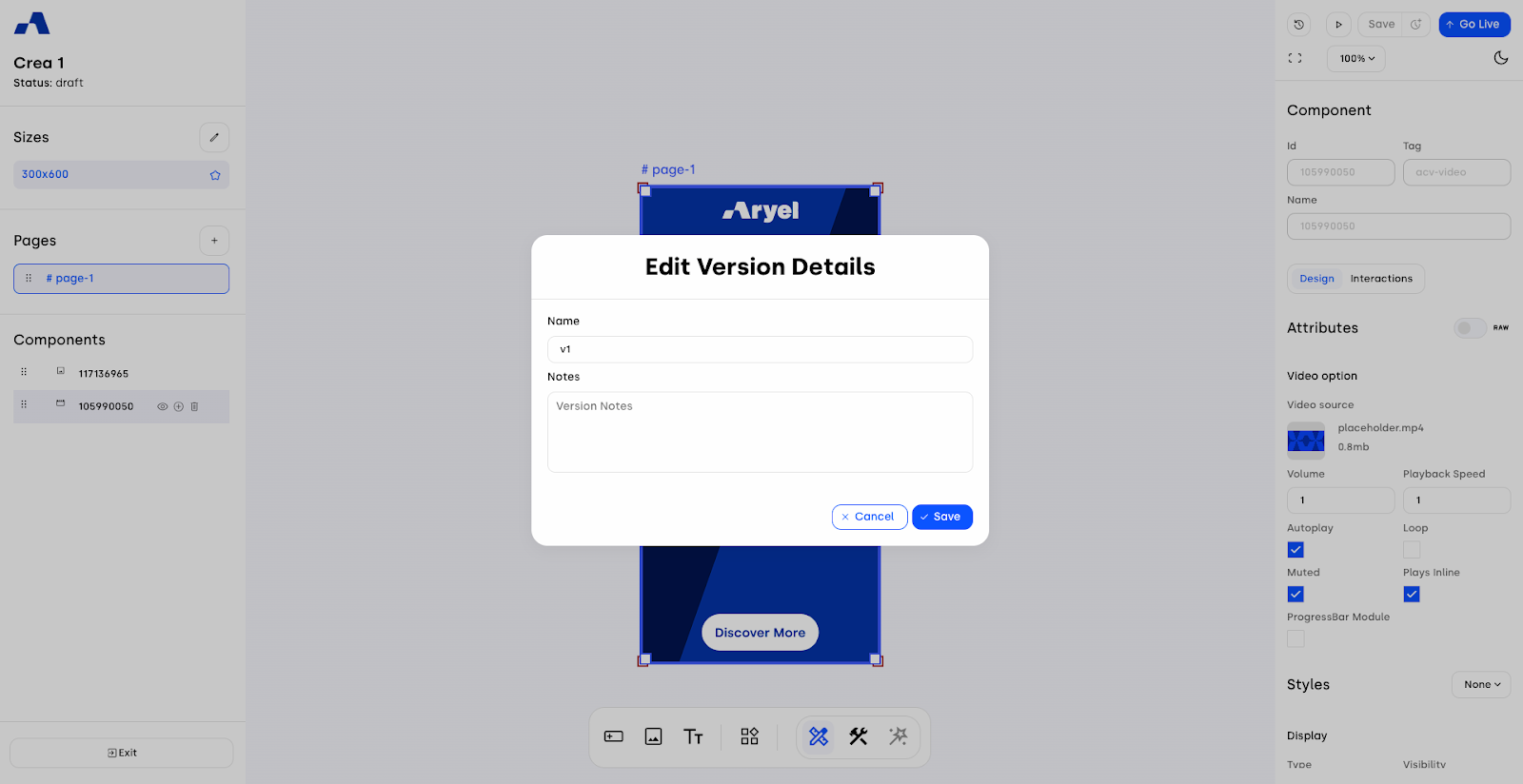
Edit Details: Rename the version and add notes for better identification.
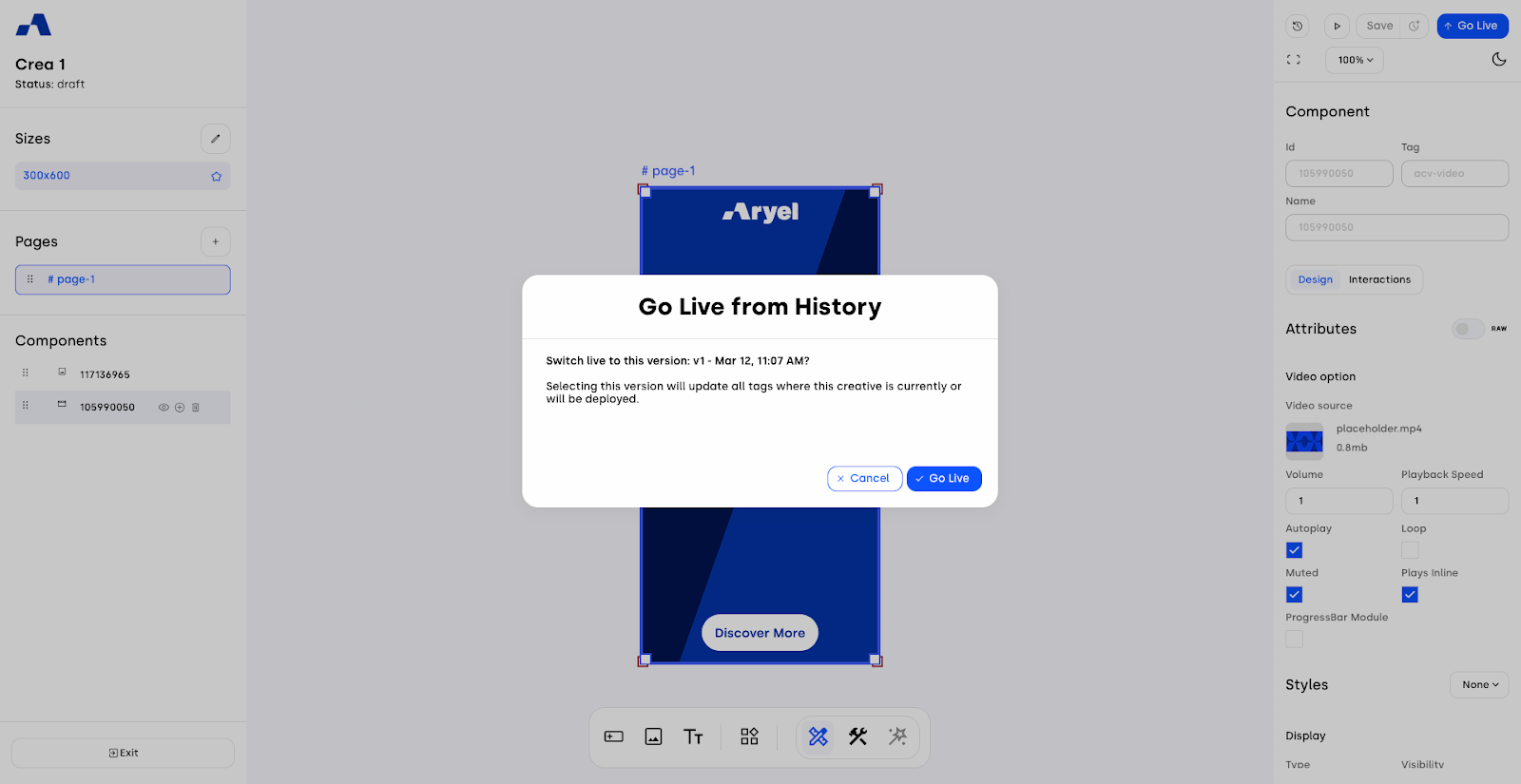
Go Live: Make the Source version the Live version.
Live Version
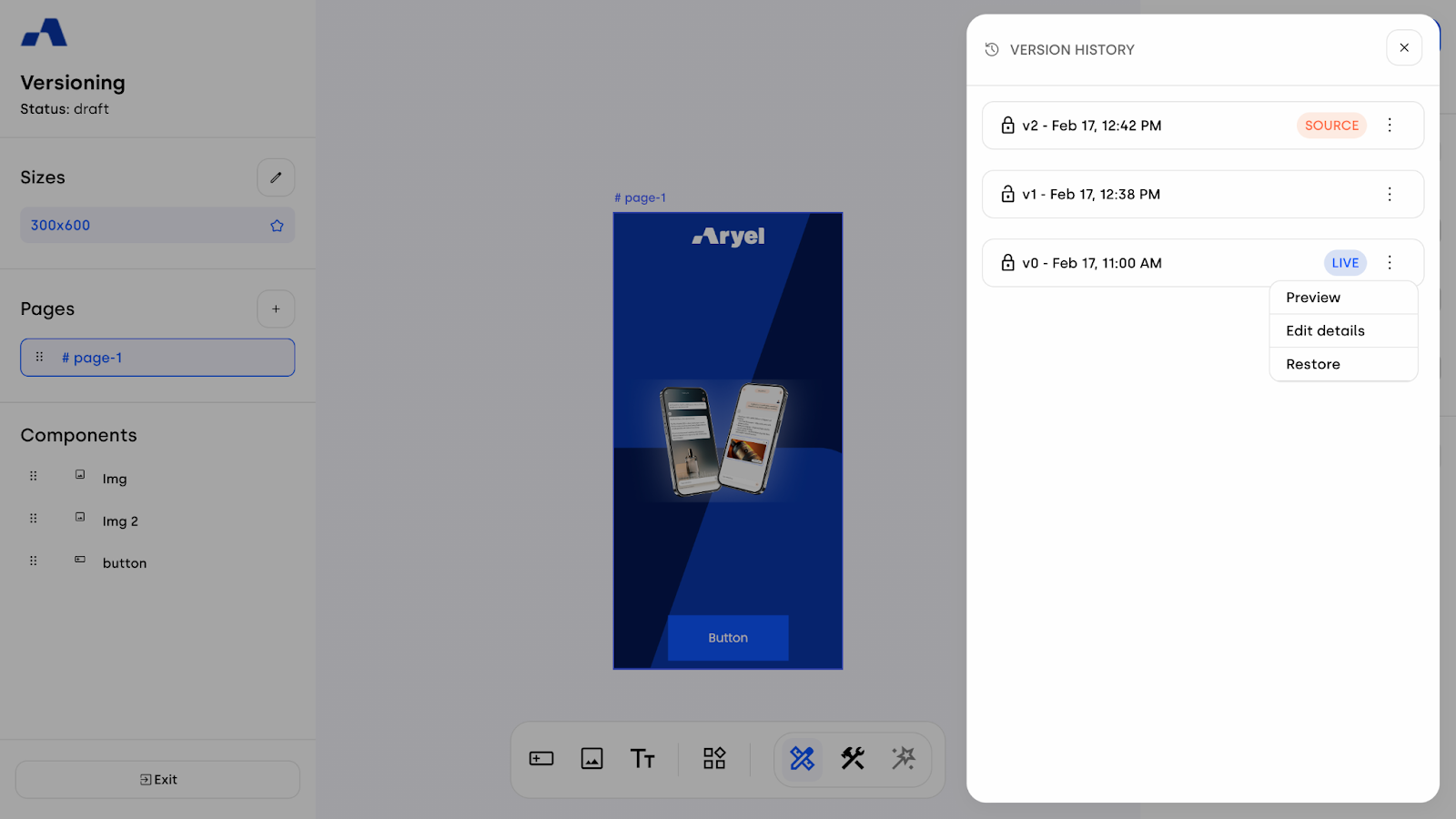
Preview
Edit Details
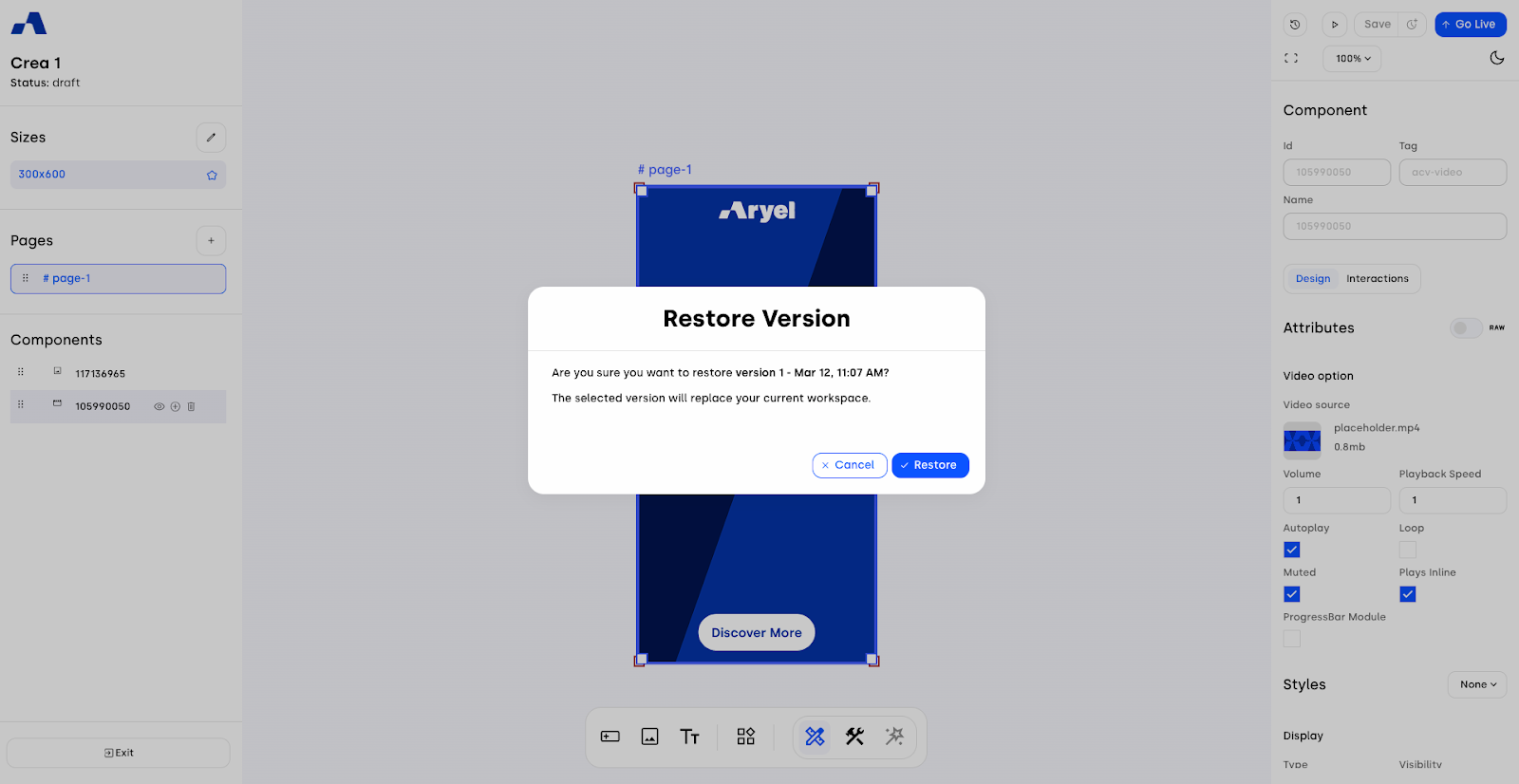
Restore: Make the Live version the new Source version, updating the workspace so you can edit it.
Versions That Are Neither Source nor Live
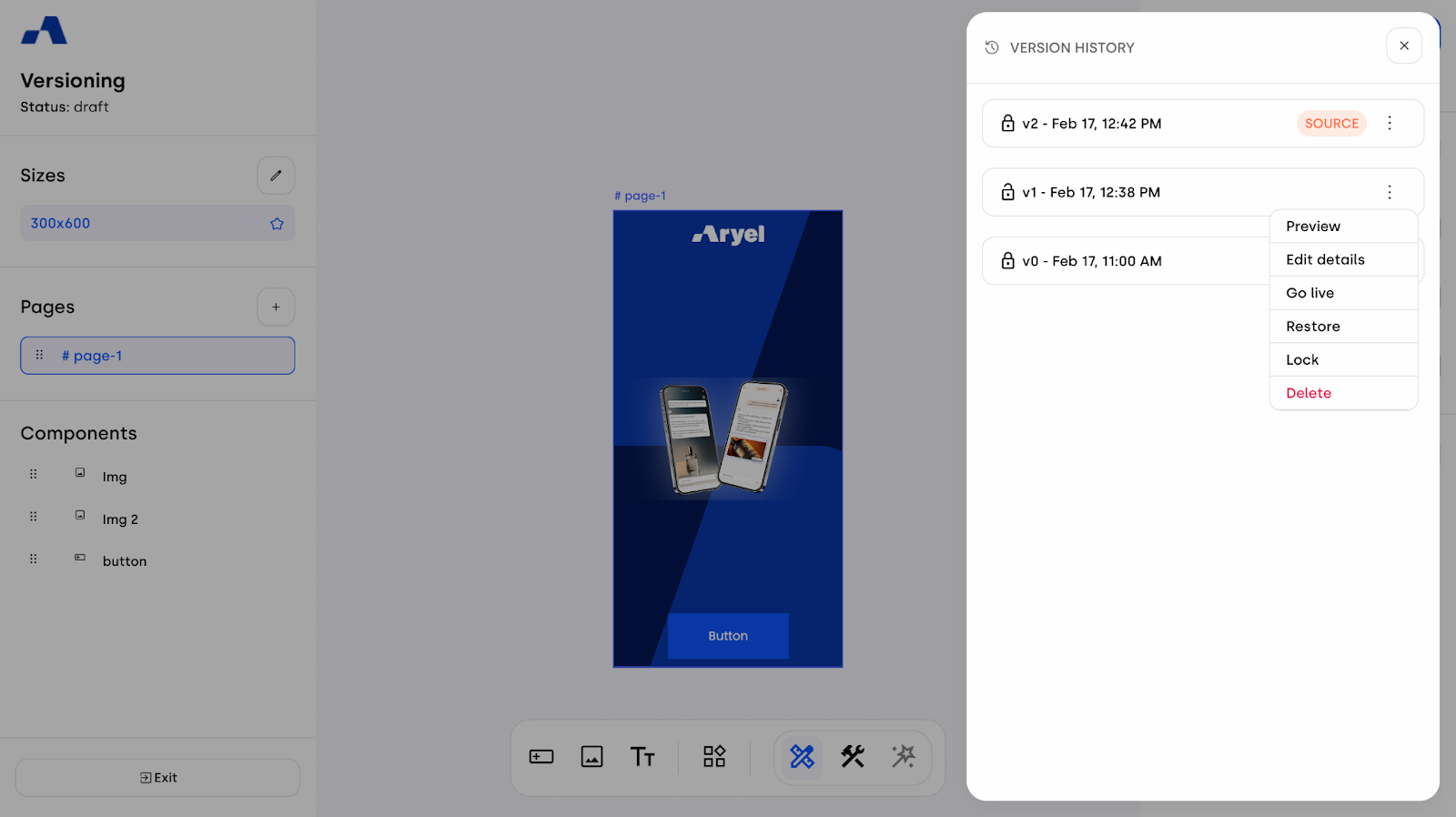
Preview
Edit Details
Go Live
Restore
Lock / Unlock: block the system from automatically deleting the version when the limit of 30 created versions is reached.
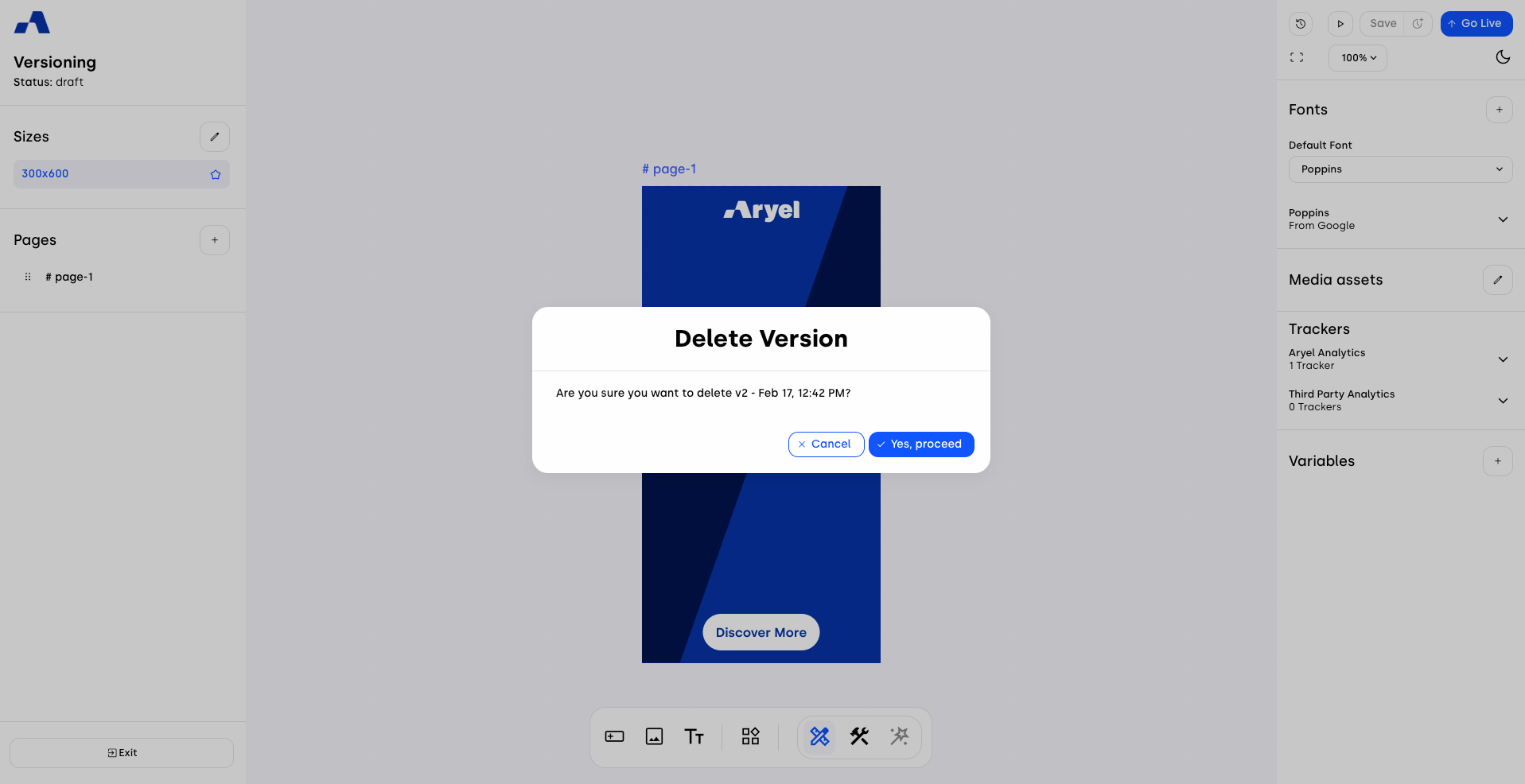
Delete: Permanently remove the version with no possibility of recovery.
Source vs Live Version
Inside the Version history, you can view all created versions and clearly see which one is marked as Source and which one is Live. These can be two different versions — a particularly useful scenario when tags are already delivering, but you need to make updates.
In this situation, you can select a previous version and set it as Source, continue working on modifications while the current Live version keeps delivering, save the updated version, and then click Go Live to replace the active delivery version. Once this step is completed, the creative connected to the delivering tag will automatically update.
Previewing Multiple Versions
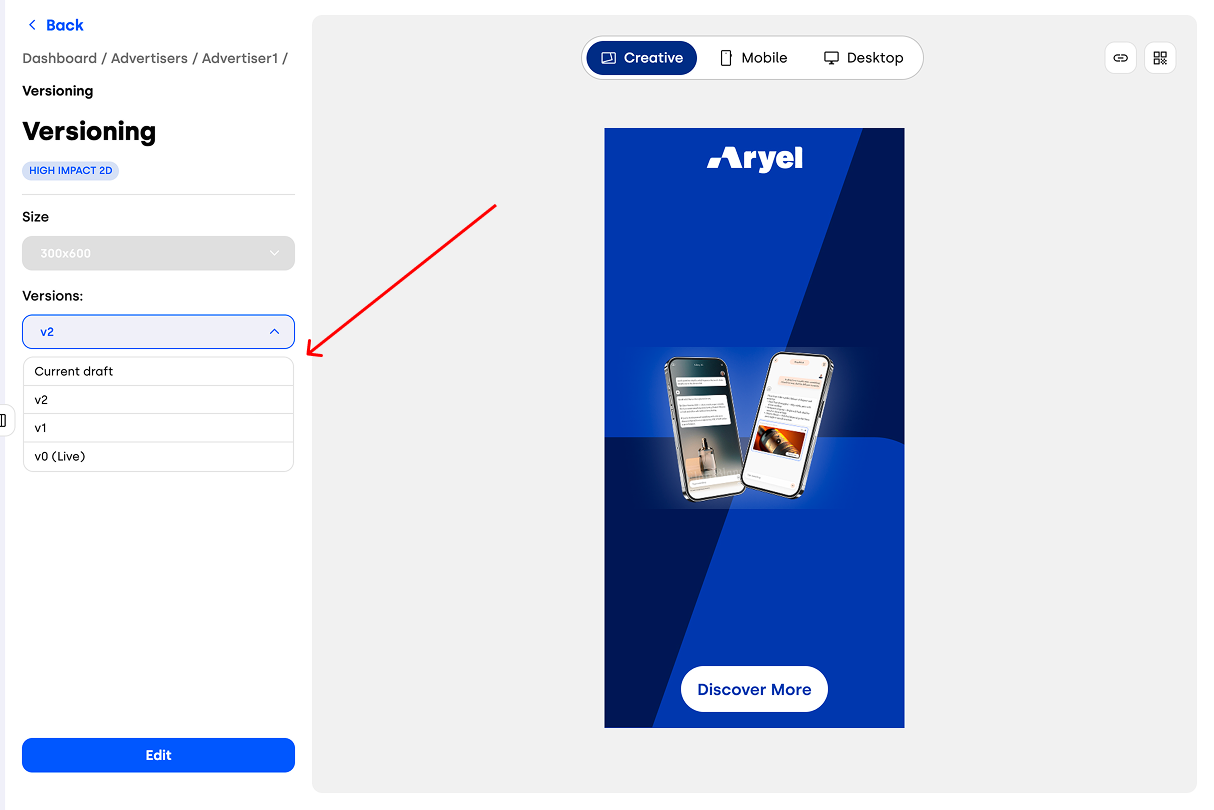
When opening the creative preview for a project that contains multiple versions, you can view all created versions directly within the preview area. This allows you to compare changes and understand how the creative evolved across iterations.
Versioning is a powerful and highly versatile tool. It enables a more agile and controlled workflow, ensuring that no work is lost and allowing you to update creatives even while campaigns are running.
It is particularly valuable for campaigns operating in waves, where iterative updates and performance-driven adjustments are required over time.